
Converting PowerPoint to Google Slides requires a separate save after opening the presentation in Google's editor. Upload the file to Drive, open it with Slides, then choose File > Save as Google Slides to create a Slides-format copy.
Opening a .pptx file alone can leave it in PowerPoint format. Keep the original until the converted presentation has been checked, especially if it contains embedded video, charts or carefully positioned text.
Upload the presentation and open it in Slides
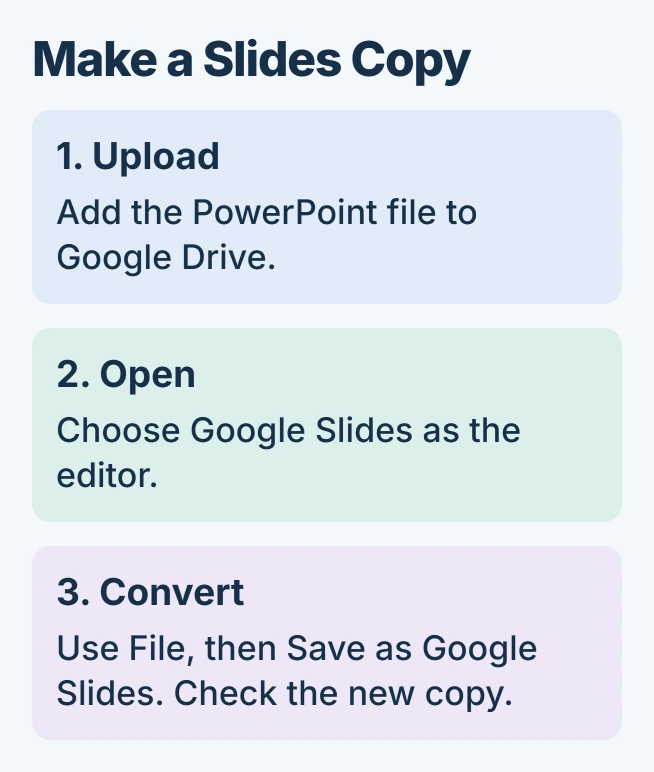
In a computer browser, sign in at drive.google.com using the account intended for the presentation. Choose New > File upload, select the PowerPoint file, and wait for the upload to finish.
Open the uploaded file. If Drive displays a preview, choose Open with Google Slides. The right-click menu's Open with > Google Slides route also selects the editor.
Google's route for opening Office presentations uses this preview. Changes made in that mode remain in the original Office format.
Status: Google's Office-editing documentation and a confirmed Slides conversion outcome reviewed November 1, 2026. This procedure uses a computer browser; no presentation was uploaded.
Confirm the intended presentation is open before continuing. If the title still carries a .PPTX format indicator, opening succeeded but the native Slides copy has not yet been created.
Create the Google Slides copy
Choose File > Save as Google Slides in the editor. Wait for the converted presentation to open, then give it a clear name, such as the project name followed by Slides copy.
Google states in its Office-file documentation that conversion makes a copy. The PowerPoint original remains a separate file; later edits should be made in the copy intended for collaboration.
Return to Drive and check the two entries by file type, not just by their similar names. Share the Google Slides file only after confirming that it is the converted copy.
In July 2025, an owner confirmed that uploading and converting the whole file preserved slide order after Import slides rearranged their deck. That outcome concerns a specific import problem.
Inspect media and formatting before sharing
Run the presentation and check its slide order, text wrapping, images and speaker notes. Pay particular attention to slides containing unusual fonts, charts, animations or media rather than judging the result from its first slide.
Google says its Office-editing limitations include unsupported macros and embedded PowerPoint charts and videos becoming images. A video thumbnail in the converted deck is therefore not proof of playable media.
The PowerPoint video guide explains whether the source clip was embedded, linked or online. Keep access to the original clip when rebuilding a media slide, and test playback in the finished Slides copy.
For a presenter copy, compare the original PowerPoint speaker notes with the notes visible in Slides. Avoid discarding the source deck while any presenter text is missing or misplaced.
Rehearse the converted file using the account and browser intended for the presentation. Successful upload confirms storage, but only a playback check shows whether the slides behave as intended.
When the conversion command is unavailable
Check that Google Slides is editing the file, rather than Drive displaying a preview. Also check whether it is already a native Slides file; an existing conversion does not need the same save command again.
If a shared presentation will not open for editing, ask its owner for the required access or an editable source copy. For a company account, check with the administrator before moving work into a personal account.
For a persistent conversion failure, send Google Docs Editors Help the error, file type and failing stage. Keep presenting the PowerPoint original if the Slides copy loses essential features.
The Short Version
Upload the deck, open it in Slides, and explicitly save a Google Slides copy. Check the converted file's type, sequence and media before sharing it or replacing the PowerPoint source.

Isaac Smith is the founder and editor of PC Glance, a website that covers computers, laptops, and technology. He is a tech enthusiast and a computer geek who loves to share his insights and help his readers make smart choices when buying tech gadgets or laptops. He is always curious and updated about the latest tech trends.