
Export a Keynote presentation as PowerPoint (.pptx), then open that copy in PowerPoint to edit or share it. The export works in Keynote on Mac, iPhone or iPad, and through iCloud.com on Windows.
Changing a filename from .key to .pptx doesn't convert the presentation. Keep the Keynote original and check the exported slides in PowerPoint before sending them to someone else.
Export a PowerPoint copy from your Mac
Open the finished presentation in Keynote. From the Mac's menu bar, choose File > Export To > PowerPoint. This creates a separate file, so you can keep editing the Keynote original.
Follow the export prompts, select Save when shown, give the copy a name the recipient will recognize and pick a folder for it. Finish with Export. Add PowerPoint copy to the name so the two versions are easy to tell apart.
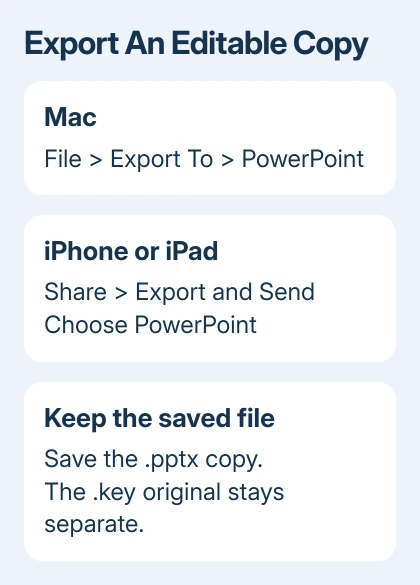
Apple says conversion creates a separate copy in its Office-format conversion instructions. The Mac also offers Share > Export and Send > PowerPoint, followed by Save or Send a Copy.
Either route creates the PowerPoint version. Simply sharing the Keynote document through a collaboration link doesn't ask Keynote to export it, and the recipient may still be looking at the Keynote version.
Check the saved copy's type. It should be a PowerPoint .pptx presentation, not a movie, image collection or another .key file. Intel Macs and Apple silicon Macs use the same menu route.
I'd save the copy locally before emailing it. Open it first to catch a changed layout before the attachment reaches someone else.
Export directly from your iPhone or iPad
In Keynote, open your presentation and tap the toolbar's Share button. Choose Export and Send, select PowerPoint, and choose Save to Files to keep the result on your device or in iCloud Drive.
Pick the folder you intend to use, then complete the save. Return to Files and locate the new PowerPoint copy. Your original stays in Keynote, where you can keep editing it. The export is a separate copy.
Some Keynote versions put the command under the toolbar's Actions Menu > Export > PowerPoint instead. The iPad export guide shows that interface.
Choose whichever export command appears in your version of Keynote. The choice that matters is PowerPoint, not PDF or Movie. Those other formats won't give your colleague a presentation they can edit in PowerPoint.
To send the result immediately, select Mail, Messages or another sharing app after choosing PowerPoint. Check which file is attached before sending, particularly if your conversation already contains the original Keynote document.
The export doesn't depend on whether the tablet has a Home button. The controls depend on your version of Keynote.
Convert on Windows through Keynote for iCloud
In a supported computer browser, sign into iCloud.com with your Apple Account and open Keynote. This is the browser-based editor, so Windows doesn't need the Mac Keynote app installed.
If the presentation is only on the PC, drag the .key file into Keynote's presentation manager or use its Upload button. Wait for the presentation to appear, then select the file you intend to convert.
Open its More menu and choose Download a Copy. Select PowerPoint as the format. If the presentation is already open for editing, the toolbar's More menu offers the same download command.
The converted presentation downloads to the browser's normal download folder. Find that .pptx file and open it in PowerPoint rather than trying to open the original .key file again.
Sign into an Apple Account that can access the presentation. If a shared link only allows viewing, ask its sender for a PowerPoint export or permission to download. Renaming the original doesn't get around that restriction.
For a recipient who wants a Google presentation instead, convert the PowerPoint copy to Google Slides afterward. That's a second conversion, so check the result again in the app they will use.
Keep password protection with the intended copy
A Keynote presentation with a password can keep that protection when you export it to PowerPoint. Check the password options during export rather than assuming that a converted copy is automatically unprotected.
On the Mac, a Require password to open checkbox can let you keep the existing password, use Change Password, or clear that requirement for the exported copy. Choose whether you want the recipient to need a password to open the copy.
The Mac export controls apply that password choice to the new file. Keep the password somewhere safe and send it separately if the recipient needs it.
If your slides use watermarked Content Hub items, exporting can prompt you to keep the watermarks or subscribe to Apple Creator Studio. Check that choice before sending; converting formats doesn't remove premium-content watermarks.
Check the slides before handing them over
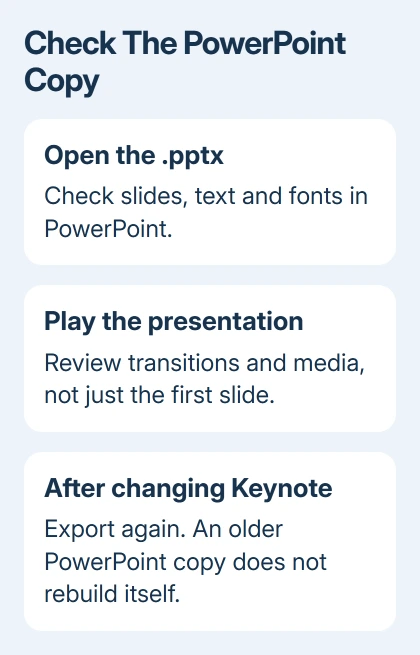
Open the exported file in PowerPoint and run through the entire slideshow. Compare titles, line wrapping, pictures, charts, transitions and playable media with the Keynote original. Don't stop at the first slide, even if it looks right.
Fonts deserve a separate look when the presentation moves between computers. If the recipient needs a custom typeface, the PowerPoint font installation and sharing steps explain what must be available on their system.
Recheck the exported copy after correcting a problem in Keynote. Changes to the original don't automatically rebuild a PowerPoint file you exported earlier, so create a fresh export when the slide content changes.
To go the other way, open a .pptx in Keynote and review any compatibility or missing-font warning. Opening it imports the slides. Export as PowerPoint again when returning an edited copy to someone who uses that app.
If export fails, give Apple Support the Keynote version, device, chosen format and exact message.
If export succeeds but one slide behaves differently in PowerPoint, keep both versions. When asking for help, point out the text, picture or other object that changed.
The Short Version
Export as PowerPoint in Keynote, or choose Download a Copy and PowerPoint on iCloud.com. Save the .pptx, open it in PowerPoint, and inspect the slides before sharing. Keep the original for later edits and reexport after making changes.
Checked November 9, 2026.

Isaac Smith is the founder and editor of PC Glance, a website that covers computers, laptops, and technology. He is a tech enthusiast and a computer geek who loves to share his insights and help his readers make smart choices when buying tech gadgets or laptops. He is always curious and updated about the latest tech trends.