
Windows Update Blocker turns Windows update services off and back on. For a short break, use the built-in pause first. If you use the Sordum utility, keep its files so you can turn updates back on afterward.
Check that Windows can get updates again when you're done. Closing the utility doesn't undo its changes, and a green service indicator doesn't mean Windows has completed an update.
Choose a pause or a service block for the actual problem
For an upcoming meeting or a busy week, open Settings > Windows Update in Windows 11 and look for Pause updates. Current versions offer Pick a date; other builds show a duration selector.
The supported pause controls temporarily delay updates without a separate program. On Windows 10, start at Settings > Update & Security > Windows Update instead.
If you just need restarts at a better time, check active hours before blocking anything. The pause and restart guide covers that choice. A restart schedule and a disabled update service solve different problems.
Windows Update Blocker controls services rather than approving individual patches. If one update keeps failing, write down its error before blocking updates altogether.
I'd use a pause for an ordinary deadline. If you choose a service block, know what it changes and how you'll reverse it. Missed Windows updates include security fixes.
Get the utility from its developer's page
Open the Windows Update Blocker download page. Check the product name and use its download link rather than an unrelated download advertisement or a repackaged installer.
Sordum says to extract the portable utility's archive into a folder and run it from there. The programs are Wub_x64.exe and Wub.exe. Use the one that matches your Windows system.
Keep the extracted files together, including the configuration file that stores the program's settings. Choose a folder you'll recognize later, rather than running it from a temporary archive window.
When Windows asks for administrator permission, check that you're opening the copy you intended. If a work or school computer is managed, ask its administrator about update timing instead of changing its services yourself.
Downloading the file doesn't change the update service. After extracting it, you'll make the service changes inside the Windows program.
Apply the service setting and read the result
Open the utility, select Disable Service, then click Apply Now. Its status indicator shows whether the service is enabled or disabled. Protect Service Settings is meant to stop other processes changing those settings.
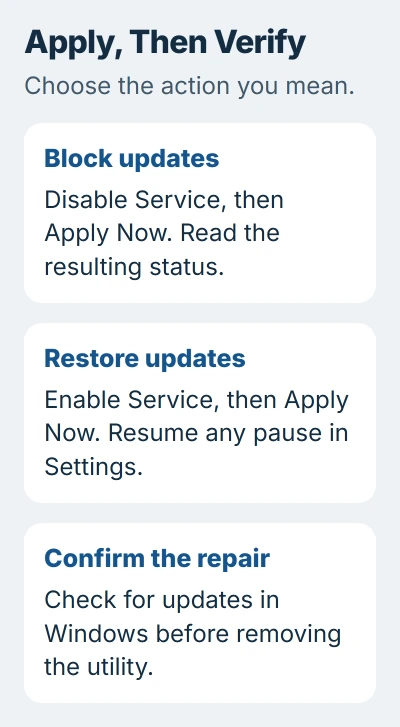
Check the indicator after applying the change. If it reports failure, don't assume updates are blocked just because you selected that option. The option shows what you asked for; the status shows whether it worked.
Stick to the update controls you need. You can add services through Wub.ini and Service List Options, but blocking updates doesn't require a list of extra services copied from a forum.
Extra services make it harder to undo the changes because you'll need to remember each one. Note the date and setting you applied so you can check them if another Windows feature stops working.
If a restart is pending, the blocker won't undo an installed patch. Check Update history to see what was installed before you applied the block.
Restore service before removing the program
Run the same utility again, choose Enable Service, and click Apply Now. Then open Windows Update in Settings. If updates are also paused there, select Resume updates to remove that separate delay.
Keep the utility until you've checked the result in Windows. Deleting its folder takes away your easy way to restore the service; it doesn't reverse the settings.
Select Check for updates and read the result. Whether the check finishes, offers a download or gives an error tells you more than the utility's indicator alone. Allow any requested restart before checking again.
If you added services to Wub.ini, enable them again before deleting their entries. Removing a line from that file won't start its service.
Don't try several different blocker programs during the same repair. If several tools change the same settings, you can't easily tell which one keeps blocking updates. Undo the known change, then test Windows Update again.
Check dependent features when something else stops working
Voice typing and the Microsoft Store can depend on update services, so blocking them can affect those features too. Re-enable the service before reinstalling an otherwise working app.
Try the same action with the service back on. For example, open the text field where voice typing failed and try it again. If it works now, you have a reason to leave the service enabled rather than repairing the microphone or keyboard.
If the feature still fails, keep its error message. A separate app problem can exist alongside an update block. A recent service change doesn't mean every later fault needs another service tweak.
Repair Windows Update if enabling it isn't enough
Restart once after restoring the services, then repeat the update check. If Settings still reports a failure, follow the Windows update troubleshooting route for your version.
On current Windows 11 systems, start with the automated troubleshooter in Get Help. Give it the error from Settings and follow its prompts so the repair matches the problem you're seeing.
If you have an error code, use the Windows Update error guide to choose the next check. Don't delete update folders or reset service permissions simply because another computer needed those steps.
If Windows still can't check for updates, send support the error, Windows version and blocker settings you restored. Ask the administrator for a managed PC, or Microsoft Support for a personal one. Keep your notes until checking works.
The Short Version
Pause updates for a temporary delay. With Windows Update Blocker, apply your choice and keep its folder. To reverse it, enable service, apply, resume any separate pause and check that Windows Update works before deleting the utility.
Checked November 5, 2026.

Isaac Smith is the founder and editor of PC Glance, a website that covers computers, laptops, and technology. He is a tech enthusiast and a computer geek who loves to share his insights and help his readers make smart choices when buying tech gadgets or laptops. He is always curious and updated about the latest tech trends.