
A Ring camera that won't connect to Wi-Fi may need its saved network updated, a stronger signal or restored power. Check that it's powered and your home internet works, then use Device Health > Reconnect or Change Network in the Ring app.
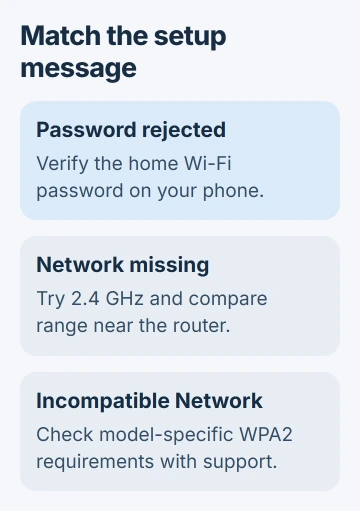
Setup failures need a closer look at the message. A rejected password, a missing network and an incompatible-network warning call for different fixes. Keep the wording or light pattern so you can choose the right check.
1. Confirm the camera is offline and has power
Open the Ring app and look at the camera's tile. If it has an offline symbol, tap it to read the error code and troubleshooting steps. Check which camera you've selected so you don't change another device by mistake.
For a battery camera, charge its battery and check that it's seated properly. For a plug-in camera, check its adapter and wall outlet. A network setting can't bring back a camera that has no power.
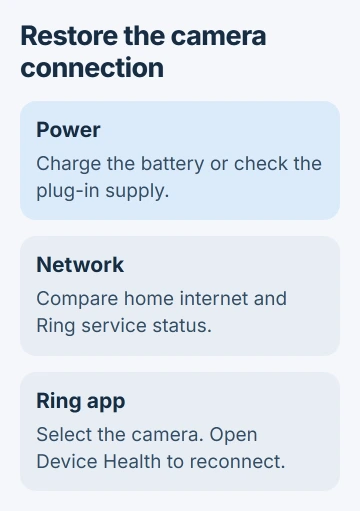
Ring recommends checking power and using the offline-device reconnection steps. Keep the camera available for setup rather than deleting it from your account as an early troubleshooting step.
If the app shows the camera online but live video fails, note both details. A playback failure doesn't always mean the Wi-Fi connection is lost, even though both can stop you from viewing the camera.
2. Compare home internet with Ring's service status
Join your home's Wi-Fi on the phone, then load a fresh webpage. For this check, temporarily turn cellular data off so your phone can't use its mobile connection instead.
If the phone fails too, use the connected-but-no-internet checks. Restore the router's internet connection before repeating camera setup. Afterward, re-enable cellular data.
If webpages load normally but several Ring devices fail together, open the Ring service status page. Read its current status banner and any incident affecting the app, device health or video services.
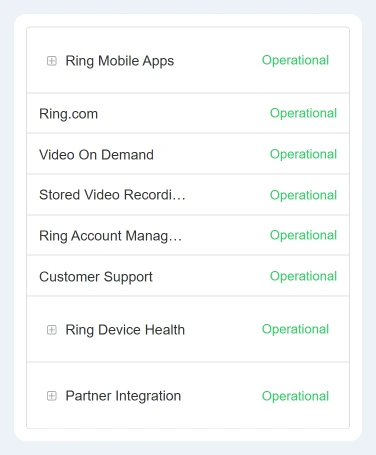
If a matching incident is active, follow its updates before resetting your camera. If service is normal, continue with the camera's saved connection. The page tells you about Ring's service; it doesn't measure your router's signal strength.
For a home-network failure, restart the modem and router by disconnecting their power for 30 seconds, then reconnecting them. Wait for internet access to return before checking the camera again.
3. Reconnect through the camera's Device Health page
In the Ring app, open Menu > Devices and select the affected camera. Tap Device Health. Under Network, choose Reconnect or Change Network, depending on the control offered.
Follow the app's prompts while you're beside the camera. After a router replacement or a change to its Wi-Fi name or password, your phone may be connected while the camera still has the old details saved.
Keep the phone close to the camera while setup runs. Watch its lights and listen for spoken setup messages. Note the step where setup fails so you can tell which connection is going wrong.
If it reconnects, open live video and check the camera from its intended position. Even after setup succeeds beside the router, the camera needs a working connection in the place where you'll use it.
4. Separate the setup network from your home network
During setup, the camera can create a temporary Ring Wi-Fi network for the phone to join. Connecting to that network is a separate stage from connecting the camera to your home Wi-Fi.
If the phone can't find the temporary network, check that the camera is powered and in setup mode. Use the setup troubleshooting guide to match its light pattern to your model.
If setup instead rejects the home password, verify that password on your phone. On Android, the Wi-Fi network controls let you select the network and manage its saved connection.
Have the password ready before forgetting a saved network, then reconnect by typing it. If your phone rejects the password too, get the correct one from the router owner or provider before trying the camera again.
Your phone may be using a remembered password that you haven't typed recently. Check the one you're entering during setup, including capitalization.
5. Try the supported band and compare signal range
If your router uses a different network name for each band, choose the 2.4 GHz one. The device compatibility FAQ lists 2.4 GHz support for all Ring devices, while some models also support 5 GHz.
Move a portable camera closer to the router for setup. If it joins nearby but disconnects after returning to its normal position, use the extender placement checks to improve coverage there.
Don't remove a fixed, hardwired camera just to perform this comparison. Work with its accessible settings or ask the installer for help. Changing the router's placement can be easier than moving the camera.
An extender or mesh node needs a good connection to the router too. If you put it beside the camera in the same dead spot, it may have the same weak connection.
6. Treat Incompatible Network as a security-setting problem
An Incompatible Network warning means the camera can see the network but can't use its security settings. The setup guide lists WPA3 as an example and names affected models including Stick Up Cam Pro and Spotlight Cam Pro.
For that specific warning, use an available 2.4 GHz WPA2 network, or ask the router provider to help configure a compatible one. Don't assume every camera model needs the same router changes.
I'd ask for a separate compatible network before changing security settings for the whole house. Give support your camera model and full warning so they can check which networks it supports.
7. Restart the camera, then ask about a model-specific reset
For a plug-in camera, briefly disconnect its power and reconnect it. For a model with a removable battery pack, remove the pack for a few seconds, then reinsert it. Let the camera start before retrying the connection.
The device reboot instructions explain that the camera needs working Wi-Fi for the app's reboot command. You can't use that remote command while the camera is offline.
If setup continues to fail, contact Ring Support with the model, error, light pattern and results near the router. A factory reset is a final option that requires setup again; use the procedure for that exact model.
The Short Version
Check power, internet and service status first. Reconnect in Device Health, distinguish temporary setup Wi-Fi from home Wi-Fi, then compare password, band and range. Use model-specific support before a factory reset.
Checked November 5, 2026.

Isaac Smith is the founder and editor of PC Glance, a website that covers computers, laptops, and technology. He is a tech enthusiast and a computer geek who loves to share his insights and help his readers make smart choices when buying tech gadgets or laptops. He is always curious and updated about the latest tech trends.