
A frozen Galaxy J8 can be restarted with Power plus Volume Down held longer than seven seconds. Once it responds, check its storage and whether the trouble follows one app before considering a factory reset.
The J8 has older Galaxy menus. Instructions for a recent phone's Side button or new One UI features can send you to controls it doesn't have. These steps use the J8's Android 10 manual for its menu paths.
1. Restart the J8, then check what still fails
If the screen responds, hold the Power key to open its power menu and choose Restart. For an unresponsive screen, hold Volume Down together with Power for longer than seven seconds to force a restart.
The Galaxy J8 manual gives that button combination for an unresponsive phone. It restarts your J8 without erasing it.
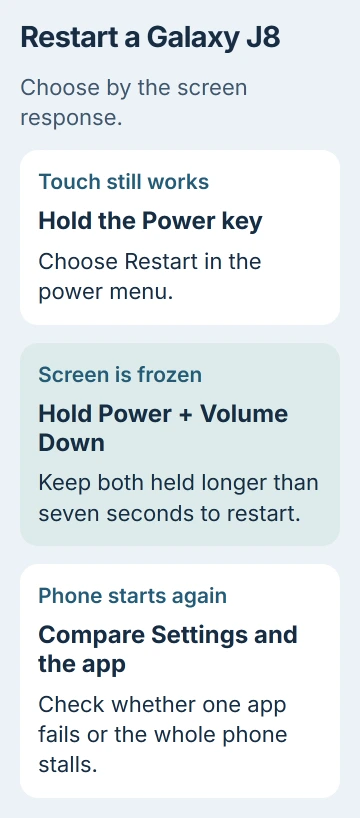
After it starts, unlock it and try Settings, then the app that was failing. If Settings works but that app freezes, check the app. If the whole phone still stalls, check its storage next.
If the phone is completely blank but undamaged, connect a suitable working charger and let it charge before trying again. Holding the Power key won't start a J8 with a fully drained battery.
Stop using or charging the phone if its screen has lifted, its battery is damaged or it feels unusually hot. Describe the damage or heat to a repairer.
2. Free internal storage through the J8's own menus
On Android 10, open Settings > Device care > Storage. Look at the available internal space and the categories using it. An earlier software version may call this area Device maintenance instead.
Remove downloads you no longer need, uninstall unused apps, or transfer saved photos and videos to a computer. Open important copied files on the computer before deleting their originals from the phone.
Google's frozen-phone guidance says problems can start when less than 10% of storage remains free. Read the internal-storage figure; free space on a memory card is a separate amount.
In Device care, use Optimize now if offered, then try the action that failed again. The J8 manual says this closes background apps and checks for abnormal battery use, crashed apps and malware.
If freeing space helps, keep enough room in internal storage for your apps to work. If the phone still locks up, check which app is involved instead of repeatedly pressing the cleanup control.
The separate Memory page shows running apps, not the storage holding your pictures. Closing background apps can help you check performance, but it won't free the storage taken up by a large video.
3. Update the failing app and check for an offered system update
Open the Play Store, select your profile picture, then Manage apps & device. Install available updates for the affected app. If its current version no longer supports your Android release, check the developer's supported versions.
On the J8, open Settings > Software update > Download and install. Install a release only if the phone offers it for that model and region. An old Galaxy doesn't receive every feature shown in a current One UI tutorial.
If no update is offered, continue with the app comparison. A message that your software is current means no update is available for that device. An app can still need a newer Android version.
For a camera error, also check charge and free internal space before reopening Camera. The J8 manual names both requirements. Persistent camera-only trouble has its own Samsung Camera app checks.
Don't clear an app's data just to speed up the phone; it can remove saved information and sign-ins. Try updating it and checking the phone in Safe mode first.
4. Compare the phone in Safe mode
Safe mode starts the J8 with downloaded apps turned off. Use it to check whether an installed app is causing the home screen, calls or other phone controls to freeze.
Turn the J8 off. Turn it on with the Power key, then hold Volume Down when the Samsung logo appears. Keep holding until startup finishes and Safe mode appears at the screen's bottom edge.
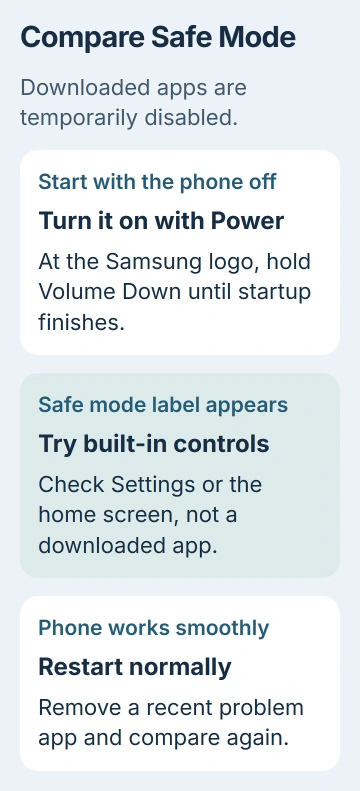
Try the built-in function that was failing, such as opening Settings or moving around the home screen. Downloaded apps won't run in Safe mode, so check how the phone itself behaves.
When Safe mode runs smoothly, restart normally and remove a recently added or updated app that matches the start of the trouble. Check the result after each removal to see which app mattered.
Freezes that continue in Safe mode make a downloaded app a weaker explanation. Check your backup and service options next instead of uninstalling all your apps.
5. Back up before the final software reset
While your J8 still works, check your Android backup and saved copies before erasing it. Confirm the backup date and copy important local files, including pictures or downloads that haven't synced.
Check that your J8's existing Google account password works; setup can ask for it after a reset. Keep access to your authenticator and other account recovery methods on another trusted device.
For software trouble that survives those checks, open Settings > General management > Reset > Factory data reset > Reset > Delete all. This erases your personal data, installed apps and settings.
After setup, try the basic function before restoring all your apps. Trouble that starts again when you restore one app belongs with that app's developer. Tell them what happened instead of repeating the same reset.
If the J8 won't stay on long enough to save important files, stop before erasing it. Ask a repairer whether those files can be saved first, so a reset doesn't remove your only copy.
6. Arrange service when the same fault continues
Contact Samsung or a qualified repairer if touch or charging still fails, or the problem continues after a fresh setup. Give your exact model, Android version and any checks that changed how the phone behaves.
For touch trouble, explain whether a clean, dry screen and removing an added protector changed anything. Report physical damage as well. For shutdowns, say whether they happen only while charging or also on battery power.
Ask for an inspection and a full quote before agreeing to a battery or display replacement. The phone's age doesn't tell you which part failed. A restart that helps briefly doesn't explain why the fault keeps returning.
The Short Version
Use the J8's forced restart if frozen, then check storage, app updates and Safe mode. Verify saved copies before erasing personal data. Persistent touch, charging or clean-setup failures need a repair assessment.
Checked November 5, 2026.

Isaac Smith is the founder and editor of PC Glance, a website that covers computers, laptops, and technology. He is a tech enthusiast and a computer geek who loves to share his insights and help his readers make smart choices when buying tech gadgets or laptops. He is always curious and updated about the latest tech trends.