
Samsung's Camera failed warning can come from a temporary Camera app error or a fault that needs service. Start by clearing Camera's app data in Settings. This resets camera preferences while keeping saved photos and videos.
If the warning returns, restart, check available updates and test Camera in Safe mode. The result helps decide whether to remove a downloaded app or take the phone to Samsung.
Clear Camera's app data without erasing your pictures
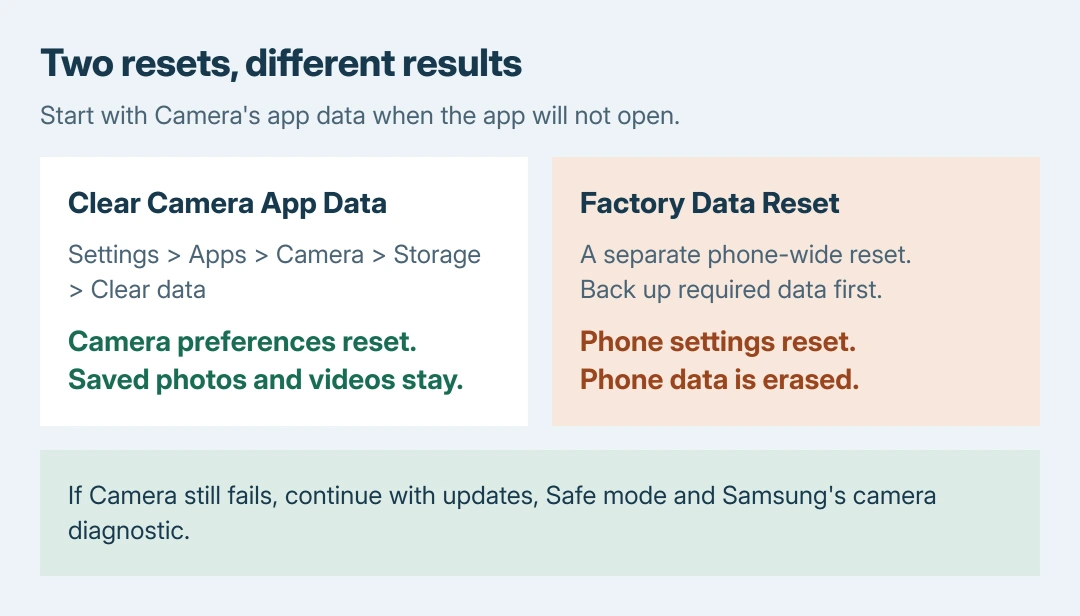
Open Settings > Apps > Camera > Storage. Tap Clear data, then Delete to confirm. Reopen Camera and try taking a picture. If it saves normally, check the camera preferences that were returned to their defaults.
Samsung's camera-startup guidance specifically says this action resets Camera settings without deleting saved photos, videos or other personal data.
Status: Samsung's Camera failed, app-data, Safe mode and diagnostic instructions checked October 28, 2026. Menus vary by Galaxy model and software. No handset was tested.
This is the Camera app's Clear data control, reached through Apps. Leave the phone's Factory data reset option alone at this stage. Those two resets have very different effects.
When Camera opens, Samsung also documents Camera > Settings > Reset settings > Reset. On the Galaxy S25 series and One UI 7.0 or later, first tap Camera's four-dot Quick settings icon to find Settings.
Use the app-data route when Camera closes before its own controls can be reached. Completing both resets in succession is unnecessary; check whether the warning has stopped before changing anything else.
Restart once, then check the available updates
Use the Galaxy restart controls to restart the phone, then open Camera again. A working preview and a newly saved picture confirm that the app is operating after that restart.
If the problem returns, open Settings > Software update > Download and install. Some models or carriers use System updates > Check for software updates instead. Follow the offered download and installation prompts.
Samsung states that this update needs an internet connection and at least 50% battery. Some carriers require Wi-Fi. If the Camera fault remains afterward, continue to the Safe mode comparison.
When Camera opens, check Camera > Settings > About Camera too. Tap Update if offered. Use the four-dot route to Settings on newer layouts. If the app is already current, continue with the Safe mode check.
Google's Android app troubleshooting also starts with restarting and updating. Samsung's own menus control the Galaxy instructions here; Google's generic Android button sequence differs.
Test the camera with downloaded apps disabled
The Safe mode test documented by Samsung temporarily disables downloaded apps to check whether one interferes with Camera.
Have the phone's unlock credentials ready before restarting into Safe mode. Samsung says the security credentials are required again after the reboot.
- Open the phone's Power menu. On newer Galaxy layouts, start a downward swipe at the top-right corner, then tap the power icon. A model with a dedicated Power button can open that menu by holding the button.
- Touch and hold Power off to reveal the Safe mode control.
- Tap Safe mode. Confirm startup includes the Safe mode label.
- Open the built-in Camera app and try the action that previously produced the warning.
If Camera works there, start with an app installed just before the fault began. Remove suspected apps one at a time, then leave Safe mode and test Camera after each removal. Keep any needed app data before uninstalling.
To leave Safe mode using Samsung's documented route, return to the power controls and select Power off. Let the handset shut down, then start it normally. The Safe mode label should disappear.
If Camera still fails in Safe mode, downloaded apps may not be responsible. That result does not prove a broken camera module. Continue to the camera diagnostic rather than deleting unrelated apps.
Run Samsung's camera diagnostic before arranging service
Open Samsung Members > Support. Under Phone diagnostics, tap Get started, then choose Camera. Samsung says the initial control can start a full scan; stop it and select the individual Camera test if needed.
Follow the test and keep its result. This requires Samsung Members to be installed. Record whether the original Camera warning still occurs, even if a diagnostic passes; the test result and the app's behavior are separate observations.
If the problem persists, contact Samsung Support or a Samsung service center. Its camera-startup guidance says the camera module or internal circuitry may need inspection when those steps do not restore operation.
Give support the Galaxy model, software version, warning, Safe mode result and diagnostic result. Mention whether the fault began after an update, without treating that timing as proof of its cause.
Samsung's longer troubleshooting sequence also includes a factory reset. Before considering that erasing step, check the Android backup's saved contents and keep separate copies of required photos and files.
A whole-phone reset erases data and settings. Ask Samsung whether it is appropriate for the results already collected, especially when the diagnostic reports a fault. Camera's Clear data control does not have that same erasing effect.
The Short Version
Clear Camera app data; Samsung says saved photos and videos remain. Follow with restart, updates and Safe mode if needed. A working camera in Safe mode points toward a downloaded app. Persistent failure needs Samsung's assessment.

Isaac Smith is the founder and editor of PC Glance, a website that covers computers, laptops, and technology. He is a tech enthusiast and a computer geek who loves to share his insights and help his readers make smart choices when buying tech gadgets or laptops. He is always curious and updated about the latest tech trends.