
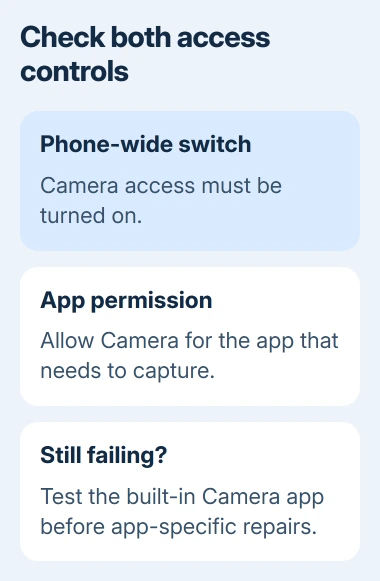
An Android camera may stop working across apps when the phone-wide Camera access control is off. Turn it on, then compare the built-in Camera app with the app that failed.
The detailed repair steps here use Google Pixel. Samsung's Camera failed warning has its own app-reset procedure, while other Android brands can place the same settings under different names.
Restore camera access before resetting an app
Open Settings > Security & privacy > Privacy > Privacy controls and turn Camera access on if it was disabled. Older layouts can put this switch directly inside Privacy.
The system-wide switch is documented by Google. It is separate from allowing one application to take pictures.
Status: Android camera-access controls and Pixel repair guidance checked November 2, 2026. A successful owner report is from 2021; no handset was tested here.
One owner with a Pixel 5 confirmed that enabling Camera access restored their black preview. That report supports checking the switch, but does not establish that every black camera has the same cause.
Reopen the phone's Camera app and try a normal photo. A visible preview and a saved picture show that capture is working in that app. If the preview remains unusable, continue with the Pixel checks.
If only one app fails, inspect its permission
When Camera works but a messaging or video app cannot use it, open Settings > Apps, select the affected app and tap Permissions > Camera. Permit access while that app is in use, if it needs to capture pictures.
Google says camera permission controls taking photos and recording video in its Pixel app-permission guide. Access to saved photos is a separate permission and does not grant live camera capture.
Return to the affected app and try its camera again. If permission was already allowed and capture still fails there alone, follow the Android app troubleshooting checks for that application.
Avoid granting access to unrelated apps. The useful comparison is the built-in camera against the particular app that failed.
Restart Pixel, clear Camera's cache and check updates
For Pixel 6 and later, hold Power + Volume Up to open the power controls, then choose Power off. On Pixel 5a and earlier, hold Power instead. Once off, hold Power to start the phone again.
Google's Pixel camera troubleshooting recommends checking Camera after each step. If restarting did not help, touch and hold its app icon, then open App info > Storage & cache > Clear cache.
This removes cached app files. Leave Clear storage alone during this step; it is a different control. Reopen Camera before making another change.
Check Google Play > profile picture > Manage apps & devices for a Pixel Camera update. Also inspect Settings > System > Software updates > System update and install any offered system update.
An available update is a possible repair, not proof of the cause. After installation finishes, retry the action that failed, including changing from the selfie lens to the rear camera if that triggered it.
For a Galaxy showing the named warning, use the Samsung Camera failed procedure instead of assuming Pixel's cache controls are identical.
Compare safe mode before arranging a repair
Record the Home screen's widget positions first; safe mode can remove widgets that must be added again. On Pixel 6 and later, open the power controls, touch and hold Power off or Restart, then confirm OK.
Wait for Safe mode to appear and try the built-in Camera app. Google's safe-mode instructions describe how this disables downloaded apps for the comparison.
Google states that successful capture with downloaded apps disabled points toward one of those apps. Restart normally, then remove recently installed suspects individually and retest Camera. Preserve needed app data before removing an app.
If Camera still fails, or other apps crash when accessing it, contact the phone maker. Include the model, Android release, affected lens and safe-mode result. Continued failure needs assessment; it is not a complete hardware diagnosis.
The Short Version
Check the phone-wide Camera access switch, then the affected app's permission. For a failing Pixel Camera app, try restart, cache, updates and safe mode. Persistent failure across apps needs the manufacturer to assess it.

Isaac Smith is the founder and editor of PC Glance, a website that covers computers, laptops, and technology. He is a tech enthusiast and a computer geek who loves to share his insights and help his readers make smart choices when buying tech gadgets or laptops. He is always curious and updated about the latest tech trends.