

A Canon inkjet that stops halfway through a page may be processing a large image, waiting for ink to dry or cooling after a long run. Check its message and paper supply, then give an active job time to continue before sending another copy.
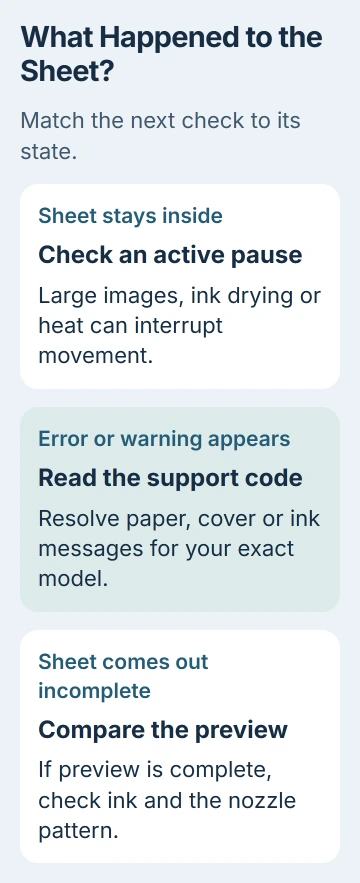
A sheet that stays inside a paused printer needs different checks from a page that comes out with its lower half blank. Watch what happens to the paper as well as what Windows says.
1. Read the printer's message before restarting the job
Look at the printer's display or its status message on the computer. Note any support code, paper warning or ink warning. Resolve that message using your model's instructions before trying a fresh document.
Check that the correct paper source has paper loaded and that it matches the job's selected size and type. A job that used the last sheet can stop while the remaining pages stay in the computer's queue.
If the printer has a disc-tray guide or inner cover, check its position for ordinary paper printing. On the PRO-10S, the manual says to close the guide and press RESUME/CANCEL when it was left open.
That button is for the PRO-10S. Your model may use OK or another control, and a basic printer may have no disc tray. Follow the message on your printer instead of pressing several buttons in turn.
Once the error clears, let the existing job continue. With no error and the sheet still inside, check whether this is a normal processing or cooling pause next.
2. Allow large images and ink-drying pauses to finish
Canon's MG2900 troubleshooting page explains that photos and graphics can take time for both the computer and printer to process.
An inkjet can also pause when a page uses lots of ink. Large print areas or multiple copies may need drying time. The printer can go quiet during this work without being finished or disconnected.
Let the active job finish before sending that photo again. Watch whether the paper starts moving and the queue advances. This helps you tell a slow print from a job that won't finish.
If a large picture is the only task that pauses, try one page at a time once the current job is finished or canceled. Keep the paper type and quality appropriate for the loaded paper rather than changing several settings together.
If a plain text page finishes but a high-resolution photo takes longer, check the document and allow for processing time. That difference alone doesn't mean your Wi-Fi radio or print head has failed.
3. Let a printer that has been running continuously cool
After a long printing session, heat can pause an inkjet at a line break. Leave it alone briefly to see whether printing resumes. Don't reach inside to touch the print head or nearby parts; they can be hot.
For the MG2900 and PRO-10S, the manuals say to stop printing at a suitable point and turn the printer off for at least 15 minutes if it doesn't resume.
Use its normal power control and allow shutdown to finish. After the cooling period, start it again and try a small job. Check your own model's manual if it gives a different instruction.
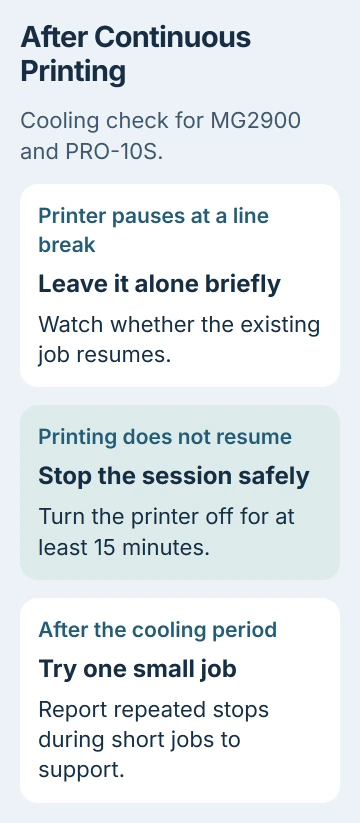
If the job finishes after cooling, a heat pause makes more sense than if the file stops at the same place every time. Tell support if your printer repeatedly needs to cool during short, ordinary jobs.
I'd try a single text page after it cools. That gives you a simple check that it recovered before returning to the demanding job.
4. Clear a stuck Windows job before sending one comparison page
For a stalled job on an otherwise ready printer, open its queue. In Windows 11, use Settings > Bluetooth & devices > Printers & scanners, select the Canon printer, then choose Open print queue.
On Windows 10, the route starts Settings > Devices > Printers & scanners. Make sure you opened the same printer entry selected in the app's Print dialog, especially if the list contains old or duplicate entries.
Cancel the stalled job and any duplicate copies you sent while waiting. Microsoft's queue troubleshooting steps give this cancellation route.
If cancellation itself remains stuck, press Windows + R, enter services.msc and open Print Spooler. Right-click it and choose Restart. This restarts the Windows service that manages pending print jobs.
When the queue clears, send one short document. If Windows marks the printer Offline before anything starts, use the offline printer checks rather than repeatedly adding jobs.
When a short document prints, check the problem file and the settings used to print it next. If every document stops, tell support that it happens with different files when asking for printer or connection help.
5. Treat an ejected, partly blank sheet as a print-quality problem
If the sheet comes out as though the job is complete but part of its content is missing, inspect the app's print preview. Confirm the selected page size, orientation and scaling fit the actual paper.
Missing or cropped content in the preview needs a document or print-layout fix first. Replacing ink or running maintenance won't add content that's missing from the print job.
If the preview is complete but ink disappears on paper, check the ink warning and print the model's nozzle-check pattern. This is a short maintenance pattern showing whether the nozzles are laying down ink correctly.
The print-head cleaning guide explains why the pattern should come before repeated cleaning. Gaps or missing colors need the maintenance sequence for that Canon model.
A complete pattern means you can leave cleaning alone, even if a photo stops halfway. Check your file, queue and connection results instead. The pattern checks ink delivery; it doesn't tell you why a job has stalled.
6. Check the MG2900 driver's print-data options
For an MG2900 using its Windows printer driver, open Page Setup > Print Options. These controls help with incomplete print jobs. Other Canon models and phone print screens may not have them.
Try Do not allow application software to compress print data, confirm with OK, then print the affected page. The model's incomplete-job instructions call for clearing that checkbox afterward.
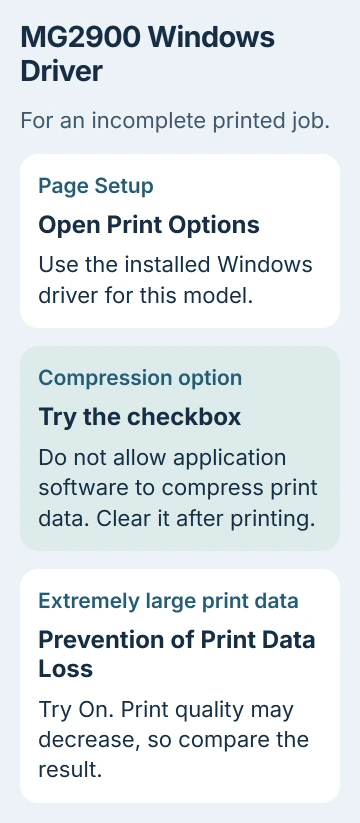
For very large print jobs, the same Print Options dialog offers Prevention of Print Data Loss. Try setting it to On. It can reduce print quality, so check the result and restore your usual choice afterward.
If the page now finishes, note which option helped that file. If neither helps, show support the incomplete sheet and explain your earlier checks instead of repeatedly sending the same job.
7. Describe the paper's stopping point to support
Ask Canon support or a qualified printer repairer for help if short jobs keep stopping after the message, cooling and queue checks. Include the exact model, connection method, support code and whether paper stays inside or is ejected.
Say whether another file prints completely and whether the nozzle check has gaps. Keep a partly printed sheet to show where it stops. These details help support tell missing data or ink from a mechanical problem.
On a multifunction model, say whether a copy made without the PC also stops. Support can compare that with a job sent from your computer before deciding which part needs repair.
The Short Version
Check errors and paper, then allow processing or cooling pauses to finish. Clear a stalled queue before sending one small print. For an ejected sheet with missing areas, compare preview and nozzle checks before requesting service.
Checked November 5, 2026.

Isaac Smith is the founder and editor of PC Glance, a website that covers computers, laptops, and technology. He is a tech enthusiast and a computer geek who loves to share his insights and help his readers make smart choices when buying tech gadgets or laptops. He is always curious and updated about the latest tech trends.