
A hotspot can say no internet even after your laptop joins it because the Wi-Fi connection and the phone's mobile internet are separate. First, turn Wi-Fi off on the sharing phone and try opening a webpage using cellular data.
If the phone gets online, check its hotspot allowance and test another connected device. The results point either to the phone's sharing settings or to the laptop that can't load anything.
1. Check the internet connection on the sharing phone
Turn Wi-Fi off in Settings on the sharing phone and leave cellular data on. Open your browser and load a page you haven't already opened. This tests the connection the phone will share with your laptop.
A page saved earlier or an app showing old messages can still appear to work when the phone is offline. Try a second page to check whether the phone can get online.
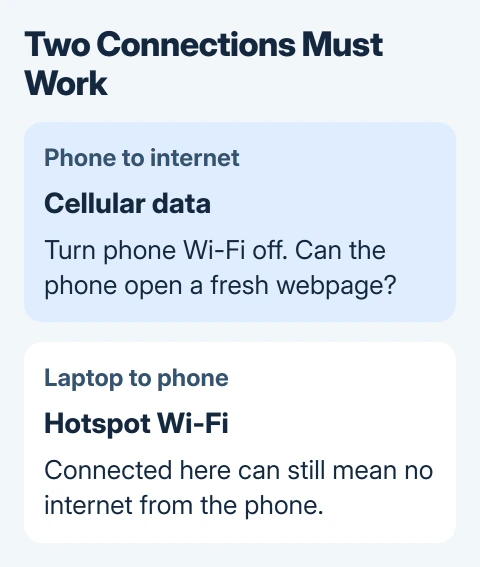
If neither page loads, leave the laptop alone for now. Check the phone's signal, cellular data switch, SIM used for data and remaining allowance. With two SIMs, the line supplying cellular internet needs an active data plan.
Move to a place with better reception and try again. Restart the phone if cellular data still doesn't work. When calls work but internet access doesn't, ask the carrier to check data service on that line.
Once the phone gets online, check whether your plan allows you to share that connection.
2. Check the plan's separate hotspot allowance
Open your carrier's app or check your plan details for hotspot or tethering data. Tethering is the name for sharing a phone's connection. Some plans treat this allowance separately from data used directly on the phone.
Google's hotspot instructions warn that carriers can limit tethering or charge extra for it. An unlimited phone plan can still have a separate hotspot limit.
Check the allowance for the line supplying data, especially after changing plans, replacing a SIM or moving to eSIM. Ask the carrier whether hotspot access is enabled and whether you've reached a limit.
I'd check this before resetting the laptop. A limit on the sharing line affects every device using it, so resetting your laptop's network settings won't restore that allowance.
If pages load but take a long time, use the hotspot speed checks. A connection slowed after its allowance runs out needs different advice from a complete loss of internet.
3. Turn off Data Saver on a Pixel hotspot
On a Pixel, open Settings > Network & internet > Data Saver and turn Use Data Saver off. Return to Network & internet > Hotspot & tethering > Wi-Fi hotspot and enable sharing again.
Pixel requires Data Saver to be off for Wi-Fi tethering. Data Saver limits background cellular data; giving individual apps unrestricted access doesn't replace turning it off for the hotspot.
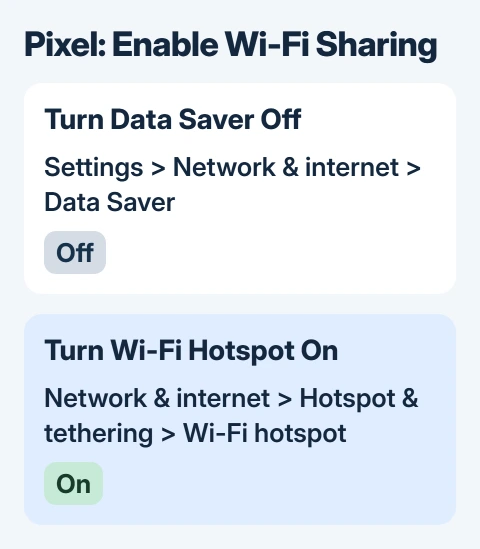
Reconnect the laptop and try a fresh webpage. If it loads now, turning Data Saver off fixed the sharing problem. If it still doesn't load, compare another device before changing more settings.
Other Android phones use different menu names. Search their Settings app for Data Saver and Mobile Hotspot, then follow the phone maker's instructions. Don't assume a Pixel menu path will appear unchanged on a Samsung phone.
4. Compare another device using that hotspot
Join the hotspot with another laptop, tablet or phone. For the test, turn cellular data off on a joining phone so it can't quietly use its own plan. Load the same pages on both connected devices.
If both fail while the sharing phone works, focus on the phone and carrier. If one works and the other fails, focus on that device. Keep the hotspot and its settings unchanged during this comparison.
On the failing device, switch Wi-Fi off and back on, then select the hotspot's actual name. Nearby networks with similar names can make this surprisingly easy to miss.
The hotspot connection guide shows where to read the phone's network name and password. Use those details to reconnect rather than changing the password as a general internet repair.
Restart the failing device once. If the hotspot works on it afterward, test a few pages before making another change. A successful browser test matters more than waiting for a warning icon to refresh.
5. Reconnect an iPhone hotspot, then compare USB
On an iPhone, open Settings > Personal Hotspot and turn Allow Others to Join on. Keep that screen open while reconnecting the other device. Restart both devices if reconnecting doesn't help.
Apple's Personal Hotspot repair steps also include Maximize Compatibility on supported models. Try it if the Wi-Fi connection itself is unreliable; it can reduce performance and Wi-Fi security.
Trying a cable helps you check whether only Wi-Fi sharing is failing. For a Pixel and Windows PC, connect a data-capable USB cable, then enable Settings > Network & internet > Hotspot & tethering > USB tethering.
For an iPhone and Mac, connect by USB, accept the trust prompt and check for iPhone USB in Network settings. Android's built-in USB tethering route doesn't support Mac computers.
If USB gets online and Wi-Fi doesn't, report that difference to the phone or computer maker. If both fail, recheck the phone's cellular service and whether the carrier allows hotspot use before replacing the laptop's Wi-Fi adapter.
6. Reset only after the comparisons point to the phone
If your iPhone still won't share, open Settings > General > Transfer or Reset iPhone > Reset > Reset Network Settings. This clears saved Wi-Fi passwords and resets cellular, VPN and carrier internet (APN) settings.
Have your Wi-Fi passwords ready before doing it. Reconnect afterward and test the hotspot before putting back other network settings.
For a Mac that specifically reports a self-assigned address, use the hotspot address checks. That message gives you a more specific problem than a general internet warning.
If nothing works, tell support whether the phone browses on cellular, another device works, USB works and which plan supplies the data. Those answers help the carrier or device maker decide what to check next.
The Short Version
Test cellular internet on the phone, check the hotspot allowance and compare another connected device. On Pixel, turn Data Saver off. Try a cable before resetting network settings; contact the carrier if sharing fails everywhere.
Checked November 5, 2026.

Isaac Smith is the founder and editor of PC Glance, a website that covers computers, laptops, and technology. He is a tech enthusiast and a computer geek who loves to share his insights and help his readers make smart choices when buying tech gadgets or laptops. He is always curious and updated about the latest tech trends.