
Yes, a compatible wireless controller can work in DeSmuME after Windows connects it and you map its buttons. DS wireless multiplayer is separate: its Wi-Fi emulation is experimental and unsupported.
For playing without a controller cable, connect the gamepad to Windows first. Then check its inputs before opening the emulator's button settings. A working Bluetooth connection alone doesn't assign the DS buttons for you.
Decide which wireless connection you mean
A wireless gamepad sends button presses to your PC. DeSmuME uses those inputs for the DS controls. The game doesn't need any multiplayer features for this to work.
DS wireless play connects games to one another. For trades, battles and local wireless sessions, the emulator needs to recreate the DS networking hardware. Having Wi-Fi or Bluetooth on your PC doesn't provide that.
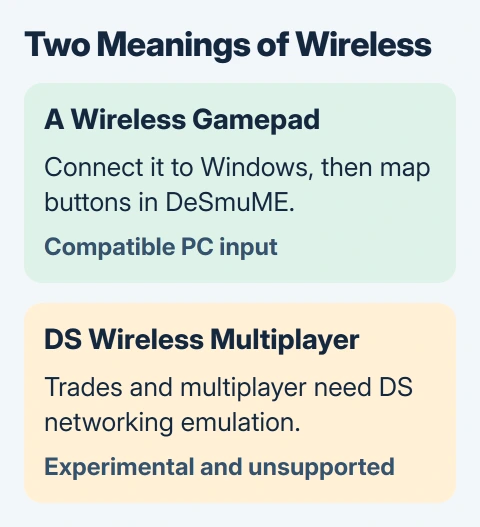
DeSmuME's current FAQ describes Wi-Fi support as experimental and unsupported. Two emulator windows or two PCs sharing a router don't create a supported multiplayer setup.
Use these controller steps for single-player games. For trading between games, this isn't a supported setup. Leave router ports and Windows firewall rules alone; they aren't part of connecting a wireless controller.
Connect the controller to Windows first
Check how your controller connects. Some models use Bluetooth; others need the maker's USB wireless receiver. A 2.4 GHz receiver is a small USB device that handles the controller's own wireless connection.
For a receiver-based controller, connect the correct receiver and follow its pairing instructions. If your gamepad needs its maker's receiver, a generic Bluetooth adapter won't replace it.
For Bluetooth, turn the controller on and put it into pairing mode using its maker's instructions. Check the exact model's button combination; a similar-looking gamepad may use a different one.
On Windows 11, click the taskbar's network and volume group to open Quick Settings. Open Manage Bluetooth devices, then select the controller under New devices and finish the pairing prompts.
The Windows Bluetooth pairing steps explain that discovery process. Keep the controller near the PC while pairing and check that it stays connected afterward.
On Windows 10, use Settings > Devices > Bluetooth & other devices > Add Bluetooth or other device. Select Bluetooth, choose the discoverable controller and complete the connection.
If a controller offers several operating modes, use the mode its manufacturer recommends for Windows. In console or mobile mode, it may appear as a different device with different button inputs.
Check that Windows receives button presses
Press Windows key + R, enter joy.cpl and press Enter. In Game Controllers, select the controller and open Properties. Use the available test page to check buttons and directional inputs.
The on-screen indicators should react when you use the controls. Test movement and face buttons before changing DeSmuME's settings. If they respond here, Windows is receiving the inputs and you can check the emulator's button settings next.
The Windows game-controller settings guide covers this panel in more detail. Some controller drivers have a different test screen, so use the maker's own utility too if you need it.
If Windows receives nothing, fix the pairing, receiver or controller mode first. If it receives input correctly, move on to the emulator. Repeating Bluetooth pairing won't assign missing DS controls inside the app.
I'd make this check before installing a button-remapping tool. You'll see whether the connection works before adding another program between the gamepad and emulator.
Assign the DS controls in DeSmuME
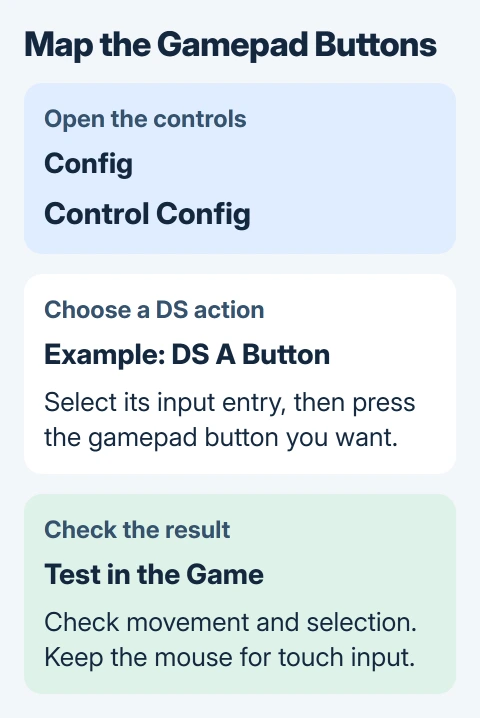
Open DeSmuME for Windows and choose Config > Control Config. Select the entry for a DS button, press the controller button you want to use, and confirm that the entry changes to the new input.
Set the directional controls, A, B, X, Y, L, R, Start and Select. Map each one separately to avoid giving two DS actions the same physical button.
The Windows port manual describes keyboard and joystick setup through DirectInput. That's the part of Windows it uses to read controller inputs.
Confirm the settings and load a game you already use. Test movement and a menu selection first. If a button works in Windows but won't change an entry here, check whether DeSmuME supports the controller's input mode.
Button labels can be misleading across controller brands. Choose a layout that feels comfortable rather than assuming the letter printed on a gamepad must always match the emulated DS letter.
Keep Config > Hotkey Config separate from the main controls. Hotkeys trigger emulator features such as pause or save-state actions. Accidentally assigning one of those to a frequently used game button can interrupt play.
Keep the mouse available for the DS touch screen
The DS has a touch screen as well as physical buttons. Mapping a gamepad handles the buttons, but a game can still ask you to tap or drag on the lower emulated screen.
Use the mouse to click and drag there. Moving a character with the controller and selecting a touch-screen item with the mouse are separate inputs, so successful movement doesn't mean every game action is mapped.
For games with frequent stylus actions, keep a wireless mouse nearby if the aim is a cable-free desk. Choose a game that suits that arrangement rather than expecting a gamepad to replace every touch interaction automatically.
The emulator's screen layout can change where the lower screen appears in the window. Identify the touch screen from the game's display before assuming a mouse click is failing.
Handle lost input at the right stage
If the gamepad stops responding, return to its Windows test panel. No input there points to the connection or controller. If it still works, check DeSmuME's mappings, whether its window is active and whether it supports your controller.
For a link that repeatedly drops, use the PC controller-disconnection checks. Compare a USB connection if the controller supports it; that keeps the same gamepad while changing the connection method.
For input trouble confined to DeSmuME, report your controller model, Windows version, app build and whether Control Config receives each button. Keep that report separate from questions about unsupported Wi-Fi multiplayer.
The Short Version
Connect a compatible gamepad to Windows, then assign its buttons in Control Config. Keep a mouse for touch-screen actions. DS wireless multiplayer remains experimental and unsupported, regardless of the PC's wireless hardware.
Checked November 5, 2026.

Isaac Smith is the founder and editor of PC Glance, a website that covers computers, laptops, and technology. He is a tech enthusiast and a computer geek who loves to share his insights and help his readers make smart choices when buying tech gadgets or laptops. He is always curious and updated about the latest tech trends.