

Pages uses Control + Command + Minus for subscript on a Mac; Word uses Command + Shift + Minus. Select the character first so it becomes smaller and sits lower while the surrounding text stays as it is.
For example, type H2O normally, highlight just the 2, then apply Subscript. A browser search field or a plain-text note may need a special character instead, because formatted subscript isn't a system-wide keyboard mode.
Select the character inside the text
Click inside your document and highlight just the part you want to lower. In H2O, select the 2 and leave H and O unselected. For a longer expression, select every character you want in the lowered part.
The main letters should stay the same size and position; only the selected character should move lower. If the whole expression changes, undo once with Command + Z, select just the character and try again.
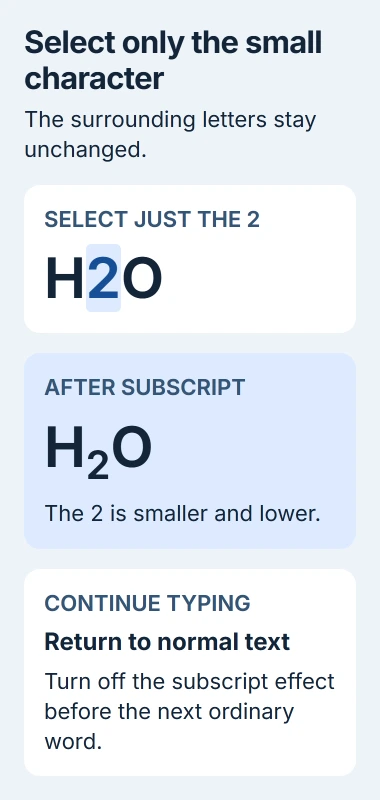
Use the app's Subscript command when it has one. Making the whole expression smaller just shrinks the letters; it doesn't put your chosen character in the right position.
For slide text, the PowerPoint subscript procedure has its own controls. Pages, Word and other Mac apps can use different shortcuts.
Apply Subscript in Pages
In Pages for Mac, select the character and press Control + Command + Minus (-). This is the shortcut in Apple's Pages text-positioning instructions.
To use the menus, open the Format sidebar and choose Style. In its Font section, open the advanced options control, then choose Baseline > Subscript.
Text inside a table, shape or text box has an extra step: select Text at the top of the Format sidebar before choosing Style. The sidebar will then show text controls instead of controls for the table, shape or text box.
Check that the selected character is smaller and sits lower. If the text box moves instead, click inside it and select the character rather than dragging the box.
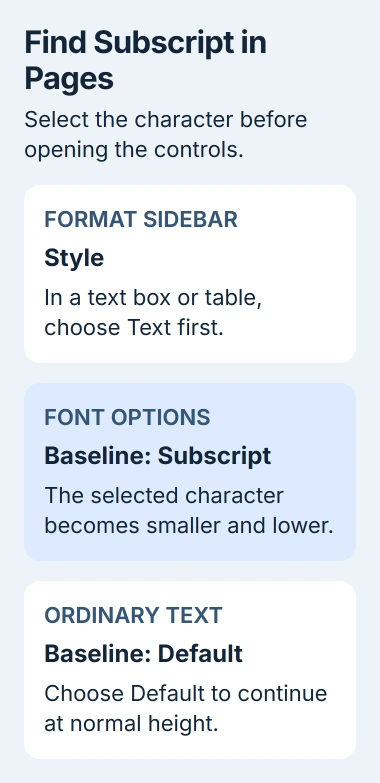
To type normal text again, put the cursor just after the subscript. Return to the same Baseline menu and choose Default. Type a short word and check that it lines up with the surrounding text.
Pages also has Baseline Shift, which moves text up or down without changing its size. Use Subscript for a small, lowered number, or Baseline Shift when you want to change just its position.
Use Word's shortcut or its Home button
For Word on Mac, highlight the character and press Command + Shift + Minus (-). Microsoft's Word subscript instructions list this Mac combination separately from the Windows keys.
The mouse route is Home > Font > Subscript. Its symbol has a small 2 beside the bottom of an x. The nearby Superscript control raises text, so check which button you're choosing.
If the shortcut doesn't match your keyboard layout, use the button. Select the character, click Subscript and check the result. You don't need to change your Mac's keyboard layout to format one digit.
If the next words also appear lowered, turn Subscript off at the cursor. Alternatively, write the expression normally and format its digit afterward. I'd use that method for an occasional chemical formula.
The same method works for letters. A variable's index, the smaller text beside it, can have several characters. Select the whole index and leave the main variable unselected. Check the result before formatting the next expression.
If you're crossing out text instead, use the Mac strikethrough commands. That effect has different shortcuts and doesn't change a character's position.
Put frequent Pages controls on the toolbar
For repeated formatting in Pages, choose View > Customize Toolbar from the Mac's menu bar. Drag the Subscript button into the toolbar, then select Done. The toolbar's own View button doesn't provide this customization command.
Now highlight a character and click the toolbar button. This saves you reopening the Font options for each subscript in a document. The button still changes selected text, so check your selection each time.
To remove the button later, return to View > Customize Toolbar and drag it away from the toolbar. The toolbar button is a quicker way to apply Subscript. Adding it doesn't change the text's meaning or the document's saved file format.
Use Character Viewer when the field can't retain formatting
A plain-text field keeps the characters you type, but it can't keep Word or Pages subscript formatting. On your Mac, press Control + Command + Space to open Character Viewer, then expand it if you need its search field.
Search for a character such as subscript two and insert the matching result where you're typing. The Character Viewer guide covers searching for and inserting symbols.
This inserts a separate character instead of lowering text you've already typed. There isn't a subscript symbol for every letter, so check that yours exists and looks right in the recipient's app.
For a complicated formula, use your document app's equation tools instead of piecing it together from similar-looking symbols. A symbol that looks close can still mean something different.
Reopen the document and inspect its formatting
Save your document, reopen it and check the expression. If you copy it into another app, check the pasted text there too. An app that keeps only plain text can lose the subscript formatting.
If the Subscript button works but the shortcut doesn't, use the button and check the app's assigned shortcuts. If you can't use the command at all, tell the app's support team your app version and document type.
The Short Version
Highlight the character that belongs lower. Pages uses Control + Command + Minus; Word uses Command + Shift + Minus. Return to normal formatting afterward, and use Character Viewer for a supported separate symbol in a plain-text field.
Checked November 5, 2026.

Isaac Smith is the founder and editor of PC Glance, a website that covers computers, laptops, and technology. He is a tech enthusiast and a computer geek who loves to share his insights and help his readers make smart choices when buying tech gadgets or laptops. He is always curious and updated about the latest tech trends.