
The Mac error zsh: command not found: code means Terminal can't find Visual Studio Code's launcher. Open VS Code, install its Shell Command launcher from the Command Palette, then restart Terminal before trying code . again.
That final dot means the folder Terminal is working in. If code opens the editor but the wrong folder appears, the launcher is already working and the next check is your location in Terminal.
1. Put the app in Applications and open it normally
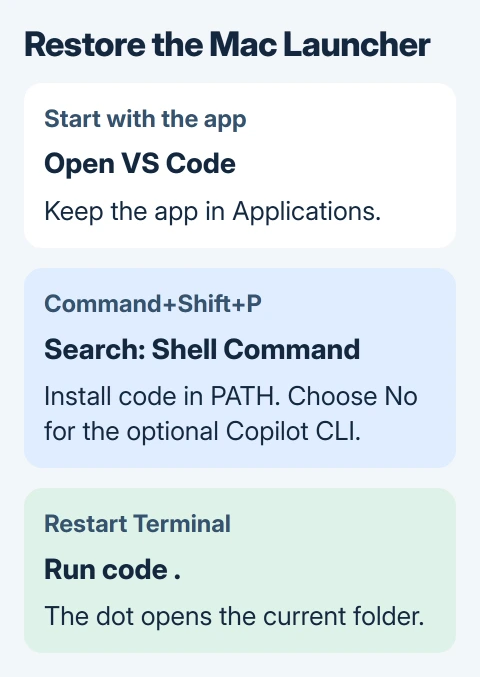
In Finder, open Applications and look for Visual Studio Code.app. Launch it there. The editor needs to open normally before its terminal command is useful.
If the app is still inside its downloaded disk image, move it into Applications first. That keeps the app in one place, so its launcher won't point to a temporary mounted image.
Check the app's name too. Visual Studio Code and Visual Studio Code - Insiders use different launch commands. The ordinary build uses code; Insiders uses code-insiders.
If the app itself won't open, solve that launch error first. A missing terminal command and an app that won't open need different fixes, even if both problems started after you moved the same download.
VS Code is Microsoft's editor for several operating systems. Its setup reference on Microsoft Learn links to the installation instructions. You don't need a programming-language extension just to open the editor from Terminal.
2. Install the launcher from the Command Palette
With VS Code open, press Command+Shift+P. Type shell command in the Command Palette. This searches the editor's commands instead of your project files.
Choose Shell Command: Install 'code' and optionally 'copilot' commands in PATH. Current builds use that longer label; some builds still show Shell Command: Install 'code' command in PATH.
Microsoft's current Mac setup steps describe both labels. PATH is the list of folders your shell searches when you type a command without its full filename.
If a prompt offers to install GitHub Copilot CLI too, choose No when you only need the editor launcher. Pressing Escape dismisses that prompt without installing either command.
Closing the prompt cancels the installation; declining the optional tool lets you continue with code. Finish installing the launcher and check its result before returning to Terminal.
Insiders offers the code-insiders command. Use that for the Insiders app; a missing ordinary code launcher doesn't mean the editor is broken.
3. Start a fresh Terminal and test the command
Close the Terminal window used for the failed command and open a new one. An open session may still use its old settings, so try the newly installed launcher in a fresh one.
Run this first:
code --versionVersion information means the shell found and ran the editor's command. If you still see the command-not-found message, continue to the path checks.
Now go to the folder you want to edit and run:
code .Keep a space between code and the dot. The dot is a separate part of the command that tells the editor to open Terminal's current folder.
For an easier way to start in the right location, open Terminal from that Finder folder. That avoids opening your home folder when you meant to work on a particular project.
4. Check where the shell is looking
If the installation completes but the command still fails, ask the shell which launcher it would use:
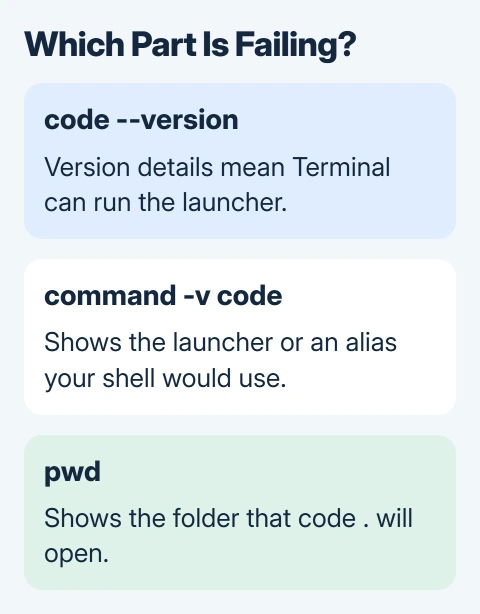
command -v codeThis should identify the command or show an alias if one is taking its place. No output means the shell still can't find code in the folders it's currently searching.
An alias is a shortcut in a shell settings file. An old alias can still point to a copy of VS Code you've moved or deleted, even after you've installed the current app correctly.
The Mac setup instructions call out old code aliases in .bash_profile or an equivalent shell profile. Remove the old alias, then run the Command Palette installation again and start a new Terminal.
Only change the entry that belongs to this old launcher. Keep the rest of the profile intact, since other tools may use its settings.
To inspect those files in Finder, show hidden files on the Mac. A leading dot hides names such as .zprofile and .bash_profile in the ordinary folder view.
5. Use the documented PATH fallback when needed
For the standard app in Applications, the launcher folder is:
/Applications/Visual Studio Code.app/Contents/Resources/app/binThe space inside the app name matters. A shell command must keep that path together rather than treating Visual, Studio and Code.app as separate pieces.
For a temporary check in the current Terminal session, run:
export PATH="$PATH:/Applications/Visual Studio Code.app/Contents/Resources/app/bin"Then try code --version again. This adds the launcher folder while keeping the existing search path. If it works, the app's command exists and the remaining problem is how your shell loads PATH.
To keep this change, use a text editor to add that export line once to the right shell profile. The official Mac instructions use ~/.zprofile for zsh and ~/.bash_profile for bash. Start another Terminal after saving it.
The manual route is a fallback, so don't keep adding duplicate lines after every attempt. I'd use the Command Palette installation first and edit the profile only if the command is still missing in a new Terminal.
6. Separate a launch problem from a folder problem
If the version command works and code . launches the editor, check the folder shown in the Explorer pane. Run pwd in Terminal to see which folder code . used.
For a named folder, pass its path instead. Put paths containing spaces in quotes. These are commands entered in Terminal; the dot doesn't belong in the Command Palette search box.
If the app still opens the wrong way or the launcher fails, note the exact error, app location, build name and output of command -v code. Include those details through Help > Report Issue in VS Code.
If work or school manages your Mac, show IT the blocked installation prompt. Repeatedly changing shell settings won't remove a restriction on creating the launcher.
The Short Version
Install the editor's Shell Command through Command+Shift+P, then restart Terminal. Test the version before opening a folder. Check old aliases and the documented PATH folder if the launcher remains missing.
Checked November 5, 2026.

Isaac Smith is the founder and editor of PC Glance, a website that covers computers, laptops, and technology. He is a tech enthusiast and a computer geek who loves to share his insights and help his readers make smart choices when buying tech gadgets or laptops. He is always curious and updated about the latest tech trends.