
Yes, a Surface Laptop can run games, depending on its processor, graphics and Windows compatibility. On Snapdragon, check Arm support too: a game can meet the hardware requirements yet fail because its anti-cheat software is incompatible.
Start by checking which Surface and processor you have. Consumer and business versions of the same generation can use different chips, so the product name alone won't tell you enough.
Find the model and processor before choosing a game
Open the Surface app, expand Device information and read Surface model. You can also find the processor there. If you don't have the app, search Start for System Information and check System Model and Processor.
Use these Surface identification methods from Microsoft to get the full model and chip name. Write down both; Surface Laptop or Copilot+ PC isn't specific enough.
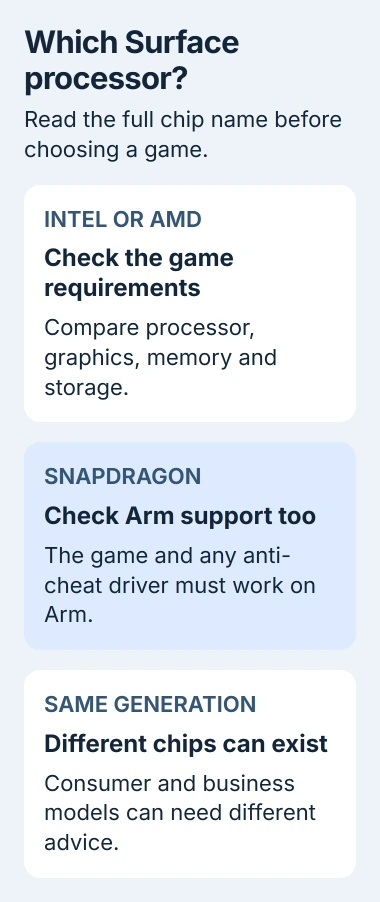
For example, the Surface Laptop 7th Edition specifications list Snapdragon X Plus and X Elite configurations, while the business model also has Intel Core Ultra configurations.
The processor changes which games can work. Check reviews for your processor configuration, even when another model has the same screen size and generation.
Surface Laptop Studio is a different product family too. A game running well on a Studio with different graphics doesn't tell you how it'll run on an ordinary Surface Laptop.
Compare the actual graphics hardware with the requirements
Press Windows + R, enter dxdiag, and confirm with Enter. Read the processor and memory on the System tab, then open the Display tab to find the graphics device and driver details.
The PC hardware inspection guide explains which Windows tool shows each part. Check the graphics chip's name as well as the DirectX software version. They tell you different things.
Compare that chip, RAM, processor and available storage with the game's published minimum requirements. Check its recommended requirements too if you want to play at a particular resolution or quality setting.
Enough system RAM won't make your laptop match the desktop graphics card in a game's requirements. Integrated graphics share the laptop's resources differently, so comparing memory numbers alone can mislead you.
The minimum requirements tell you what you need to run the game, not how smoothly it'll play at full resolution. Your Surface's sharp screen can have more pixels than a demanding game can draw smoothly.
I'd check the games you actually want before buying hardware or a subscription. Check whether your multiplayer game works and what graphics it needs. That tells you more than a general claim that the laptop runs PC games.
On Snapdragon, check Windows on Arm support
Windows 11 on Arm can run software made for Arm and many x86 or x64 apps through emulation, which translates instructions for the different processor. That lets you play many PC games without a separate Arm edition.
Software that needs its own driver is the main exception. A game's anti-cheat protection may need a driver with Arm support of its own. Emulating the game doesn't replace that driver.
Microsoft's Windows on Arm FAQ explains that games with unsupported anti-cheat drivers can fail. Confirm support with the game's publisher before downloading a large installation.
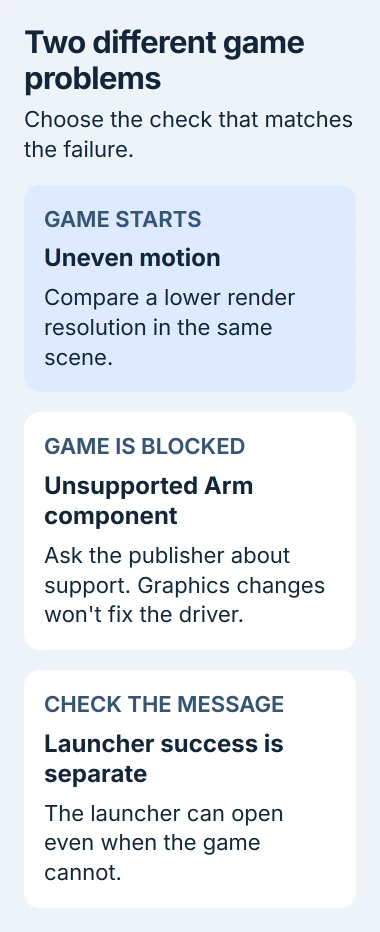
Opening the launcher tells you that the launcher works. The game itself, its anti-cheat software or a driver for a required accessory can still fail on that Surface.
If the game reports an unsupported processor or anti-cheat component, save the message for its publisher. Lowering resolution won't fix that. Use a computer or streaming option that supports the game.
Adjust a compatible game through its own settings
Once the game launches, start with its automatic or recommended graphics preset. Choose a scene you can return to, then lower the game's Resolution or Render resolution if movement looks uneven.
Apply one change and compare the same scene. If the game responds better at a lower resolution, drawing the scene was part of the problem. Try its quality options next, before adding tuning tools.
The first gaming-session checks cover the screen's update speed, how quickly the game draws the picture and connection delays. If online actions respond slowly while movement looks smooth, check the network.
Keep the Surface connected to its proper charger during the comparison and leave its vents clear. Use the same power conditions each time so a battery-saving change doesn't affect the comparison.
If a compatibility or driver problem continues, open Settings > Windows Update > Check for updates. Install your Surface's offered updates, restart when asked and try the game again.
Use Automatic Super Resolution only when it's offered
On supported hardware, Automatic super resolution, or Auto SR, can draw a compatible game at a lower resolution and improve the image you see. This optional graphics feature can't fix an unsupported anti-cheat driver.
Check Settings > System > Display > Graphics for Automatic super resolution. Read the current requirements and controls to see whether your processor, Windows version, drivers and game are supported.
Turn it on for a supported game, follow its resolution instructions and compare how the game plays. A missing option isn't a reason to install another model's driver or follow a registry trick to force it into view.
Consider streaming when local compatibility is the limit
With cloud gaming, your Surface receives video from a game running on the service's computers. It can get around your laptop's graphics or processor limits, but the service must support your game, region, account and controls.
Check the service's current catalog and requirements before paying. A subscription won't automatically include every game you own. Frequent connection drops can also make streamed games hard to play.
For a compatible game that still crashes, send its publisher your Surface model, processor, graphics device, Windows version and error. On Snapdragon, ask about Arm support rather than supplying only the laptop's brand name.
The Short Version
Identify your Surface's processor and graphics, compare the game requirements, and check Arm anti-cheat support on Snapdragon. Adjust graphics after the game launches. For streaming, confirm that the service carries your game.
Checked November 5, 2026.

Isaac Smith is the founder and editor of PC Glance, a website that covers computers, laptops, and technology. He is a tech enthusiast and a computer geek who loves to share his insights and help his readers make smart choices when buying tech gadgets or laptops. He is always curious and updated about the latest tech trends.