
To reset your Microsoft 365 work password, start at passwordreset.microsoftonline.com. Use your work username and a verification method you've already set up, or contact IT if the page sends you to an administrator.
Microsoft 365 Personal and Family use personal Microsoft accounts instead. The right recovery page depends on who manages your account, even when the failed sign-in appears in Word, Outlook or Teams.
1. Pick the account that belongs to your organization
Use the username your employer or school gave you. It may look like an ordinary email address, but your organization manages its password. The personal-account recovery form won't reset it.
For a personal Hotmail, Outlook.com or Microsoft 365 Family sign-in, follow the personal Microsoft password recovery steps. Those steps verify a different kind of account.
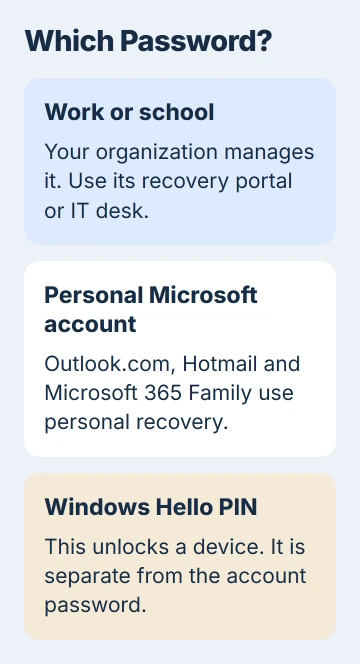
Check the account shown in the sign-in window before continuing. If your browser is already signed in to a personal account, it can show that account even when you've opened the correct recovery page.
Choose the option to use another account if the wrong one appears. Enter your full work username, including the part after the @ sign. Your sign-in name can differ from an email alias, so use the name IT gave you.
A Windows Hello PIN isn't your Microsoft 365 password. If you only have trouble at the PC's unlock screen, tell IT. Resetting your work-account password won't reset that PC's PIN.
2. Open the work-account recovery page
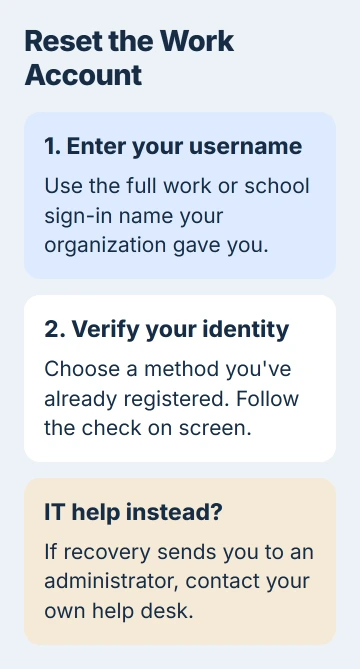
Open the work password reset portal in your browser. Its opening screen asks who you are and has an Email or Username field. Enter the work or school account you identified.
Follow the prompts and select Next. Some versions also ask you to type the characters shown in an image. Complete that check if it appears; the first screen can vary.
Microsoft says its work-account recovery instructions offer another way in: open mysignins.microsoft.com/security-info and select Can't access your account? at sign-in.
Both routes recover the same account. If you start several reset requests, it's easy to mix up which verification message goes with which page. I'd finish one request before starting another.
The next screen tells you whether you can reset the password yourself. If it offers identity checks, continue with the next section. If it sends you to an administrator, skip to the help-desk section.
3. Verify with a method you registered earlier
Choose one of the verification methods on the page. Your choices depend on your organization's rules and the security information already on your account.
Follow the instructions for that method on your phone, in your authenticator app or in your recovery inbox. Enter what the reset page asks for, then continue once it accepts the check.
Typing a new phone number during recovery won't make it a trusted method. To confirm it's you, the reset page needs a method you set up before you lost access.
Some organizations require two checks. Complete both when asked. A second verification screen can be part of the normal reset, so it doesn't mean your first check failed.
If you can't use one of the listed methods, choose another you can still access. If you can't use any of them, contact IT. Reinstalling Authenticator or requesting more codes won't add a missing recovery method.
Never give a verification code or approval to someone offering to reset the account for you. Enter it only in the recovery request you started, or follow your organization's verified help-desk process.
4. Create the replacement password and try a fresh sign-in
Enter your new password twice when the recovery page asks. Follow the rules shown there; your organization can require a different kind of password than a personal Microsoft account does.
If the page rejects your password, read the message before trying again. It can reject an easily guessed word or pattern even when the password is long enough. Choose a stronger one rather than repeatedly changing a single character.
Wait for the message confirming that the reset is complete. Then visit your usual Microsoft 365 sign-in page and enter your work username and new password. Complete any further identity check it requests.
If your work account opens, the new password worked. Return to Outlook or Teams and use it the next time you're asked to sign in.
If Outlook's password window vanishes during entry, use the Outlook sign-in window checks. Resetting an already accepted password again won't fix a disappearing window.
5. Use the help desk when recovery isn't enabled
Contact your administrator means you need your employer or school's IT team. Your organization may have turned off self-service reset, your account may not qualify, or its own systems may manage the password.
An account-verification error can also mean you never finished setting up recovery. The reset screen can't fill in that setup while you're locked out. Give the help desk the exact message and your work username.
Tell IT where you got stuck: entering the username, receiving a code, approving a check or choosing the new password. That helps them check account recovery, verification methods or password rules.
Use a help-desk address or phone number you already know. If your organization has its own recovery website, use the address it gives you. Consumer Microsoft support can't reset a password managed by your employer.
If you're an administrator, another administrator may be able to help you get back in. If you're the only one and can't sign in, use your business service's support route. The employee reset page can't get around that requirement.
After access returns, check your recovery details
Open mysignins.microsoft.com/security-info while signed in and check your recovery methods. Replace an old number using the options your organization allows, so you can receive the next recovery check.
If you know the password and only want to change it, the same dashboard has Password. Use that option to change a working password; the recovery wizard is for lost access.
The Short Version
Use the work-account reset portal, verify an existing recovery method and set the new password. Test a fresh Microsoft 365 sign-in afterward. Missing methods or an administrator message need your organization's help desk.
Checked November 5, 2026.

Isaac Smith is the founder and editor of PC Glance, a website that covers computers, laptops, and technology. He is a tech enthusiast and a computer geek who loves to share his insights and help his readers make smart choices when buying tech gadgets or laptops. He is always curious and updated about the latest tech trends.