
AirPods volume on Android is controlled by your phone's Media slider. Play something through the AirPods, press Volume Up, and check that the output is actually set to them. Raising ringtone volume won't make a song louder.
Some AirPods also have a volume swipe on the stem, while others need the phone's controls. Start with the Android slider because it works without Siri or an extra AirPods app.
Start playback, then raise Media volume
Put the AirPods in your ears and play a song or video you know. Press the phone's Volume Up button a little at a time. You should hear that same clip getting louder.
If the button changes the wrong slider, expand the volume panel. Find Media, which controls music, videos and games. Ring, Notification and Alarm each control a different kind of sound.
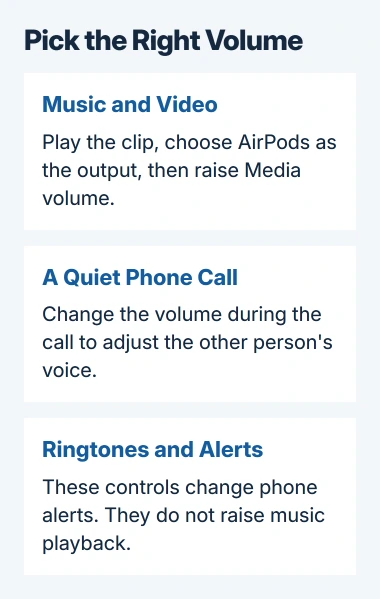
Google's Android volume instructions explain these separate controls. On some phones, the volume panel opens from a three-dot button; older versions use an expand control beside the slider.
If you're in a phone call, adjust the volume while you're on that call. This changes the volume of the caller's voice. A song and a caller can need different volume settings on the same AirPods.
Start low, especially after reconnecting the earbuds, and stop when speech or music is comfortable. You can briefly try the slider at its limit for comparison, but don't leave it there for listening.
Check that Android is sending the sound to AirPods
AirPods can be connected over Bluetooth without being the selected sound output. If your phone's speaker gets louder instead, open the media player's output selector and choose your AirPods.
On a Pixel, open the notification shade and find the playing media card. Tap the output name on that card, then select the earbuds. The Pixel media controls also explain choosing between connected audio devices.
A Samsung phone may show Media output in its quick controls. Choose the AirPods there. Phone makers arrange these controls differently, so follow the displayed output names rather than looking for an iPhone Control Center.
Play the same part of your clip again. If you hear it through the AirPods and Media volume changes its loudness, you've found the right control. Keep the current pairing when all you need is a volume change.
If they aren't connected, open Bluetooth settings and select their name. For an initial connection or a failed pairing, the AirPods pairing and reset guide separates ordinary pairing from a full reset.
Use a stem swipe only on a model that has it
The AirPods Pro 2, AirPods Pro 3 and AirPods 5 with the Wireless Charging Case have a stem control for volume swipes. Swipe upward on its touch area for more volume, and downward for less.
Hold the earbud gently as you swipe. Squeezing the stem can pause playback or perform another assigned action. Holding the stem can change the listening mode, so keep those gestures separate.
Apple's AirPods control guide separates those gestures by model. Check your exact AirPods 5 model: the guide lists the version with the Wireless Charging Case separately from the other version.
AirPods 1, 2, 3, 4 and Pro 1 don't have that volume-swipe control. Use the Android Media slider for those earbuds. Swiping those stems won't change the volume.
Siri doesn't work when you use AirPods as a headset with a non-Apple device. Asking Siri to raise the volume won't work while they're connected to Android.
The non-Apple setup instructions confirm that AirPods can play audio and handle calls over Bluetooth without Siri. Use your phone's controls when a voice instruction does nothing.
Read a Galaxy volume-limit message before changing settings
If a Samsung phone displays Volume limit reached, open Settings > Sounds and vibration > Volume. Tap its three-dot menu, then Media volume limit to review the setting.
This setting can limit headphone and Bluetooth speaker volume even as you raise the Media slider. Check whether someone managing your phone set the limit before assuming an AirPod is broken.
The Galaxy volume-limit explanation describes the cap and its hearing-protection purpose. If you change the cap, raise it only to a comfortable listening level.
Don't confuse that setting with the iPhone's headphone controls. An Android phone has its own sound settings, and an iPhone menu path won't appear just because AirPods are connected.
Compare another app when the correct slider still sounds quiet
Play another familiar recording in a different app, keeping the same output and Media setting. If only one recording is quiet, turning up the phone will make your other recordings louder too.
Check the app's own volume control if it has one. Before replacing your earbuds or changing developer settings, check whether the app is muted or sending sound to a different output.
If one earbud is much quieter than the other, use the uneven AirPods volume checks. Check the audio balance, how each earbud fits and whether anything is blocking it before turning both up.
I'd compare the AirPods on another phone before trying a volume-booster app. Keep both devices at a comfortable starting level. If they play at a normal volume on the other phone, tell support about that difference.
If both earbuds stay unusually quiet in different apps and on different devices, give support your Android version and both device models. Tell them whether Media volume moves, a volume-limit message appears or only calls are quiet.
The Short Version
Select AirPods as the output and raise Media volume while audio plays. Adjust calls during a call. Use swipes on supported stems, review a Galaxy volume cap and compare apps before seeking earbud repair.
Checked November 5, 2026.

Isaac Smith is the founder and editor of PC Glance, a website that covers computers, laptops, and technology. He is a tech enthusiast and a computer geek who loves to share his insights and help his readers make smart choices when buying tech gadgets or laptops. He is always curious and updated about the latest tech trends.