
Turn off iMessage on an iPad in Settings > Apps > Messages by switching iMessage off. This changes the iPad's messaging setting, so you can leave iMessage working on your iPhone.
To stop the iPad sharing your conversations, check Messages in iCloud too. Muting notifications, stopping new iMessages and removing saved chats each need a different setting.
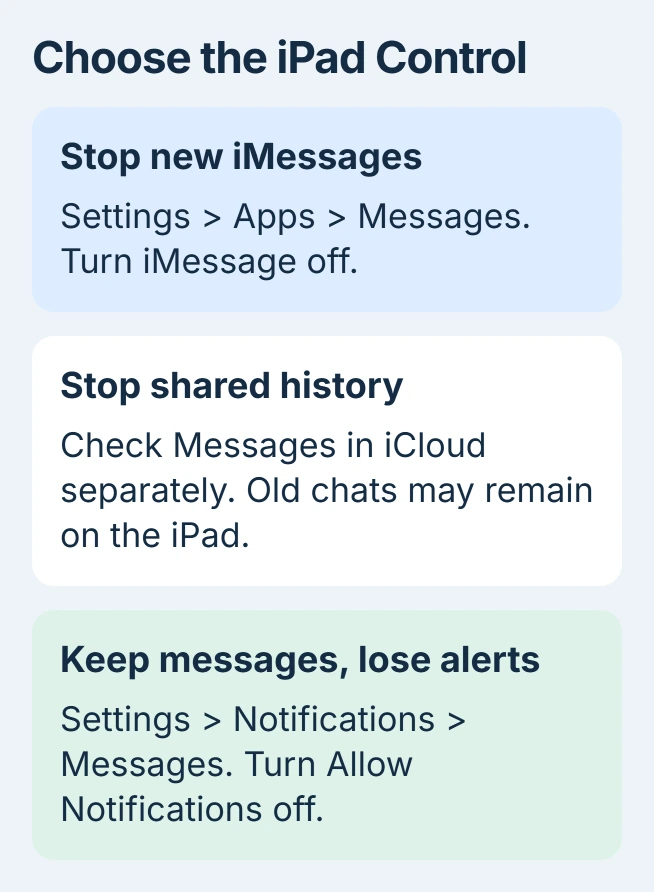
Choose the change that matches what you want
Turn iMessage off when you want the iPad to stop sending and receiving new iMessages. Old conversations can stay visible afterward, so an old message doesn't mean the switch failed.
For a quiet evening or a meeting, leave the service on and change its notifications instead. You'll still be able to open Messages and read new conversations when you choose.
Apple explains both device sign-in and iCloud syncing in its Messages safety controls. Check both when a shared iPad should stop displaying your messages.
Turning the iPad off doesn't change its messaging settings. Someone who turns it back on can still open the messages it receives. Make these changes while the iPad is unlocked.
Switch off iMessage on the iPad itself
Open Settings, select Apps, then choose Messages. If you also want to sign your account out of Messages, open Send & Receive first. Tap the Apple Account shown there and choose Sign Out.
On iPadOS 17 and earlier, open Settings > Messages directly. Newer versions put Messages inside Apps. Try searching Settings for Messages if the layout doesn't match the instructions you're using.
Make this change on the iPad you want to disconnect. Turning iMessage off on your iPhone changes the phone's service instead. The iPhone iMessage instructions cover that separate change.
On the Messages settings page, turn iMessage off. The switch should be off rather than green. Reopen the page to check that it stayed off. Send & Receive may disappear when iMessage is off.
Keep your Apple Account signed in across the whole iPad; signing out there affects other iCloud services too. Sign out inside Messages unless you're preparing to give the iPad to someone else.
Check a newly sent iMessage rather than reopening an old chat. Have a trusted contact send a fresh message to the number or email you normally use. Check that it arrives on your iPhone but not the iPad.
Stop shared message history through iCloud
Messages in iCloud keeps message history updated across devices. It includes iMessages and the SMS, MMS and RCS conversations shared from an iPhone. Turning off this syncing doesn't mute alerts; those have their own setting.
On the iPad, open Settings > your name > iCloud. Find Messages under the apps saved to iCloud, using See All if needed. Open it and turn Use on this iPad off.
Read any download or disable prompt before confirming. Old messages can stay on the iPad after syncing stops because this setting doesn't erase them.
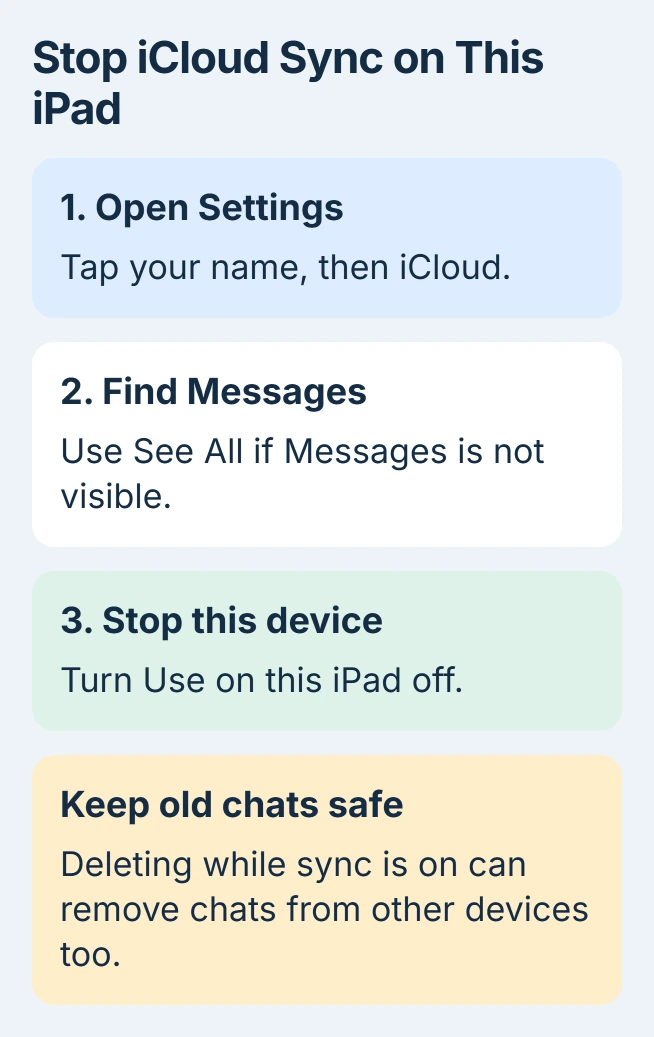
Do not delete conversations while syncing is still on if you want to keep them on your other devices. Synced deletions can reach those devices too. Disconnect the iPad first, then decide whether to remove the chats left on it.
I'd stop future sharing first, then decide whether to clear the iPad. You can check that new messages have stopped arriving before removing a conversation you want to keep on your phone.
Check text forwarding when green messages are involved
Green SMS, MMS or RCS conversations can reach the iPad through your iPhone's carrier texting service. Even a cellular iPad uses that forwarding; its data connection doesn't let it send SMS on its own.
On the iPhone, open Settings > Apps > Messages > Text Message Forwarding. Review the listed devices. If this iPad has a separate switch, turn it off to stop forwarding those texts.
The forwarding instructions explain an exception: forwarding stays on for devices using Messages in iCloud. That's why you also need to check the iPad's iCloud message setting.
Leave iMessage on your iPhone switched on so it keeps working there. Removing the iPad from your conversations doesn't require deregistering the number your iPhone uses.
After the change, check a new carrier text and a new iMessage separately. That tells you whether both have stopped arriving on the iPad. The colors of old bubbles don't tell you whether new messages still arrive.
Use notification controls when delivery should continue
For silence without disconnecting, open the iPad's Settings > Notifications > Messages and turn Allow Notifications off. Messages can still arrive in the app, but its notifications stop appearing.
For just one conversation, open Messages, swipe left across that conversation and tap the mute control. You can also open the chat, tap the name or group at the top and enable Hide Alerts.
A muted chat still receives messages. For a busy group, this saves you from signing the entire iPad out. The iPad alert controls cover settings for all Messages notifications and for individual chats.
The notification change applies only to that device. If you also want to silence or disconnect a Mac, the Mac Messages controls have their own sign-out and notification settings.
Before lending or giving away the iPad
Stopping iMessage doesn't remove your photos, mail, saved passwords or old chats. Before giving it away permanently, back up and erase the iPad so its next owner can set up a separate account.
If a switch is unavailable or changes back on a managed iPad, ask the school, workplace or family organizer who controls its settings. Tell them which setting is blocked and which iPadOS version is installed.
If fresh messages still arrive after Messages sign-out and iCloud syncing are off, contact Apple Support. Explain which address received the test message and whether it was an iMessage or a forwarded carrier text.
The Short Version
Turn iMessage off on the iPad. To stop shared conversations, also sign out inside Messages and disable its iCloud syncing. Use notification controls for silence, and check new delivery afterward.
Checked November 6, 2026.

Isaac Smith is the founder and editor of PC Glance, a website that covers computers, laptops, and technology. He is a tech enthusiast and a computer geek who loves to share his insights and help his readers make smart choices when buying tech gadgets or laptops. He is always curious and updated about the latest tech trends.