
To turn off iMessage, open Settings > Apps > Messages on your iPhone and switch iMessage off. If you're moving your number to an Android phone, turn off FaceTime too so your number stops using both services.
If you no longer have the old iPhone, use the online deregistration form to remove your number from iMessage. It sends a confirmation code to that number to complete the change.
Choose whether to stop delivery or just silence alerts
Leave iMessage on if you only want a quiet phone. Settings > Notifications > Messages > Allow Notifications controls the app's alerts. A Focus mode can silence interruptions temporarily while messages continue arriving.
Turning off iMessage changes how your conversations can be sent. It's separate from muting a chat, signing out on a Mac, or turning off shared message history in iCloud. Use this switch to stop using iMessage on this phone.
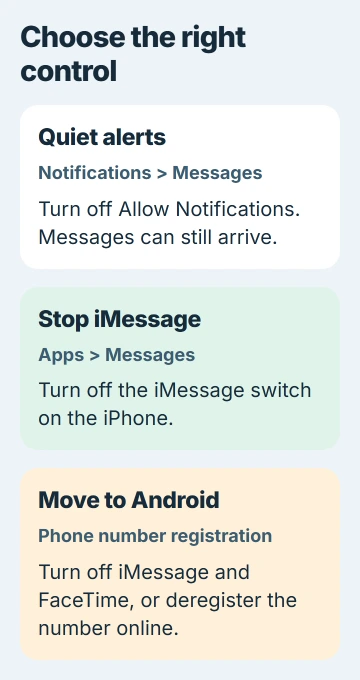
I'd leave iMessage on if you just want a short break from messages. Turning it off makes more sense when you're changing how you receive texts or moving your number to another kind of phone.
Disable the switch while the iPhone is available
Open Settings, tap Apps, then Messages. Find iMessage and turn its switch off. On iOS 17 and earlier, Messages appears directly in Settings, without the Apps step.
Apple says to connect to your cellular network for its number-deregistration procedure. Keep your mobile line working while you make the change.
When moving to Android, return to Settings > Apps > FaceTime and turn FaceTime off too. It has its own switch, so turning off iMessage doesn't turn off FaceTime.
If your physical SIM is already in the new phone, put it back in the iPhone first. An eSIM transfer works differently. Use the online form if you can't easily move the active line back, and keep the eSIM installed.
Reopen Messages settings to check that iMessage stays off. Your existing conversations won't be erased, so test whether new messages arrive rather than judging by the messages already on your phone.
Use the online form when the old phone is gone
Open the iMessage deregistration form and find No longer have your iPhone?. This removes your phone number from iMessage without signing you out of every device you own.
Select your number's country or region, then enter the phone number you want to remove. Use the number people are texting, even if you're filling in the form on a computer.
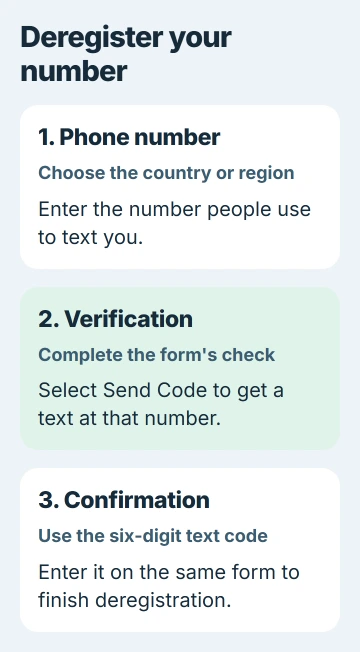
Complete any verification the form shows, then select Send Code. When the text arrives, enter its six-digit confirmation code in the confirmation section and submit it to remove your number.
Your phone needs to receive texts at the number you entered. If that line is still moving between carriers, finish the transfer with your carrier before trying to receive the form's code.
Keep the confirmation code private. It lets you change your number's iMessage registration. Enter it only in the form you opened, and don't give it to someone offering to finish the process for you.
Check a fresh message addressed to your number
Ask someone with an iPhone to start a new text to your phone number after the change. Have them check the address they're sending to, since an old conversation might use your Apple Account email instead.
Some Apple devices can take a few hours to recognize that your number no longer uses iMessage. If one contact still can't reach you, ask another person to try before changing more settings or starting over.
A green bubble on the sender's iPhone can mean RCS, SMS, or MMS. The color alone won't tell you which service it used. The message-type comparison explains the differences and carrier support for RCS.
Check whether your new phone receives the text sent to its number. An old blue bubble is still part of the conversation's history; it doesn't mean iMessage turned itself on again.
Handle messages that still reach a Mac or iPad
Removing your phone number from iMessage doesn't remove your Apple Account email from the service. Messages addressed to that email can still arrive on your other signed-in Apple devices.
To stop iMessages sent to your email from reaching your Mac too, sign out inside Mac Messages. You can stop new messages there without deleting your conversations.
When moving to Android, ask your regular contacts to use your phone number. If they keep sending to your saved email address, that conversation can still reach an Apple device even after texts to your number work.
Turn the service back on when returning to iPhone
Turn iMessage back on in Messages settings when you want to use it again on an iPhone. Open Send & Receive afterward and check that your chosen number or email is selected.
A number showing an activation message hasn't finished registering yet. Use the iMessage activation checks to finish. This delay happens when turning iMessage on, rather than removing your old registration.
If the online code never arrives, ask your carrier to check incoming texts. If you've confirmed removal but iPhone senders still can't reach you after the few-hour delay, give Apple Support your number and the time you confirmed.
The Short Version
Use the iMessage switch for the iPhone, and include FaceTime when leaving for Android. Without the old phone, confirm your number through the online form. Test a fresh text to the number and check email-addressed messages separately.
Checked November 5, 2026.

Isaac Smith is the founder and editor of PC Glance, a website that covers computers, laptops, and technology. He is a tech enthusiast and a computer geek who loves to share his insights and help his readers make smart choices when buying tech gadgets or laptops. He is always curious and updated about the latest tech trends.