
Yes, an Android phone can work as a computer when it supports a desktop display mode. Connect it to a monitor, keyboard, and mouse, then try your work apps before using it in place of your laptop.
Samsung DeX is one option. Some other Android devices can also open app windows on a monitor, but a USB-C socket doesn't confirm that the phone supports video output or desktop mode.
Check whether the phone offers a desktop or just a copy
Find your exact phone model in Settings > About phone. Check the maker's display and desktop instructions for that model and software version. Similar-looking phones can have different display features.
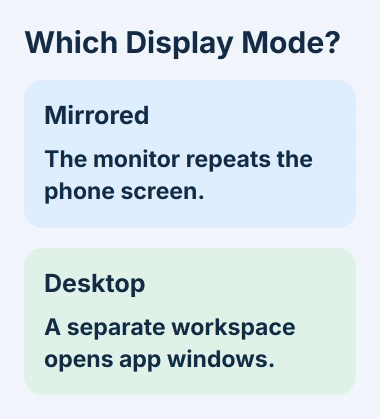
Google's connected-display instructions describe two modes: Mirrored copies your phone screen, while Desktop gives the monitor its own workspace. A larger copy doesn't give you movable app windows.
For a Galaxy, check the DeX compatibility list. It lists wired and wireless support separately. The Galaxy S25 and S26 families support a direct display connection; that doesn't mean every Galaxy does.
Check the full Flip model name: the Z Flip7 supports DeX, while the Z Flip7 FE and earlier Flip models don't. The FE version has different display support despite the similar name.
I'd check that support before buying a hub. Pairing a keyboard can make typing easier on an unsupported phone, but it won't add the missing video output or desktop mode.
Connect a compatible Galaxy directly to the monitor
Start with a compatible USB-C-to-HDMI cable or adapter and a display with HDMI input. Connect the phone and monitor, select that HDMI input on the monitor, then unlock the phone.
When the phone asks to start DeX, tap Start. If no prompt appears, open Quick Settings and select DeX. On newer Galaxy layouts, open the quick panel from the top-right corner.
The monitor should show the DeX desktop. If it shows the same phone-shaped picture as the handset, open the DeX notification or its Quick Settings control and switch to DeX rather than leaving screen mirroring active.
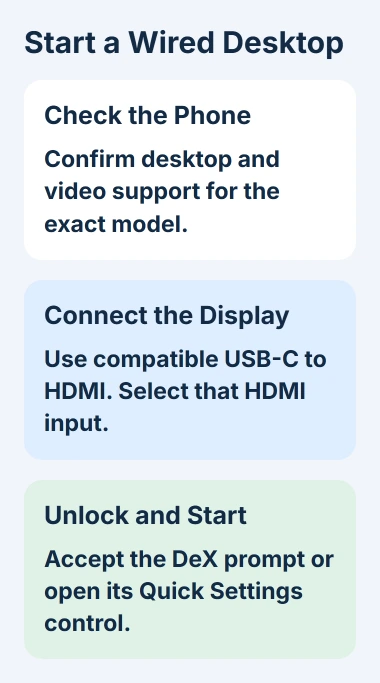
If the screen stays blank, check the monitor input, seat the cable fully, and confirm that your phone and adapter support video output. A phone can charge through an adapter even when the display connection doesn't work.
Save your changes before disconnecting HDMI. The wired DeX procedure warns that removing the cable restarts DeX, so unplugging it halfway through an unsaved document can interrupt the work.
Add controls you can use comfortably
For a Bluetooth keyboard or mouse, put the accessory into pairing mode. On the Galaxy, open Settings > Connections > Bluetooth, select its name from Available devices, then confirm Pair if asked.
For a wired USB keyboard or mouse, use a suitable USB port on the adapter or hub. A wireless mouse with a small receiver still needs a USB port unless the mouse also supports Bluetooth pairing.
Without a mouse, open the phone's notification panel and select Use your phone as a touchpad when offered. Move a finger across that surface and check that the pointer moves on the monitor.
If text is hard to read, adjust DeX display settings rather than making every app smaller. In current One UI versions, open Settings > Connected devices > Samsung DeX > Connected display.
If you're using a TV, the TV-as-monitor checks help you judge text clarity and viewing distance. A bigger screen alone won't make it comfortable to work on.
Use the desktop controls your Android device provides
A supported Android device can open a separate desktop on the external display. Your phone's hardware and software determine which mode you get. Don't change experimental developer switches to copy another model's setup.
Open two apps you actually use. Check whether each has a title bar and lets you resize its window. Drag a window's corner to resize it, or drag its header to move it around the desktop.
Use Alt+Tab on a physical keyboard to switch between open windows. Minimize leaves an app on the taskbar; Close shuts that window. These controls help you work with several apps, but they're still the same Android apps.
On a Pixel 8 or later, the wired projection instructions describe a Mirror display prompt. If that's the only mode offered, the monitor is copying your phone, not opening a separate desktop.
Check the apps before replacing a laptop
Open a document, spreadsheet, meeting, or work portal you need. Try the part your work depends on, such as exporting the required format or using the correct microphone. Check more than whether the app opens.
DeX runs your phone's apps. It doesn't install Windows or make a Windows installer run on Android. Check whether your employer's tools have a supported Android or browser version before leaving the computer behind.
The older Windows DeX app works differently from a direct monitor connection. Samsung says DeX for PC isn't supported on One UI 7 or later. The suggested Link to Windows alternative still needs a Windows computer.
The Phone Link connection guide covers using the PC and phone together. Use that setup when you have a Windows computer, rather than when you want the phone alone to power a monitor.
If the display stays blank, give the phone or adapter maker your model, software version, monitor input, and cable details. Contact the app developer if the desktop works but a feature you need is missing.
The Short Version
Confirm desktop and video support for your model, attach a compatible display, and add a keyboard and mouse. Try your actual work apps before leaving the laptop behind.
Checked November 6, 2026.

Isaac Smith is the founder and editor of PC Glance, a website that covers computers, laptops, and technology. He is a tech enthusiast and a computer geek who loves to share his insights and help his readers make smart choices when buying tech gadgets or laptops. He is always curious and updated about the latest tech trends.