
Yes, a TV can work as a computer monitor if it accepts your computer's video signal. Start with HDMI, then check text, desktop edges and pointer response before using it for everyday work.
A big screen can work well for presentations but feel awkward for a day of reading and typing. Check whether you can read your everyday work clearly from the seat you'll use.
Decide what the larger screen needs to do
For a presentation or shared video, sitting farther from the screen can be useful. For spreadsheets and email, open an ordinary document and try the chair and desk position you'll use each day.
Check whether you can read a whole line comfortably without leaning forward or constantly turning your head. I'd make that check with a TV you already own before buying equipment just to use it at a desk.
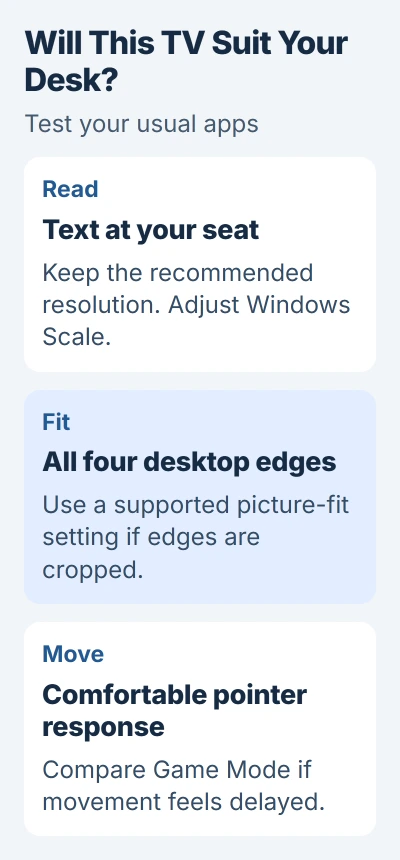
Compare resolution and scaling as well as the TV's size. Resolution sets the number of pixels, the tiny dots in the picture. Windows scaling sets how big text and apps look. A bigger screen can show the same workspace at a larger size.
Try a text document, a spreadsheet and the apps you normally keep open. A full-screen movie won't tell you whether small menus, fine lettering or pointer movement feel comfortable during office work.
Get the wired picture working before judging its quality
Connect a compatible video output on your computer to the TV and select the matching HDMI input. The laptop-to-TV connection guide covers the cable, adapters and Windows or Mac display modes.
A Windows PC can use Extend for a second desktop or Second screen only for the TV alone. Keep the original screen available while making the first adjustments, so a bad setting doesn't leave every display unreadable.
The TV-as-monitor instructions cover HDMI and several network features. Those features depend on your model and software. You don't need them to show the desktop through HDMI.
To use a computer as the receiver instead, check HDMI direction and capture hardware before installing display software.
Remote PC access, wireless mirroring and HDMI connect differently. Test the connection you'll use every day. How a wireless session behaves won't tell you how the TV works with a cable.
If the TV shows no picture, finish the connection checks first. Adjust text size and sharpness once you can see the computer's desktop.
A compatible phone can also power the display through Android desktop mode.
Keep the proper resolution and enlarge text with Scale
In Windows 11, open Settings > System > Display and select the TV in the display diagram. Choose Identify if you're unsure which numbered display represents it.
Under Scale & layout, check Display resolution. Start with the option marked Recommended. Then adjust Scale to make text and apps comfortable at your chosen seat, keeping the TV selected throughout.
Microsoft's resolution and layout guidance explains that a resolution lower than the screen's own can make text less sharp or leave the picture stretched, centered or surrounded by black.
If lettering is sharp but too small, try a larger scaling choice before lowering the resolution. Scale makes text and app controls bigger, so you can try that before switching to a less detailed picture.
If the picture becomes unreadable after a change, let the confirmation time out so Windows can restore the previous setting. Check the TV itself before keeping a change, even if the laptop screen looks fine.
An Unsupported Mode message means you need to send a signal the TV accepts. The PC connection instructions list unsupported resolution as one possible cause. Check the TV's supported modes; an HDMI input won't accept every PC setting.
Show the entire desktop without cropped edges
Look at all four edges of the desktop. The taskbar, app title bars and window corners should fit. If their outer edges disappear, the TV may be enlarging the incoming picture beyond the visible screen.
On supported Samsung TVs, open Home > Settings > Picture > Picture Size Settings and look for Fit to Screen. The picture-size controls vary with the input signal and model.
Turn on the fit option if it's available, then check the same window corners again. Other brands can use different names, so follow your TV's picture-size instructions if its menus don't match.
A gray picture-size option may be unavailable with the current signal or mode. Check your model's manual before resetting the TV. Clicking an unavailable option repeatedly won't turn it on.
Once the edges fit, keep Windows resolution and TV zoom separate. Scale makes text larger. TV zoom enlarges the whole picture and can push parts of the desktop off the screen.
Compare normal picture mode with Game Mode
Move the pointer across the desktop and drag a window. If the pointer seems to lag behind your hand, try the TV's Game Mode, where supported, and compare the same movement again.
Samsung describes Game Mode's reduction in input lag. Input lag is the delay between an action and the displayed result; it matters for a pointer as well as a game.
Game Mode can change how the TV processes the picture and which controls you can use. Keep the mode that makes your work comfortable, then check the text and edges again. The same settings won't suit every TV.
If the picture has a green tint that won't go away, use the display color checks. Changing text size or pointer response won't address that separate problem.
If the TV still feels uncomfortable after those changes, keep it for shared viewing and use a monitor at your desk. For an unsupported signal, give the TV maker its model, your PC's video output, resolution and connection type.
The Short Version
Check readable text, supported resolution, visible edges and comfortable pointer response before using a TV for desk work. Adjust resolution and Scale separately; compare Game Mode when movement feels delayed.
Checked November 5, 2026.

Isaac Smith is the founder and editor of PC Glance, a website that covers computers, laptops, and technology. He is a tech enthusiast and a computer geek who loves to share his insights and help his readers make smart choices when buying tech gadgets or laptops. He is always curious and updated about the latest tech trends.