
No. Software can't turn HDMI output into HDMI input. To receive another device's picture, your computer needs a built-in HDMI input or capture hardware that sends the video to it through USB or another supported connection.
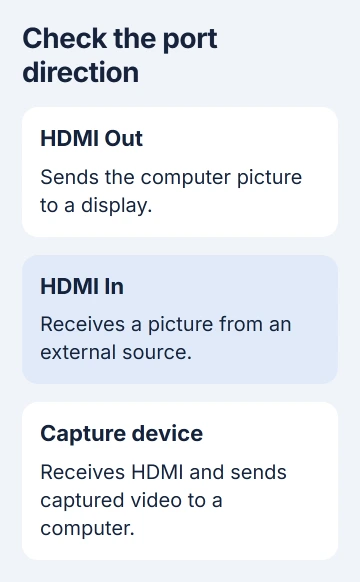
Most laptop HDMI sockets send video to a TV or monitor. Connecting a console there joins two outputs, with nothing to receive the picture. Check whether the port sends or receives video before buying cables or installing an app.
Check whether the computer actually has HDMI input
Look up your exact computer model in its manufacturer's manual and read the port description. HDMI Out, video output or connection to an external display means it sends a picture. HDMI In means it can receive one.
Dell's HDMI port guide explains the difference and notes that some all-in-one computers have input. The socket's shape alone doesn't tell you whether it sends or receives video.
An all-in-one is a computer built into its screen. Some can also act as a display, but your model must support that feature. If its manual lists an HDMI input, follow the instructions for switching to that input.
Some older specialty laptops have HDMI input too, but another model's feature isn't a hidden setting on yours. If your manual lists only output, a graphics-driver update won't add the hardware needed to receive video.
To show your laptop on a larger screen, follow the laptop-to-TV HDMI setup. That uses the output as designed and doesn't need a capture device.
Choose capture hardware when the picture must enter an app
An HDMI capture device receives video from your console or other source and makes it available to a compatible app. An external USB model can work with a suitable laptop. An internal PCIe card needs a compatible slot inside a desktop.
Before choosing a capture device, check that it supports your operating system, USB speed and the video modes you need to receive and capture. A USB-C connector's shape doesn't tell you its data speed.
The 4K X connection instructions show one example: HDMI brings video into the capture device, and USB carries it to the computer. Other USB adapters don't necessarily capture video.
A USB-C-to-HDMI display adapter normally sends video out from a compatible computer. Check its input/output description, even if it's called an HDMI adapter. To capture video, it must accept your source's HDMI signal.
Check input, capture and passthrough separately. Input is the video the device receives; capture is what the app can use. Passthrough sends a separate picture to a connected display. The supported video modes can differ for each.
I'd check those three specifications before spending money. A big 4K label might describe passthrough rather than the resolution you can record. Check that the capture mode and computer connection fit what you want to do.
Connect the source, capture device and computer in order
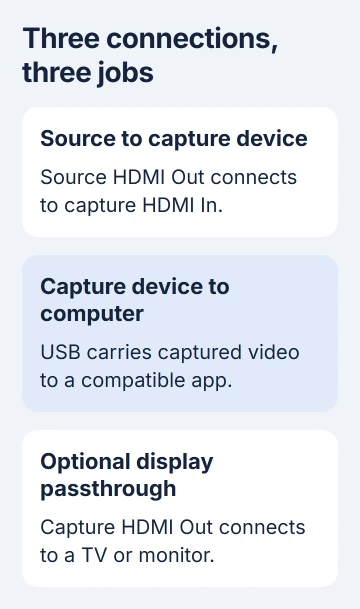
Connect the source's HDMI Out to the capture device's HDMI In. Use the capture device's specified USB cable to connect it to a suitable data port on your computer. Follow any driver or software requirements for that exact model.
If the capture device has HDMI Out passthrough, that socket can feed a TV or monitor. Keep USB connected to your computer too; it carries captured video to the app. Passthrough sends the picture to the separate display.
Select your hardware in a capture app the maker supports. In OBS Studio for Windows or macOS, add Video Capture Device, then choose your capture hardware in its properties. The capture-source reference explains that option.
Start with the default video mode and a source without copy protection. Check for a moving preview before recording or arranging scenes. Display Capture shows your computer's desktop; it doesn't show the capture device's picture.
Now that the receiving hardware is connected, the app can display or record its picture. Installing the same app on a computer with only HDMI output won't give it a video capture source.
Keep preview delay and protected video in mind
The app's preview can show an action later than it happens on the source. The delay depends on your capture device, connection and software, so playing through it may feel different from using a directly connected gaming monitor.
If your capture device supports display passthrough, use that for playing and the computer for recording. If you just want a larger desktop, a directly connected TV used as a computer monitor can skip the capture device.
HDCP is copy protection used by some HDMI video sources. It can leave the capture preview black even when a normal display works. The capture protection limits explain why those devices can't capture protected movies and streams.
Follow the gameplay instructions for your console and capture device. A game-capture setting won't necessarily allow protected streaming apps. Try a normal game or supported source without copy protection before changing other settings.
Use wireless projection for a different computer-screen task
Compatible Windows PCs can use Miracast to make one PC a wireless display for another. Both computers must support it. The picture arrives wirelessly, so this doesn't change how either HDMI port works.
On the receiving Windows 11 PC, open Settings > System > Projecting to this PC. If prompted, install the Wireless Display optional feature, then open the Wireless Display app. On the sending PC, press Windows+K and select the receiver.
Microsoft's wireless projection instructions cover the full setup. The Wireless Display app needs Windows 11 version 22H2 or newer; earlier versions can use Connect instead.
If capture still shows no signal, try the source on a normal display, check HDMI In versus Out and try a supported video mode. If it still fails, send the maker your wiring, model numbers and what the app shows.
The Short Version
Software can't turn an output socket into an input. Check for HDMI In, or select compatible capture hardware as the app's video source. Supported PCs can also use wireless projection, which sends the picture over a separate connection.
Checked November 5, 2026.

Isaac Smith is the founder and editor of PC Glance, a website that covers computers, laptops, and technology. He is a tech enthusiast and a computer geek who loves to share his insights and help his readers make smart choices when buying tech gadgets or laptops. He is always curious and updated about the latest tech trends.