

Elgato HDMI passthrough can fail from reversed cables, an unsupported video mode, or a mismatch between card and display settings. Put the source on HDMI IN and the display on HDMI OUT, then try a lower supported resolution.
Check the capture preview too. A working preview with a black TV points toward the output cable, display mode, or EDID setting. A black preview and black TV also call for checks of the incoming signal, power, and HDCP protection.
In this guide
1. Check the source and the two HDMI ports
Connect the console or gaming computer directly to the TV first. Select that TV's matching HDMI input and confirm a picture. If the direct connection fails, fix the source or display before putting the capture card back into the path.
For an EOS camera source, restore its HDMI output and check that model's movie display mode before adjusting the card.
Reconnect the source's output to the card's HDMI IN. Connect HDMI OUT on the card to the TV or monitor. Those ports aren't interchangeable, even though both cables fit. Keep the display on the input connected to the card.
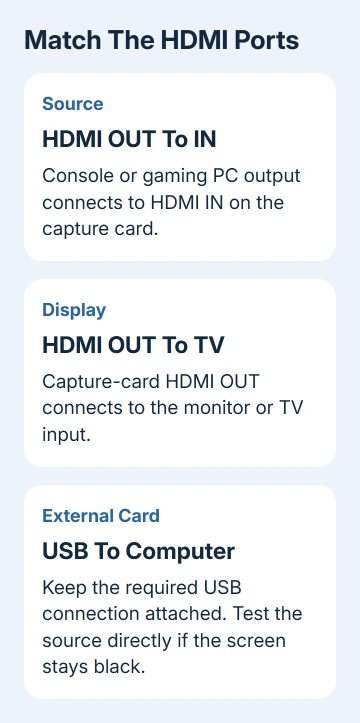
Supply the external card's required USB connection to the computer. A USB capture card still needs power to pass video through. An internal PCIe card gets its connection and power from the computer it's installed in.
Use the Elgato no-signal checks for the general connection sequence. If the direct TV connection works but the capture setup fails, continue with the cables and the video mode.
2. Test both cables with a simple supported signal
Reseat both HDMI plugs at the source, card, and display. Then test each cable in the direct source-to-display connection. Even if the source cable works, test the cable between the card and display too.
Try the supplied cable or a shorter known-good one rated for your format. Higher resolution, refresh rate, and HDR demand more bandwidth. A cable that works at a lower setting can still fail at a higher one.
Try 1080p at 60 Hz when all three devices support it, with HDR and variable refresh rate off. If passthrough is black, make those changes while the source is connected directly to the display.
I'd get that ordinary picture stable before restoring 4K or high refresh rates. If it works, the setup can pass video at that simpler setting. Raise one setting at a time, checking your exact card's supported input and passthrough formats.
3. Separate gameplay from HDCP-protected video
HDCP is HDMI copy protection. Protected output can stop these capture devices from displaying video. A setup that works for a game but fails when a streaming app opens needs this check before another cable purchase.
On a PlayStation, disable HDCP for game capture using the console's HDMI settings. On PS5 the route is Settings > System > HDMI > Enable HDCP. On PS4, use Settings > System > Enable HDCP.
Close protected media apps and test gameplay again. Disabling protection can stop those apps from playing. It won't enable subscription-video recording. Use the direct display connection when watching content that requires HDCP.
If the source offers no way to disable protection, use an unprotected source for capture. The HDCP limits apply regardless of whether the display itself can show that content directly.
4. Restore the EDID mode for a connected display
Elgato explains that EDID tells the source which video and audio modes a device accepts. A bad match can let the source select a format that one part of the capture setup can't display.
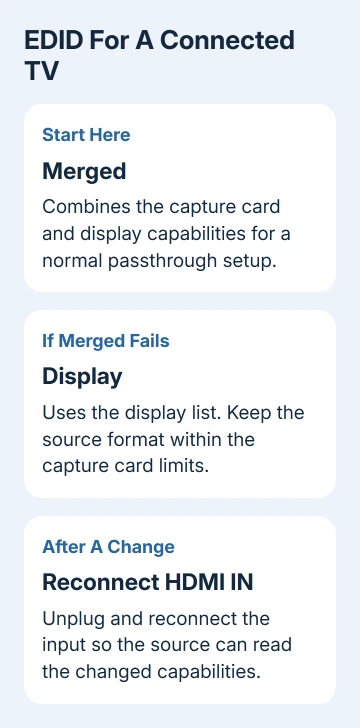
On supported cards in Windows 4K Capture Utility, open Settings > Device > Input EDID Mode. Start with Merged for a normal setup with a TV or monitor connected to HDMI OUT. It combines the display and card capabilities.
If Merged still causes picture trouble, try Display. That uses the connected display's list. Keep your source resolution within the card's limits too. The display's list can include a mode the capture card can't accept.
Internal ignores the connected display's capabilities. It suits some dual-PC setups without an output display, but a previously selected Internal format can explain a black passthrough screen. Note your old setting before changing it.
After an EDID change, unplug and reconnect the cable at HDMI IN so the source can read the new information. These options aren't on every Elgato device. Follow the EDID configuration guide for supported models.
5. Reset the card and check model-specific limits
For an external card, disconnect it from the computer and video source. Wait one minute, then reconnect the setup. That gives the capture device a fresh start using the vendor's hardware reset steps.
The HD60 S+ doesn't support the YUV422 signal format. If that's your model, check the source's color-output setting as well as resolution. A format accepted by a different Elgato card isn't automatically supported by this one.
For an internal card with a pending firmware update, a cold boot may be needed. Shut down the computer, unplug its power cord, press its power button three times, wait 30 seconds, then reconnect power and start it.
A Windows source that fails even without the card needs computer HDMI checks. Use the Windows display-detection steps if that direct screen isn't recognized.
Keep those checks separate from a card whose preview already shows the incoming picture. A working preview means the incoming signal has reached the capture hardware.
6. Check the 4K X firmware when EDID changes broke it
The 4K X has a specific confirmed firmware fix for passthrough stopping after an EDID change with no passthrough display connected. Firmware 23.12.21 included that repair. That repair applies to the 4K X, rather than every Elgato model.
Check the 4K X firmware instructions and use the current supported update for your operating system. On a Mac, follow the Mac procedure linked on that page; the Windows utility steps don't apply.
Keep the card connected and the computer running throughout the update. Afterward, reconnect the display and test the simple supported video mode again. For a 4K X, record the firmware version if the fault remains.
Give support the results that narrow the repair
If the output is still black, give Elgato Support your card, source, display, video mode, and preview result. Include the direct-connection and cable checks, EDID mode, and firmware version.
A monitor that loses the picture even without the card needs a different repair path. The DisplayPort-to-HDMI dock checks help when a Mac dock or adapter is another part of that connection.
The Short Version
Confirm IN and OUT, test both cables, and try supported 1080p60 video. Check HDCP, then Merged or Display EDID for a connected monitor. Follow your model's reset or firmware procedure if passthrough stays black.
Checked November 12, 2026.
 If you have any business, I can build it online






