

Yes, HDMI switches without HDCP support exist. They may work for an unprotected laptop desktop, but won't make protected video play on an incompatible monitor. Each device in the connection needs to support the required HDCP version.
Some switches offer a different feature: professional switches can disable HDCP authorization on an input. That can help with an unprotected computer presentation, but it doesn't decrypt a protected movie.
In this guide
1. Separate an ordinary display failure from protected video
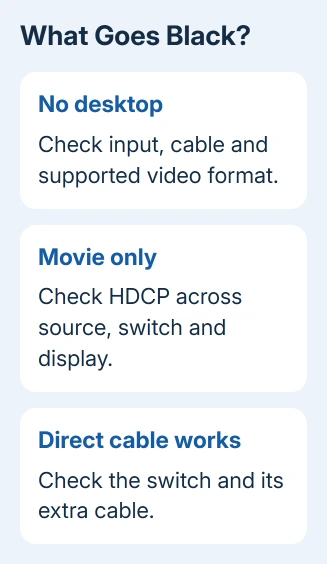
Start with what disappears. If the laptop desktop never appears through the switch, check the selected input, the cable path, and the supported resolution. A total loss of video isn't automatically an HDCP problem.
A working desktop followed by a black streaming movie or HDCP error points toward protection compatibility. HDCP is the system devices use to check whether protected HDMI video can pass through the connection.
The source, switch, and final display all matter. A switch sits between them; it can't make an older monitor accept a type of protected video the monitor doesn't support.
Roku's HDCP troubleshooting instructions say that not all HDMI switches support HDCP. They also recommend connecting directly to the display when a switch is in the failing path.
A switch selects between several sources for one display. A splitter sends a source to several outputs. Check which job the box actually performs before buying a replacement for your computer setup.
If Windows doesn't detect the monitor even without protected playback, use the HDMI settings checks. Those address the display connection rather than assuming the fault comes from copy protection.
2. Test a direct computer-to-monitor cable
Remove the switch and connect your computer directly to the same display. Use a known working HDMI cable, as the external monitor repair steps recommend. Choose the matching monitor input, then check whether your desktop or video appears.
For an error that mentions HDCP, stop playback first. Power off the display and any intermediate equipment, disconnect their power, then reconnect the HDMI ends firmly before powering the system back on and retrying.
If direct playback works, add the switch back with the same source and display. A failure that returns only through the switch points toward its compatibility, its second cable, or its power supply.
Try that second cable in the direct connection too. Otherwise, removing the switch also removes a cable, leaving two possible causes. The other cable could still be faulty even if the first one works.
If direct playback still fails, a replacement switch isn't the first purchase to make. Check the source's protected-video requirements against the monitor's exact model and input specifications.
For a computer connected through a USB-C dock, removing only the HDMI switch still leaves the dock in the path. Use the computer's direct video connection when possible, or include the dock's model in the compatibility check.
3. Match the switch to the content's actual requirements
A label such as 4K, HDMI 2.0, or 8K only tells you part of what the switch supports. Check for a stated HDCP version separately. Read both the video-format limits and the protection specification.
For Roku 4K UHD or HDR playback, the linked help page specifies HDCP 2.2. The whole playback setup needs to meet that requirement. Don't assume an old switch described only as HDCP compatible supports that version.
Match resolution and refresh rate too. Support for 4K at 30 Hz differs from support for 4K at 60 Hz. For a computer monitor, confirm the mode you actually want to use.
I'd ask the switch maker a direct question: does this exact model pass protected video at my source's required HDCP version, resolution, and refresh rate? Include the monitor and dock models so the answer applies to the whole connection.
For ordinary desktop use, a switch can carry unprotected video without needing a feature that removes protection. That is different from promising that all video applications will work through it.
Keep the product manual or written compatibility answer with the purchase information. When a setup fails, the exact specification gives support something useful to compare with the source and display.
4. Use HDCP authorization controls for supported presentations
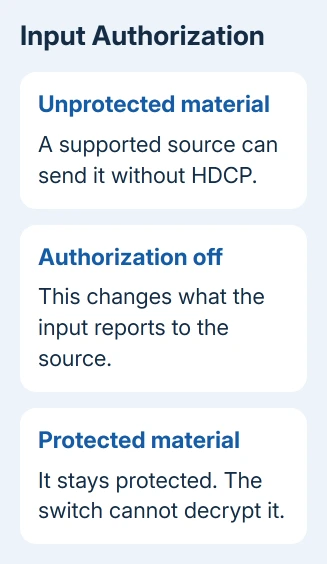
Some professional switches offer an HDCP Authorized setting for each input. The SW HD 4K manual describes a checkbox that controls whether the switch tells the source it can accept HDCP-protected video on that input.
Clearing that box can let a source send unprotected material without adding HDCP, if the source supports that behavior. This is useful for certain computer presentation systems and displays that aren't HDCP compatible.
It doesn't decrypt protected video. The manual says encrypted material produces a green screen when authorization is disabled. Whether the source sends unprotected video depends on the device and what it's playing.
This is a model-specific control in the switch's configuration software. A basic push-button HDMI switch may have no such setting. Don't follow an authorization procedure written for a different product family.
Ask the installer or switch manufacturer whether the source can provide your presentation without HDCP. If it requires protection, restore the supported authorization setting and use a compatible display path instead.
5. Treat capture-card black screens separately
A capture card receives HDMI video for an app on the computer. It isn't simply another monitor output. A source playing normally on a TV can still be blocked when connected to capture hardware.
Check the capture device's rules for protected input. The DVD-to-computer connection guide explains why seeing a movie on a TV doesn't mean a capture preview can show it.
For your own camera or other unprotected source, use its supported clean HDMI output if available. For protected streaming or disc playback, use a supported display rather than expecting the switch to remove protection.
If it still fails, send the source, switch, dock, monitor, and any capture device models to the switch maker. Give the exact error and say whether direct playback works. Ask which connections and video format work with those devices.
The Short Version
A non-HDCP switch can carry suitable unprotected video. For protected playback, test a direct connection and match the required HDCP and video format across all devices. Input authorization won't decrypt a movie.
Checked November 15, 2026.
 If you have any business, I can build it online






