

A computer monitor can look green because of a color preset, input-format mismatch or faulty connection. Check the monitor's color controls first, particularly when the tint followed a picture-mode change.
The checks here concern a separate monitor with a visible but green-tinted picture. A green video window or a restart screen with an error message needs a different diagnosis from a tinted desktop.
Compare the monitor's picture modes first
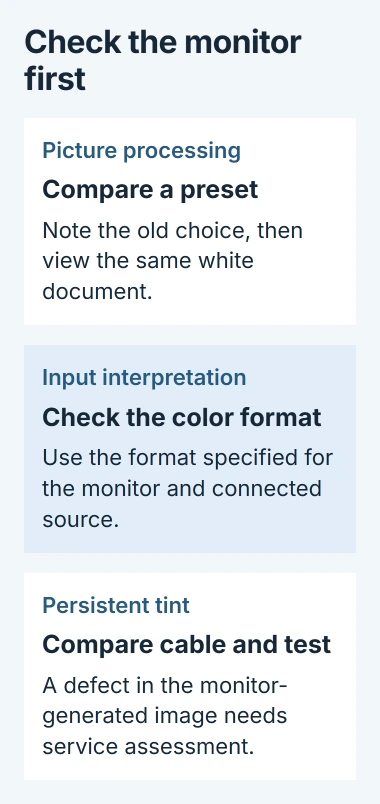
Open the monitor's on-screen menu using its buttons or joystick. Note the current preset, then compare a normal white document in another standard picture mode. Keep the same document visible so the difference is easy to judge.
Dell says to try other presets for a green or pink tint on its U2410. Its model-specific color instructions start at Menu > Preset Modes.
Status: Dell monitor color controls and Windows filters checked November 2, 2026. U2410 and U2520D menu examples are model-specific. No screen or cable was tested.
Other monitors use different menu names. Find the model on the rear label and open its user guide before changing unfamiliar controls. A preset that clears the tint points toward picture processing rather than proving the panel is damaged.
Reset color adjustments before compensating by eye
On the U2410, Custom Color changes individual red, green and blue gains. Dell states that Menu > Color Settings > Reset Color Settings undoes those changes.
Record any intentional calibration settings first. A color reset removes that customization, so it can change a setup used for photo or design work. Recheck the white document after resetting.
The U2520D has Color > Reset Color. Its manual also says Hue can shift a video image toward green or purple, and that Hue is available in Movie or Game presets.
Those controls are documented on page 45 of the U2520D user guide. Do not copy another model's button sequence just because both monitors are Dell.
Check RGB versus YPbPr for this connection
A monitor that interprets the incoming color signal in the wrong format can display incorrect colors. On the U2520D, open Color > Input Color Format and check the selected format against the connected device.
Dell's manual specifies RGB for its computer connection through USB-C, DisplayPort or HDMI. YPbPr is the alternative for a source that outputs that format. Its troubleshooting section includes changing the input format for wrong colors.
Keep the old value recorded and compare the same image after changing it. The receiving monitor and source must agree; the presence of HDMI alone does not make RGB the correct setting for every device and every monitor.
If the model has no such control, continue with its other color checks. Avoid applying a system-wide color adjustment merely to compensate for one mismatched monitor input.
If the menu changes nothing, compare the connection
Shut down the computer and turn off the monitor before reseating the video cable. Check the plugs for damage, then reconnect them firmly. Try a compatible spare cable or a direct connection that omits a dock or adapter.
Dell's display troubleshooting guide includes cable, color and hardware checks. If replacing one connection removes the tint, report that specific result instead of changing several display settings together.
For a Dell monitor, follow the stand-alone diagnostic instructions for the exact model. A green screen can be a normal stage of its color test; inspect the other test colors for the unwanted tint too.
A defect visible in the monitor-generated test needs the monitor maker's assessment. A normal test sends further checks toward the computer and connection, although it cannot rule out an intermittent fault.
When the color change comes from Windows
If the monitor's test looks normal but Windows changes the colors, inspect Settings > Accessibility > Color filters. If a filter was enabled accidentally, switch it off and inspect the colors again.
Microsoft says Color filters changes the screen palette. Leave an intentional accessibility choice in place unless it is the setting the user wants changed.
For a green built-in laptop display, use the laptop green-screen procedure. It covers driver checks and laptop-specific tests that differ from a monitor's on-screen controls.
If the tint remains, give the manufacturer the model, cable type, selected color format and test result. Persistent green patches, stripes or abnormal test colors need service assessment rather than repeated color compensation.
The Short Version
Compare presets, undo unwanted color adjustments and match the input format to the source. Then try a spare cable and the model's diagnostic test. Check Windows color settings when the monitor-generated picture is normal.

Isaac Smith is the founder and editor of PC Glance, a website that covers computers, laptops, and technology. He is a tech enthusiast and a computer geek who loves to share his insights and help his readers make smart choices when buying tech gadgets or laptops. He is always curious and updated about the latest tech trends.