
Safari closes a group's tabs when you hold Done in the tab overview and choose Close All [number of] Tabs. Check the group first: the command applies to that collection, so other groups can still contain pages.
Save anything you need before confirming. Closing a page can discard a form or other work that hasn't been submitted.
Open the tab overview and check the group
Open Safari on your iPhone and tap the Tabs button to see the page thumbnails. On an iOS 26 layout that puts this control inside More, open More and choose All Tabs instead.
Read the group name at the bottom of the overview. A named work or travel group is separate from the main numbered tab list. Choose the group you want to empty before opening the close menu.
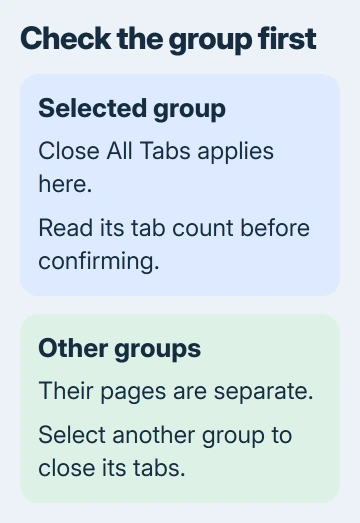
Apple's tab-closing instructions say the command closes all tabs in that Tab Group. Tabs left open in a different group don't mean it failed.
Safari's controls can sit in different places. Check Settings > Apps > Safari, then the Tabs layout choices if your screen doesn't match another iPhone. The current choices include Compact, Bottom and Top.
The layout setting helps you find the controls on your phone. Closing tabs doesn't require a layout change; once you can see the thumbnails and group selector, stay in Safari's tab overview and continue.
Hold Done and choose the counted close command
- In the tab overview, touch and hold Done rather than tapping it briefly.
- Select Close All [number of] Tabs from the menu.
- Confirm that you want to close the tabs if Safari asks.
- Check the selected group again to see whether the old page thumbnails have gone.
A brief tap on Done returns to browsing. Holding it opens the extra command. Likewise, the close button on a single thumbnail removes that page, so it isn't the control to use for a whole collection.
Read the number before choosing it, so you don't empty a large research group when you only meant to close a few pages. Back out of the menu if the count doesn't match what you intended.
I'd keep any important page as a bookmark before doing a large clear-out. An open tab is easy to lose during cleanup; a bookmark gives you a named place to return to without keeping its page open.
Safari can still show a start page or a new blank page after you close the group's tabs. Check whether the old thumbnails are gone; Safari staying open doesn't mean those tabs are still there.
Repeat the closure in other groups you want to empty
Tap the Tab Group selector at the bottom of the overview and choose another group. Check its pages, then repeat the counted close command if you want to empty that group too.
Work and personal profiles have separate tabs and Tab Groups too. If pages appear after you switch profiles, check that profile's groups before assuming Safari reopened the tabs you closed.
Check who uses a shared group before closing its tabs. Changes reach its collaborators too, so removing a research page can take it out of somebody else's working list.
To keep useful pages while tidying the list, move them into a named group. Hold a tab in the overview, choose Move Tab, and select a group or New Tab Group.
Close Private tabs before leaving Private Browsing
Open the tabs screen and swipe the bottom tab bar to Private. Tap Unlock if it's locked, then check its pages before using the close command there.
Leaving Private Browsing doesn't close its websites. The private group can lock with those pages still open. Close them inside Private before switching back to regular browsing if you want them gone.
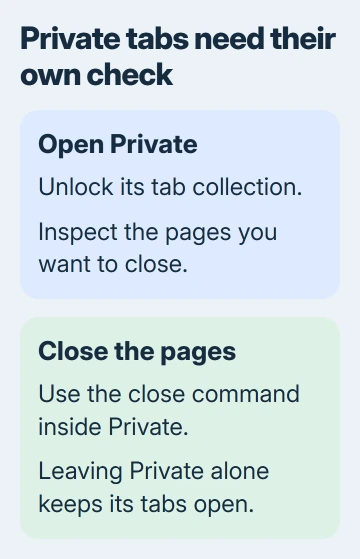
The steps for leaving Private Browsing explain the group switch. Use that switch after closing the pages you want gone, rather than treating the switch itself as a close command.
Private pages also stay separate from the tabs on your other Apple devices. Looking at an iPad or Mac's tab list won't tell you whether those private iPhone tabs have been closed.
Did an ordinary tab close by mistake?
In the tab overview, hold New Tab until the recently closed menu appears. Select the page if it's listed. Reopen it promptly while you still recognize the title.
Reopening a page doesn't always bring back unsent text. A website may not restore an unfinished form or put an online editor back exactly as you left it. Save work in the website itself before another cleanup.
If a whole collection seems to be missing, check the group and profile before reopening pages one by one. Our missing Safari tabs guide helps you tell hidden tabs from closed ones.
Closing tabs is also different from clearing browsing history or website data. Use the close command for the open-page list. Don't erase other Safari data simply because you want fewer thumbnails in the overview.
If Safari freezes or its tab menu won't open, give Apple support your Safari layout and iOS version. Tell them whether it happens in one group or all of them so they know which screen needs checking.
The Short Version
Open Safari's tab overview, check the active group, hold Done and choose Close All Tabs. Repeat for other groups you want to empty. Private tabs stay open when you leave Private Browsing, so close those inside Private first.
Checked November 6, 2026.

Isaac Smith is the founder and editor of PC Glance, a website that covers computers, laptops, and technology. He is a tech enthusiast and a computer geek who loves to share his insights and help his readers make smart choices when buying tech gadgets or laptops. He is always curious and updated about the latest tech trends.