
A 2009 Mitsubishi with the basic Bluetooth Hands-free system pairs through Setup, Pairing Options, then Pair in its voice menu. Raider owners need the separate U-Connect pairing instructions.
While parked, press Speech to start. Enter the same pairing code on your iPhone when it asks.
The original hands-free system handles calls. Music streaming needs different equipment, so a successful phone connection doesn't automatically give an older factory radio Bluetooth music.
Check which hands-free system the vehicle has
Look for the factory Speech, Pick-up and Hang-up controls. On Lancer and Outlander models, look on the steering wheel. Some other models put their hands-free controls elsewhere.
The year alone isn't enough to choose instructions. Equipment varies by model, trim, market and any replacement radio installed since the car was new. An aftermarket touchscreen follows its own maker's pairing menu.
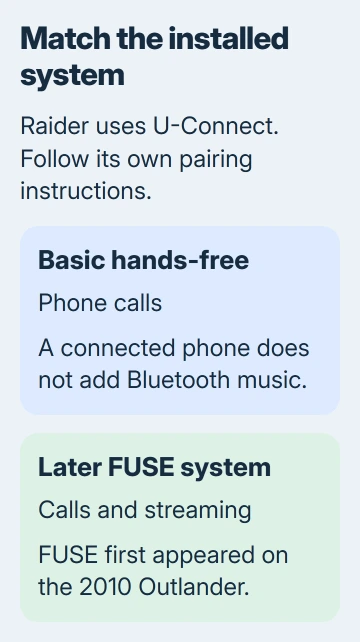
Mitsubishi's hands-free service bulletin describes basic Bluetooth Hands-free and the more capable FUSE system. It identifies FUSE as first introduced on the 2010 Outlander, rather than a feature of every 2009 vehicle.
Check your exact car's owner's manual if the buttons don't match. The bulletin covers the 2008-on Lancer, 2007-on Outlander and 2009.5-on Galant, but the hands-free option still depends on the trim.
Keep the car parked throughout setup. Turn the ignition to ACC, switch the audio system on, and choose AM or FM. Wait about 20 seconds for the hands-free system to prepare before starting its voice menu.
Start pairing through the car's voice menu
Press the Speech button and wait for the system's response. Give one command at a time, allowing the voice prompt to finish before saying the next one.
- Say Setup.
- Say Pairing Options.
- Say Pair.
- If the system asks for confirmation that the vehicle is parked, say Continue.
- When asked, say a four-digit pairing code and confirm it when the system repeats it.
Choose a code you can enter on the phone a moment later. It pairs the two devices; it isn't your iPhone's screen-unlock passcode or a security password already set on the car's hands-free system.
Open the iPhone's Bluetooth settings when the car tells you to begin pairing on the device. Searching sooner can leave the phone looking for a system that isn't ready to connect.
If the voice menu doesn't recognize a command, listen to its available choices and compare them with the correct owner's manual. Don't keep applying the sequence to a replacement head unit that uses a different system.
Select the car on the iPhone and finish registration
Open Settings > Bluetooth on the iPhone and turn Bluetooth on. Leave this screen open while the car is waiting for the phone. Tap the vehicle's hands-free device when it appears in the available-device list.
Enter the same four-digit code you gave the car and accept the phone's pairing request. The iPhone accessory controls use the accessory's name and its requested PIN when completing a connection.
Return to the car's spoken prompts. Give the phone a name you'll recognize when asked, then confirm it. That helps you tell it apart from other phones saved in the car.
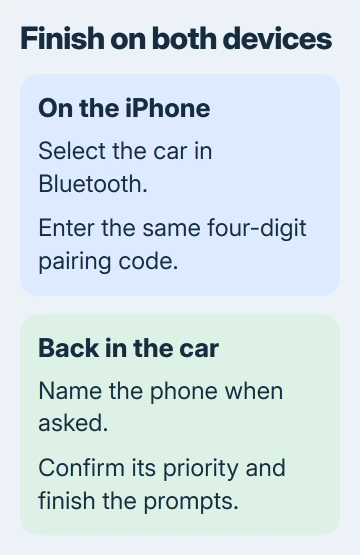
The basic hands-free system can also ask for a priority from 1 to 7, with 1 used for the phone you want most often. Choose the intended priority and confirm it when repeated.
Listen for the completion message and check that the iPhone shows the car as connected. Finish the car's naming and priority prompts even if the phone already shows that it's paired.
If several phones are saved in the car, their connection priority matters. Leave the other phones outside for the first test so you know which phone is connected.
Test calls before expecting Bluetooth music
While still parked, make a short test call to somebody who can answer. Check that you hear them through the vehicle speaker and that they can hear you through the car's microphone.
Then have them call the iPhone and answer with the car's Pick-up control. Adjust the call volume during the call if needed. End it with the Hang-up control appropriate to your vehicle.
I'd test a call before changing radio sources. That's what the original hands-free system was built for. A silent music app doesn't tell you whether the microphone and call connection work.
The basic hands-free unit doesn't gain streaming audio through a new iOS setting. If calls work but music doesn't, check whether the actual installed radio offers Bluetooth audio or whether it has a suitable AUX input instead.
An AUX connection is a separate wired audio route, and its cable or phone adapter depends on the installed inputs. Check those ports before buying an adapter. Pairing again won't add an input the radio doesn't have.
Clear a failed pairing and identify the remaining fault
For an old pairing that won't reconnect, press Speech and use Setup > Pairing Options > Delete. Follow the spoken instructions to remove the intended phone from the car's saved list.
On the iPhone, open Settings > Bluetooth, open the car's information button, and choose Forget This Device. Then pair from the beginning instead of selecting the old entry that won't connect.
The car Bluetooth troubleshooting guide explains why both saved connections matter. Delete only the affected phone's entry rather than every phone saved in the car.
If the car never appears, check that its pairing prompt is active and that the phone is close.
For an iPhone 17 that also drops other accessories, follow the phone-wide Bluetooth checks. If Bluetooth won't turn on or nothing pairs, contact Apple support.
If another phone pairs but this iPhone won't, ask Mitsubishi or the radio installer whether that system works with your iOS version. Bring the model year, radio details and the point where the spoken sequence stops.
If the factory Speech button doesn't respond with ACC and the audio system on, have a dealer or qualified car-audio technician check the car. They can identify the fitted module and check its power and operation.
The Short Version
With the basic hands-free system, use Setup, Pairing Options and Pair while parked. Select it on the iPhone and match the code. Finish the car's name and priority prompts, then test calls. Raider owners need U-Connect instructions.
Checked November 6, 2026.

Isaac Smith is the founder and editor of PC Glance, a website that covers computers, laptops, and technology. He is a tech enthusiast and a computer geek who loves to share his insights and help his readers make smart choices when buying tech gadgets or laptops. He is always curious and updated about the latest tech trends.