
Chrome uses your computer's emoji picker, so you don't need an extension to add emoji to a message or form. Click inside the text box first, then open the picker for Windows, Mac or Chromebook and choose the character you want.
The shortcut depends on the computer running Chrome. A Chromebook uses different keys from a Windows laptop, even though both have the same browser.
Put the cursor where the emoji should appear
Open the message, comment or document in Chrome. Click between the words where you want the emoji, or at the end of your text. Wait until a blinking cursor appears in the box, then open the picker.
Clicking the page background doesn't select the text box. If the page has separate subject and message fields, click the one where you want the emoji to appear.
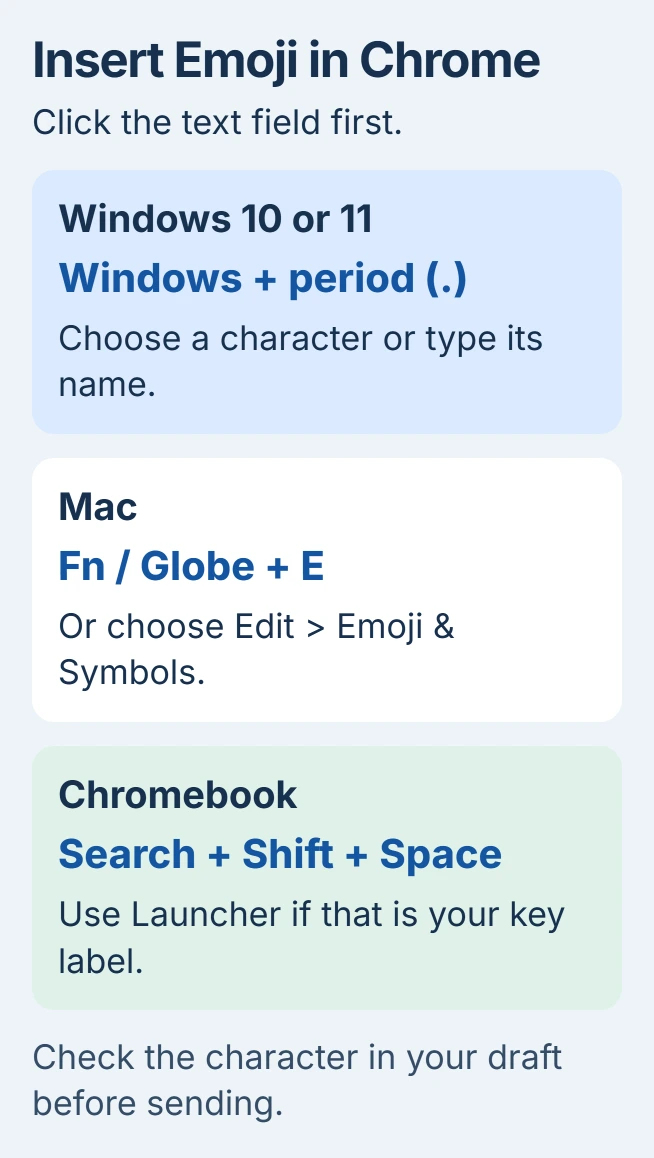
The picker inserts your emoji in the selected text field. Close it and read the surrounding sentence before posting, so you can catch a misplaced character while the message is still a draft.
I'd use this built-in route before installing an emoji extension. It keeps the same typing method available in other apps and avoids adding another browser tool just to insert a character.
Windows: press Windows plus period
Press Windows + period (.) together and release the keys. The emoji panel opens near your text. This shortcut works in Windows 11 and Windows 10.
Choose an emoji with the mouse, or start typing its name to search. A word such as heart is more useful than scrolling through every category. Select the result you want, then return to your message.
Microsoft's keyboard instructions describe both browsing and searching in this panel. Chrome doesn't need a separate emoji keyboard setting enabled first.
If the shortcut doesn't respond, check that you're pressing period, rather than comma or the decimal key on the number pad. Keep the cursor in the text field and try the combination once more.
The panel has other types of content too. Choose its emoji collection to add a character to your sentence. A GIF is an animation and may need the website's attachment or GIF control instead.
For the same keyboard method in email, the Outlook emoji instructions explain where to place the cursor in a draft. You don't need to copy an emoji from an email to use it in Chrome.
Mac: open Emoji & Symbols
With the text field selected in Chrome, choose Edit > Emoji & Symbols from the Mac's menu bar. The Character Viewer opens so you can browse or search for a character.
On current macOS versions, Fn + E, or Globe + E on a keyboard with that label, also opens the Character Viewer. Use the menu route if the keyboard combination doesn't respond.
Type a description in the viewer's search field and select the character you want. If the viewer opens as a larger window, double-click the character instead.
Click and hold an emoji to see any available variations, then pick the version you want. When you return to your message, type in the website's text box rather than the viewer's search field.
Mac also lets you assign the Fn or Globe key by itself to this task. Open System Settings > Keyboard, find Press fn key to or the Globe-key equivalent, and choose Show Emoji & Symbols if that matches how you want the key to work.
That setting changes what the key does across your Mac. Use the Edit menu for an occasional emoji if you'd rather keep the key working as it does now.
Chromebook: use its three-key shortcut
Click inside the text field, then press Search + Shift + Space. On a keyboard labeled Launcher instead of Search, use Launcher + Shift + Space.
The ChromeOS picker also opens by right-clicking in a text field and selecting Emoji. A right-click on the surrounding page can show a different menu, so aim inside the editable box.
Choose the emoji category or use the picker's search field. Type the name of the character, select it and check the message. Symbols, text emoticons and GIFs have their own categories; they aren't all inserted in the same way.
Keep Search in that combination, even if you're used to Ctrl shortcuts on another computer. It opens ChromeOS's character picker; it isn't a Chrome shortcut shared by every computer.
Check insertion separately from appearance
If the picker opens but nothing appears, click the message field again and try a simple character. Some webpages move the typing cursor when a menu opens, and a selected page element may not accept text at all.
Try another text field in Chrome. If the picker works there, the first site's editor is the place to check. When reporting the problem, say whether it loses your emoji, puts it elsewhere or changes how it looks.
An emoji can look different after you send it because its picture depends on the receiving app and font. For country codes that appear as letters, use the Chrome flag-display explanation.
If the picker won't open in any app, give your operating-system support team the keyboard combination and computer version. If it fails only in Chrome, use More > Help > Report an issue and describe that difference.
The Short Version
Click the text field first. Use Windows plus period on Windows, Emoji & Symbols on Mac, or Search/Launcher plus Shift plus Space on Chromebook. Choose the character and check its position before sending.
Checked November 6, 2026.

Isaac Smith is the founder and editor of PC Glance, a website that covers computers, laptops, and technology. He is a tech enthusiast and a computer geek who loves to share his insights and help his readers make smart choices when buying tech gadgets or laptops. He is always curious and updated about the latest tech trends.