
Yes, Fate/Grand Order can run on a PC with BlueStacks or another Android emulator. The emulator runs the Android game inside Windows; it isn't a native Windows edition, and the publisher's supported-device list covers phones and tablets.
Start with a new installation and check that it reaches the title screen before moving an existing account. Signing in to Google Play lets you install the game; it doesn't bring your existing FGO progress with it.
Check which edition and account you need
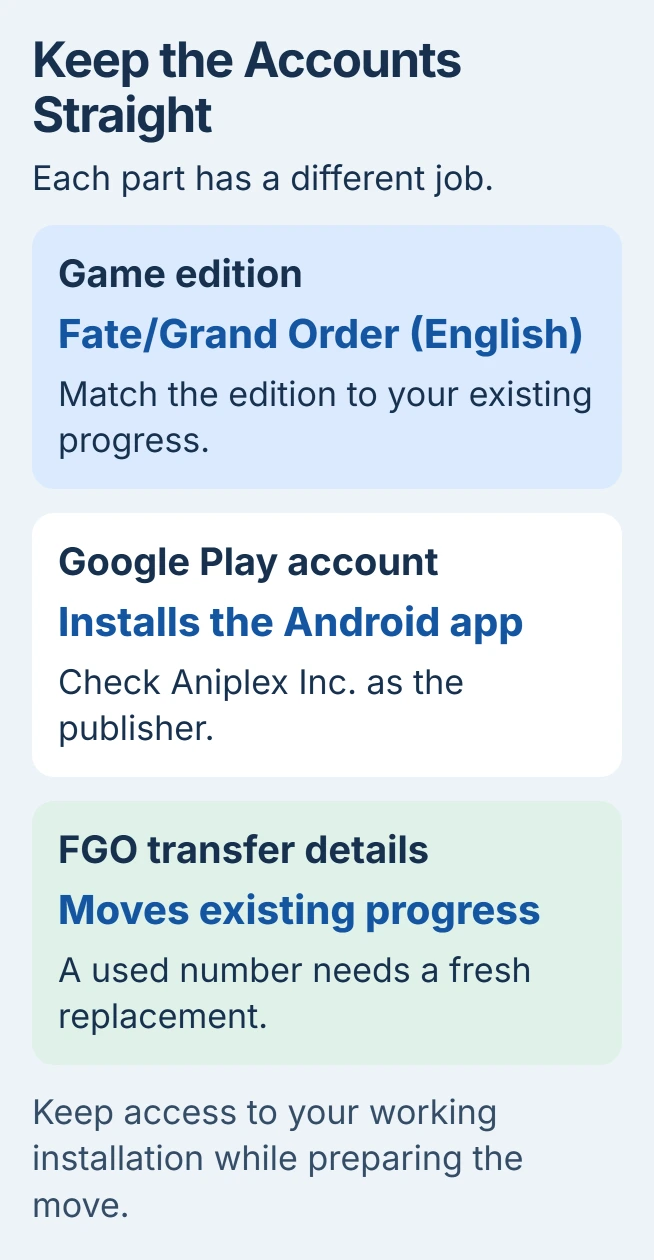
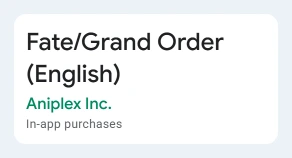
Decide whether you're installing the English edition or another regional edition. For the English game, the Google Play listing is Fate/Grand Order (English) from Aniplex Inc., with package name com.aniplex.fategrandorder.en.
Install the regional edition your account uses. Check the publisher as well as the title; a similar name alone doesn't tell you it's the right game.
BlueStacks' FGO installation guide describes the route: install the emulator, sign in to Google Play and download the game.
Check the game's supported environments too. Running BlueStacks doesn't make your PC an officially supported FGO device. Use a listed phone or tablet if you need support from the game publisher.
Install BlueStacks from its own website
Open the emulator maker's site and follow the Play Fate/Grand Order on PC download link in its game guide. Run the downloaded Windows installer and follow its setup prompts.
The installer may ask for administrator permission. Check that you downloaded it from the emulator maker's site before approving it. Even with FGO in the filename, it can be the emulator installer rather than a Windows game.
When setup finishes, open the BlueStacks player. Its Android home screen is where you'll install and launch FGO. If BlueStacks is already installed, use its existing Play Store instead of installing the player again.
If Windows blocks installation or the player won't open, start with that error message. Use the PC specifications guide to get your computer's details before asking emulator support whether it can run the player.
Keep any old emulator instance while sorting out installation problems. Each instance is a separate Android installation with its own app data, which can include a game account you haven't transferred yet.
Install the English game through Google Play
In BlueStacks, launch Google Play Store. Sign in with your Google Account, search for Fate/Grand Order (English) and compare the publisher with the official listing.
Select Install on that listing. Wait for installation to finish, then open the game from its Android icon. Let any additional game download complete before deciding whether the title screen works.
Your Google Account gets you into Play Store. The FGO transfer number and password bring over your game progress. Signing in with the same Google address on both installations doesn't replace the game's transfer steps.
If the listing is unavailable, read the exact message. A game unavailable in your region needs different help from a game that won't run on this device. Pressing Install again won't fix either restriction.
Google Play country settings affect which content is available. Use the account and region where you're eligible to download the game; ask store support about an incorrect restriction rather than installing an unknown modified package.
If the installation button is missing, note the game edition, emulator version and message in Play Store. Send those details to emulator support before trying another Android installation.
Prepare existing progress before using Transfer
On the working game installation, open MENU > My room > Issue Transfer Number to prepare its transfer details before moving your account.
Enter a new password in Password and Password (Re-enter), then select Register. If a number was already issued, use Issue New > Yes first. The replacement makes the old number and password unusable.
I'd save those details somewhere you can read without opening the phone or emulator. A screenshot kept only inside the installation you're replacing won't give you a separate recovery copy.
The official transfer procedure starts with Transfer at the title screen's lower left. Open the terms, agree, enter the issued number and password, then choose Game Start.
A transfer number and password can be used only once. Issue a fresh set after a successful transfer, as the instructions require, and keep that new set in place of the old one.
There are also supported device-backup routes. Using a transfer number can make older game backups unusable, so follow the current recovery instructions for the method you're using.
The Android backup explanation covers what your device backup saves. Copying an emulator folder to another PC isn't the same as transferring your account through the game.
Handle a game that installs but won't start
First check whether the emulator opens other Android screens. If it closes before reaching its home screen, start with the player. If you reach that screen but FGO stops with an error, start with the game.
Record the FGO error code and check its regional support notices. The English game's environment-change notice schedules stricter device requirements for mid-January 2027 after its engine update.
Ask the emulator maker which Android version and settings currently support this edition. A version used in a years-old video may no longer be suitable after the game's requirements change.
Ask FGO support about account recovery and BlueStacks support about its Windows player. Include the emulator version, game region and exact error so the right team can check it.
The Short Version
Install the mobile edition inside a Windows Android emulator. Try its title screen before transferring an existing account, then follow FGO's one-use transfer process. A working emulator isn't a publisher-supported mobile device.
Checked November 6, 2026.

Isaac Smith is the founder and editor of PC Glance, a website that covers computers, laptops, and technology. He is a tech enthusiast and a computer geek who loves to share his insights and help his readers make smart choices when buying tech gadgets or laptops. He is always curious and updated about the latest tech trends.