
Yes, a blank-page extension can remove the search box inside Chrome's New Tab page. To hide the top address bar in ordinary tabs, use full screen or open the site as an installed web app.
Choose the part you want to hide before installing anything. A blank-new-tab extension changes the page inside the browser; it doesn't remove the controls around every website.
Match the bar to the change you want
The address bar is the long field beside Chrome's navigation controls. It shows website addresses and accepts searches. It's also called the omnibox because those two jobs share one field.
The New Tab search box sits in the page itself, usually under the Google logo. A third search field, the Find box, appears when you search for a word on the current page.
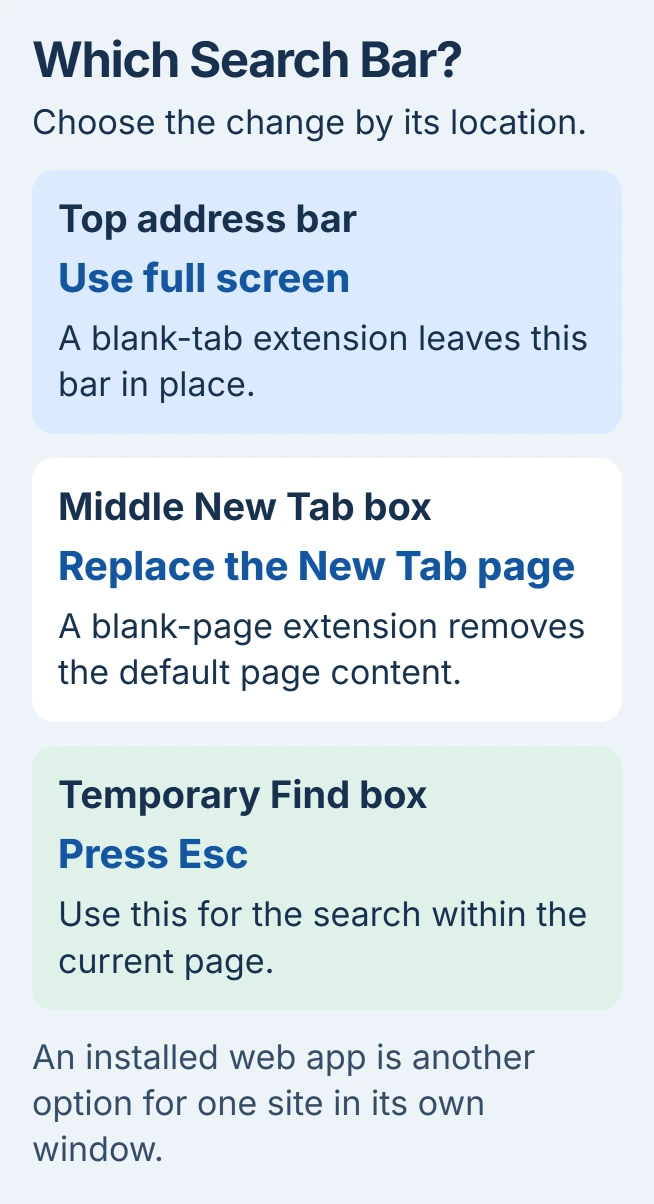
Press Esc while you're using the temporary Find box to close it. To remove the middle New Tab box, follow the extension steps in the next section. To hide the address bar, use full screen or a separate app window.
The row of saved links under the address bar has its own bookmarks-bar setting. Removing the New Tab search box won't change that row.
Make new tabs open on a blank page
One current option is Blank New Tab (with dark mode support). Its developer publishes the source and extension listing, and its current version uses Chrome's supported extension format.
Open its Chrome Web Store listing on your computer. Check the full name and developer, then choose Add to Chrome and review the confirmation before selecting Add extension.
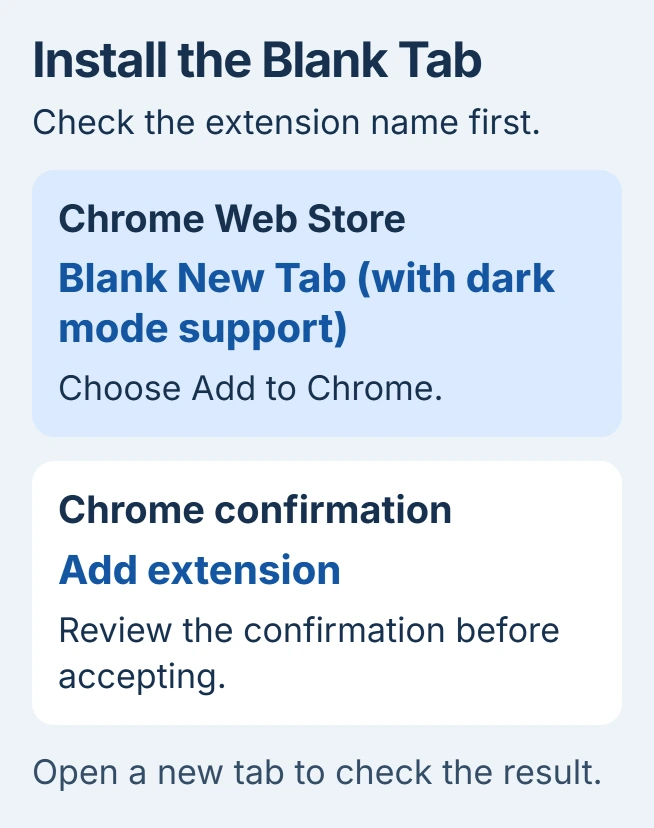
Open a fresh tab with Ctrl + T on Windows or Command + T on Mac. The page should be blank instead of showing the central Google search box, shortcut tiles and other default New Tab content.
The address bar still accepts web addresses and searches. The extension replaces the New Tab page, while tabs already showing websites keep their content.
The whole New Tab page changes, including its dashboard and shortcuts. If you want to keep some of those, check another extension's layout before installing it.
Google's page-override documentation explains how an extension replaces the New Tab page. That replacement doesn't include a setting to hide the normal window's address bar.
Avoid installing several New Tab replacements together. If the wrong page opens, review the enabled replacements in More > Extensions > Manage extensions before adding another one.
Hide the address bar with full screen
Open the page you want to read, then press F11 on Windows or Linux. Chrome enters full-screen mode, letting the webpage use the space normally taken by the browser's controls.
Press F11 again to leave full screen. If your laptop assigns F11 to a hardware function, use the keyboard's Fn combination for F11, or open Chrome's three-dot menu and use the full-screen control beside Zoom.
On Mac, the current Chrome shortcut reference lists Fn + F for entering and leaving full screen. Check Chrome is the active app before pressing it.
If the address bar stays visible on Mac, open View and clear Always Show Toolbar in Full Screen. Turn that option back on whenever you want the toolbar to stay visible.
Move the pointer back over the page after using the top controls. Browser controls can appear when you move to the top edge, so a bar that reappears there doesn't mean an extension failed.
Full screen fills the display. If you want a smaller window beside your notes, try an installed web app instead.
Other Chrome navigation shortcuts remain useful when the toolbar isn't on screen. Learn the exit shortcut before starting a presentation or handing the computer to someone else.
Use a web app for one website in its own window
Open the website in Chrome. Choose More > Cast, save, and share > Install page as app, then complete the installation prompt. Some sites also show an Install control in the address bar.
The web-app instructions cover this built-in route. Open the installed app from your computer's app launcher to use the site's own window instead of a normal tab.
I'd try this before looking for an extension that opens popup windows. A site you use often gets its own app entry, and Chrome's own controls handle the setup.
A web app still has window and app controls. Some links can open another browser tab, depending on where they lead. Try the app's window to see whether it works the way you want.
To remove it later, open the web app's menu and choose Uninstall [app name] > Remove. Read the separate option for deleting app data before selecting it; uninstalling the shortcut doesn't require clearing all of Chrome's browsing data.
Undo an extension change that doesn't suit you
Open More > Extensions > Manage extensions. Find the new-tab extension and switch it off, then open another new tab to compare the result. Select Remove to uninstall the extension completely.
The extension controls also show whether an extension is disabled or managed by an organization. If your school or work computer blocks installation or removal, ask its administrator.
If Chrome still opens an unexpected search page after the extension is off, note whether it happens on startup, a new tab or an ordinary search. Those are different settings. Report that exact behavior through More > Help > Report an issue.
The Short Version
Use a blank-new-tab extension for the search box inside a new tab. Use full screen for temporary toolbar hiding, or install one website as a web app for its own window. Check which bar changed before adding another extension.
Checked November 6, 2026.

Isaac Smith is the founder and editor of PC Glance, a website that covers computers, laptops, and technology. He is a tech enthusiast and a computer geek who loves to share his insights and help his readers make smart choices when buying tech gadgets or laptops. He is always curious and updated about the latest tech trends.