
A white Windows 10 Search box often means part of Windows is still using light mode. Start with Settings > Personalization > Colors and check the Windows and app color choices. Changing the search index won't set those colors.
These color checks apply when Search still shows readable results. An empty white panel, missing icons or unreadable text calls for other repairs. A working panel with a bright background needs appearance checks.
1. Set the Windows and app modes to Dark
Press Windows key + I to open Settings, then choose Personalization > Colors. Under Choose your color, select Dark to try dark mode in the parts of Windows and apps that support it.
The color setting's wording varies slightly between builds. If Custom is selected, check both Choose your default Windows mode and Choose your default app mode. Set both to Dark to compare the result.
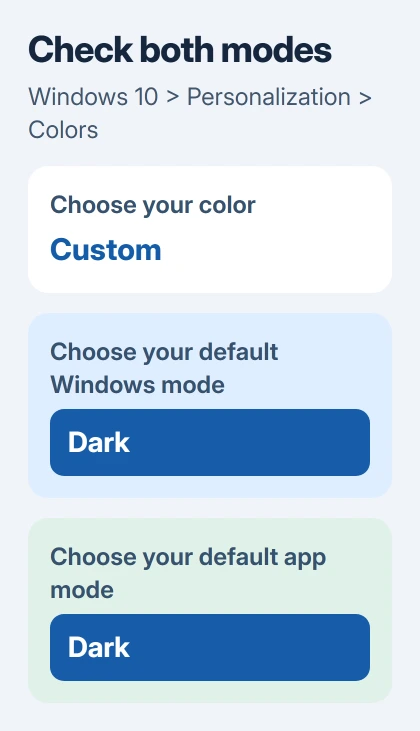
Microsoft's color-mode instructions explain Light, Dark and Custom. Custom lets Windows and apps use different modes, so parts of your desktop can look mismatched.
Click outside Search to close it, then reopen it. Search for an installed app such as Notepad, read the result, and try opening that app. Compare the taskbar box with the open results panel too.
If they now look right, the color settings were the problem. You can adjust other app preferences afterward, but note which change brings back the white background.
The accent-color picker does a different job. Choosing blue, green or another accent doesn't set light or dark mode. Neither does changing your wallpaper color or desktop brightness.
If the white background is only on a browser's search page, skip to the browser section. Windows Search is the panel you open from Start or the taskbar; a website's search box has its own appearance settings.
2. Check whether High contrast is controlling the colors
If several parts of Windows have unusual solid backgrounds or very different text colors, open Settings > Ease of Access > High contrast. Check whether Turn on high contrast is on before changing it.
High contrast uses its own set of colors to make things on screen easier to tell apart. Its white background can come from those colors rather than the ordinary Light theme.
If it was turned on by accident, switch it Off and wait for Windows to apply the change. Reopen Search and compare it with the Start menu and Settings app.
If you rely on High contrast to read the screen, keep it enabled and adjust the selected high-contrast theme instead. A regular dark theme isn't a substitute for the accessibility settings you need.
The contrast controls are separate from Personalization's color choices. If High contrast is already off, move on to the theme check.
3. Test a standard Windows theme
Open Settings > Personalization > Themes. Select one of the built-in Windows themes, then return to Colors and check the dark-mode choices again. A theme can change several appearance settings together.
Try this when the white panel first appeared after applying a downloaded theme or using a desktop customization app. It checks whether the normal appearance settings work before you try repairing Search itself.
The Windows theme guide explains which settings travel together in a theme. Changing the wallpaper alone doesn't remove every appearance change made by the theme.
If a customization app keeps applying its own colors, open its settings and pause automatic theme changes. Note the app's name and whether the normal Windows theme stays selected while it's paused.
If pausing that app makes the white background disappear, ask its developer which Windows builds it supports. Don't add another theme utility to try to cancel the first one's changes.
If the normal theme makes no difference, leave it selected for the next check. With those settings unchanged, you can check Search itself for a separate fault.
4. Restart once and distinguish the remaining symptom
Save your work and choose Start > Power > Restart. After Windows starts again, open Search and search for the same app. This lets you compare the result after Windows has restarted with the theme changes.
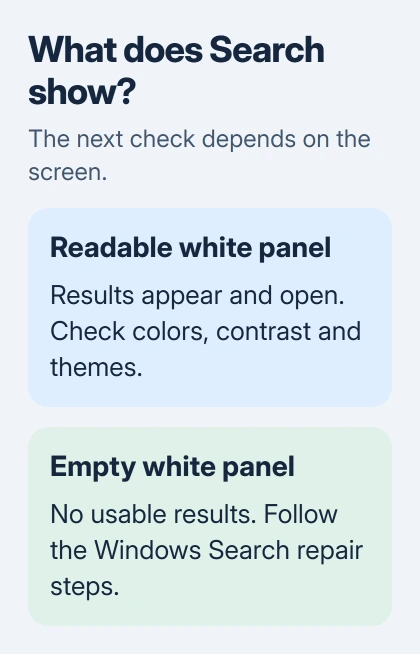
If you can read the results and open the right app, Search is working. Any white area that remains is an appearance issue; rebuilding the list of files Windows searches won't choose a dark background.
If Search opens an empty rectangle, stops accepting text or won't open a result, use the Windows Search repair guide. Those problems need Search repairs rather than more color changes.
If you can see results but their icons are blank, note that separately. The labels and background may work while the icons fail to appear. Describing the whole panel as white can make that difference harder to explain.
I'd describe what you still see before making a deeper change: readable results on white, an empty rectangle, or white text on white. Support needs to know which of those you have, even though they can look similar at a glance.
When the white area belongs to Edge or Chrome
Open Start without a browser window in front of it and type an app name. If that Windows panel is dark, the white area in your Edge or Chrome tab comes from the browser, the website or its theme.
A browser's new-tab page can have its own background and appearance controls. A website may have a separate dark-mode setting too. Choosing Dark in Windows doesn't make every page or app dark.
Use the appearance controls in the app or page that's white. Changing Cortana settings, deleting search files or changing your Windows region won't choose a website's theme.
If the working Search panel still ignores Dark
Press Windows key + R, type winver, and note the version and build number. Take a screenshot of the taskbar box and open panel, plus your Colors choices, so support can see exactly what still looks wrong.
Include your High contrast setting, selected theme and any customization app you're using. Contact Windows Support or your PC administrator, and check which updates are available for your supported Windows installation.
Free Windows 10 support ended October 14, 2025. Which updates your PC can still receive matters when asking for a fix. Old Cortana registry changes aren't a current repair for every white Search panel.
The Short Version
Check the Windows and app color modes, High contrast and any custom theme. Restart and compare the same search. Readable white results need appearance checks; an empty panel or broken results belong in Windows Search troubleshooting.
Checked November 6, 2026.

Isaac Smith is the founder and editor of PC Glance, a website that covers computers, laptops, and technology. He is a tech enthusiast and a computer geek who loves to share his insights and help his readers make smart choices when buying tech gadgets or laptops. He is always curious and updated about the latest tech trends.