
Excel can save a workbook as PDF without a converter. Set the sheet's page layout first, check File > Print, then use Save As and choose PDF. The preview catches columns that would otherwise land on separate pages.
Keep your original Excel workbook too. Share or read the PDF, and use the workbook when you need to change formulas, edit cells or rearrange sheets later.
Choose the sheets and cells the PDF should include
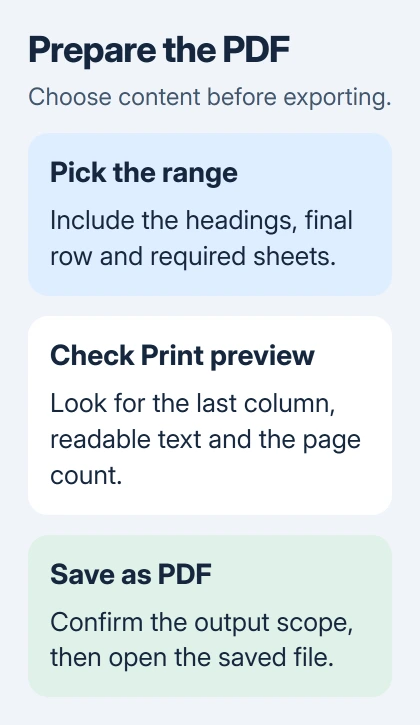
Start desktop Excel and open your workbook. Select the worksheet you want to share. Before changing the page layout, decide whether the PDF needs just that sheet, several sheets or the whole workbook.
For a report that uses only part of a large worksheet, select the cells you need and choose Page Layout > Print Area > Set Print Area. Include the column headings and the report's final row.
A saved print area can also explain missing cells. If the PDF stops at an old range, check that worksheet's print area. Use Page Layout > Print Area > Clear Print Area when you no longer need that limit.
The print-area guide covers extending or clearing that saved selection. Clearing it changes which cells Excel includes in the print layout; it doesn't delete your data.
Open File > Print and check the preview. Look at the first and last records, the rightmost column and the page count. If anything is missing here, fix the layout before saving the PDF.
Fit the columns without shrinking every row onto one page
Wide tables often need Landscape orientation. Choose it in the print settings or under Page Layout > Orientation, then check whether the columns now fit across the preview.
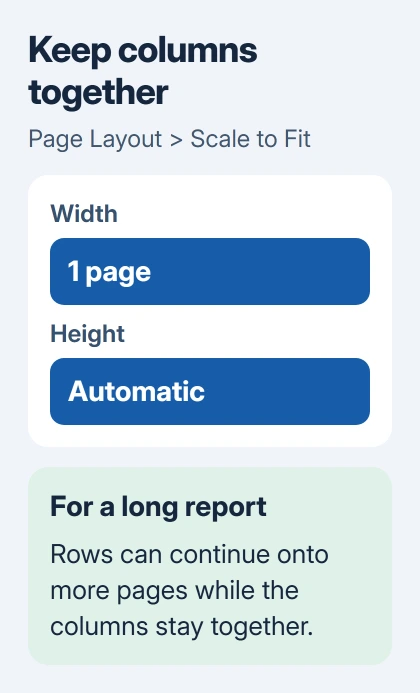
If the table is still too wide, use Page Layout > Scale to Fit. Set Width to 1 page and leave Height at Automatic. This keeps the columns together while allowing the rows to continue onto more pages.
Microsoft's worksheet scaling instructions describe this width-and-height combination. It usually suits a long report better than squeezing all its rows onto one page.
For a small table, Fit Sheet on One Page can work. Check the preview at a size you'd normally read before keeping it. Fitting the whole table on a page doesn't help if every label is tiny.
If the result is still cramped, use more pages or remove columns the reader doesn't need. I'd keep the numbers readable, even if that means a large report takes more than one page.
Paper size affects the layout too. Choose the Letter or A4 size you need before exporting, especially if the PDF will be printed. Changing it after you've adjusted scaling can move a column onto another page.
Save the PDF in Excel for Windows
Select File > Save As or Save a Copy, depending on how the workbook is stored. Choose a folder, enter a clear filename, and set Save as type to PDF (*.pdf).
Choose Standard (publishing online and printing) for normal print quality. Minimum size (publishing online) aims for a smaller file. Check charts and small labels in the finished PDF before settling on the smaller version.
Open Options before saving. Choose what goes into the PDF: selected cells, the active sheet or sheets, or the entire workbook. Match this choice to the report you prepared.
Choose Entire workbook when you want all the sheets in one document. For a report from one sheet, select just that sheet. Check the selected sheet tabs too: grouped sheets can change which active sheets Excel includes.
Confirm the options, then select Save. If you see Open file after publishing, enable it to open the finished PDF for a check. Otherwise, open your saved PDF from the chosen folder.
Excel's built-in PDF saving controls handle this desktop task without a separate converter.
Use the PDF format choice on a Mac
In Excel for Mac, choose File > Save As or Save a Copy. Open File Format, select PDF, give the file a name and choose where to save it. Check which sheets or cells will be included before saving.
The Mac version can save selected cells, the active sheet or the workbook as PDF. Its buttons may be arranged differently from Windows, so check which cells or sheets your version will include.
If the PDF contains the wrong sheets, go back to your workbook and change the export selection. Create the right copy there instead of editing the PDF afterward.
Check the exported file rather than the workbook alone
Open the PDF and check every page, including the last one. Look for titles, dates, totals and the final column. A worksheet can look right while you're editing it and still need changes to its print layout.
If lines between cells are missing, use the Excel printed-lines settings before exporting again. The faint grid you see while editing isn't automatically included in the PDF.
If the PDF has extra blank pages, go back to Print preview and check the print area and page count. Content or formatting far outside your table can make Excel export a larger area than you intended.
Test links in the finished PDF, since links within the workbook can change during conversion. Share the Excel copy with anyone who needs formulas, filters or spreadsheet controls rather than fixed pages.
If saving fails or the result stays wrong
Save a small new workbook as PDF in a local folder. If that works, compare the original's sheet selection and print settings. If both fail, note the error and check whether Excel can save another file there.
Give IT or Office Support your Excel version, save location, error and the result with the small workbook. Don't upload a private workbook to an unfamiliar converter to try to fix a saving problem.
The Short Version
Choose the report's cells and sheets, check Print preview, and keep long reports one page wide with automatic height. Save as PDF with the right cells or sheets included, then open it to check the columns, totals and page count.
Checked November 6, 2026.

Isaac Smith is the founder and editor of PC Glance, a website that covers computers, laptops, and technology. He is a tech enthusiast and a computer geek who loves to share his insights and help his readers make smart choices when buying tech gadgets or laptops. He is always curious and updated about the latest tech trends.