
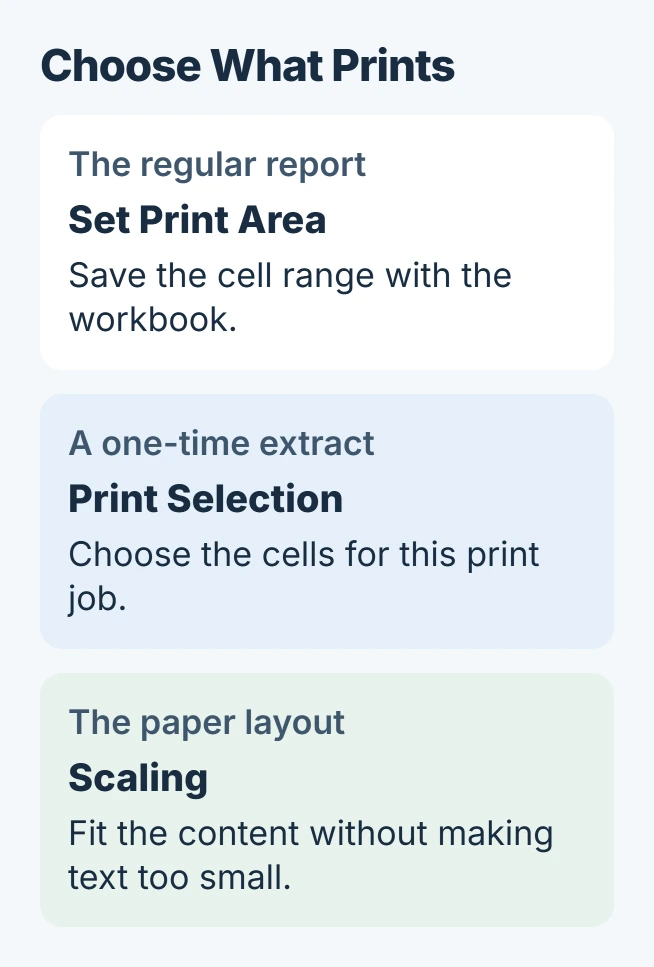
To set a print area in desktop Excel, select the cells to include and choose Page Layout > Print Area > Set Print Area. Save the workbook to keep that selection for later printing. Cells outside it remain in the worksheet.
The selection controls which cells print, not how many sheets of paper they need. Check Print preview before sending the job, especially when the range is wide or contains many rows.
Select the range and save its print area
Open the intended worksheet and drag across the required cells, including any headings that belong in the printout. Choose Set Print Area from the Print Area menu on the Page Layout tab.
Microsoft documents this selection in its print-area instructions. Save the workbook afterward, then open File > Print to examine the result.
Status: Microsoft print-area and print-preview instructions reviewed November 1, 2026. Main steps target desktop Excel for Windows; the web procedure is separate. No workbook was printed.
Check the first and last records, column headings and page count. Our recommendation is to make this check before changing the printer: missing cells in the preview point back to the workbook's print choices.
When the range is correct but the cells need visible divisions on paper, enable printed gridlines or borders before printing.
Extend the range or remove the restriction
To include neighboring cells, select those cells and choose Page Layout > Print Area > Add to Print Area. Adding a disconnected range creates another print area; it does not join the intervening cells into the existing one.
Microsoft says separate print areas print separately. If the intention is one continuous block, select the complete rectangular range when defining it. Avoid selecting distant cells merely to hide unwanted gaps on paper.
To remove the saved restriction, choose Page Layout > Print Area > Clear Print Area. This clears every print area on that worksheet. It leaves the cell data intact.
Print a selection once without changing the saved range
For an occasional extract, select the cells and open File > Print. In the Settings list that normally shows Print Active Sheets, choose Print Selection and inspect the preview.
To print beyond an existing saved area, Microsoft lists Ignore print area in its quick printing guide. Check the chosen sheet and preview after selecting that option.
These print choices are useful when the regular report still needs its usual saved range. Confirm them for the current job instead of assuming an earlier selection is still the intended one.
Too many pages means checking scaling
If the correct cells appear but spread across too much paper, open the Page Setup dialog from the small launcher on Page Layout. On its Page tab, review the scaling options.
Microsoft's one-page scaling procedure uses Fit to, with one page wide and one tall. Apply that only if the resulting text remains readable; a large table may need several pages.
For deliberate row or column boundaries, use the Excel page-break procedure. A print area selects content, while a page break controls where another printed page begins.
If dotted guides remain visible after previewing, the page-break display control hides those guides. Clearing the print area is unnecessary just to change their visibility.
Excel in a browser uses a different print path
Select the cells in Excel for the web, then choose File > Print > Print inside Excel. Under Print Options, select Current Selection. Inspect the preview before completing the print command.
Microsoft states that the web worksheet print command should be used instead of the browser's own printing command. Use the installed Excel application when the job needs its additional print-area controls.
If the selection remains wrong in a new test workbook, give Microsoft Support the Excel edition, selected range and preview result. A printer that fails despite a correct preview needs a separate printing check.
The Short Version
Set and save a print area for a recurring range, or use Print Selection for an occasional extract. Inspect which cells appear before adjusting scaling or page breaks. Use Excel's own Print menu in a browser.

Isaac Smith is the founder and editor of PC Glance, a website that covers computers, laptops, and technology. He is a tech enthusiast and a computer geek who loves to share his insights and help his readers make smart choices when buying tech gadgets or laptops. He is always curious and updated about the latest tech trends.