

Excel can crash during printing because of a printer driver or Office add-in. Try a small workbook with another printer, then Excel Safe Mode. For PDF failures, compare Print with Excel's built-in PDF export.
That distinction matters: a contributor to the original thread fixed a broken Adobe PDF printer, while another needed an Excel 2013 update. Those are different faults, so check which output route is failing before choosing a repair.
In this guide
1. Change the printer before repairing Office
Save the workbook and open File > Print. Read the printer selected in the dropdown. If Excel crashes before you can choose anything, close Excel and change the Windows default printer before reopening it.
On Windows 11, open Settings > Bluetooth & devices > Printers & scanners. Find Let Windows manage my default printer. Turn that option off if needed, select a different installed printer, and choose Set as default.
On Windows 10, use Settings > Devices > Printers & scanners. Clear Let Windows manage my default printer, select the alternative, then Manage > Set as default. Note the old default to restore later.
Launch Excel again and type a few words into an empty workbook. Use the alternative printer for the check. If the crash disappears, the first printer or its driver needs attention before another Office reinstall.
Microsoft's Excel crash troubleshooting explains that Excel checks printer drivers and suggests comparing printers. A printer connection can affect Excel before you've printed anything.
I'd try that short comparison first. Keep the original workbook saved and use a tiny test file so a crash doesn't interrupt a long calculation or risk your latest changes.
2. Separate PDF export from a PDF printer
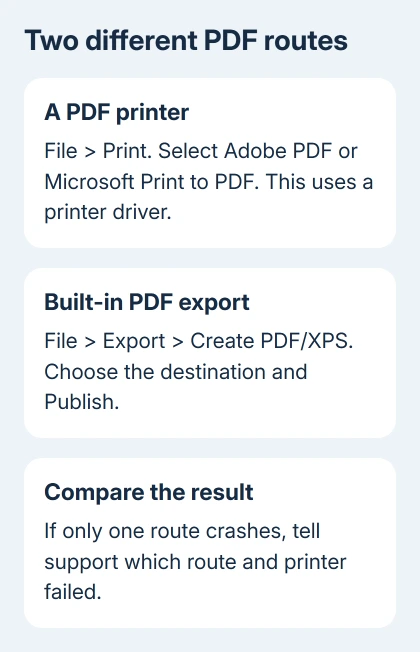
For Excel's built-in exporter on Windows, choose File > Export > Create PDF/XPS, then Create PDF/XPS. Select a local destination and a new filename, review Options for the required sheets, and choose Publish.
Some versions also offer PDF through Save As. That is different from selecting Adobe PDF or Microsoft Print to PDF under File > Print. Note which route crashes so support knows whether you're exporting a PDF or printing to one.
A Mac workbook that refuses an ordinary save with a memory alert needs the gridline-color repair, rather than PDF printer troubleshooting.
If export works but Adobe PDF printing crashes, use export while Adobe is repaired. One owner fixed their fault when the Windows troubleshooter created a replacement PDF printer.
That report came from an older Windows setup. On Windows 11 or 10, start a current printer check by opening Get Help and asking for the printer troubleshooter. Have IT or Adobe support repair a managed Adobe PDF installation if needed.
If the PDF is created but has missing columns or unwanted pages, follow the Excel print-area steps. If the export finishes but the layout is wrong, check the page settings next.
3. Does a small workbook fail too?
Try both the original and the tiny test workbook through the same failing print or export route. If the blank file succeeds, duplicate your original file before changing its sheets, objects or formatting.
Record the sheet name, selected range and output choice. If only one workbook fails, support can focus on that file instead of checking every printer or all of Office.
If possible, request a replacement after its creator checks the original file. Don't strip formulas or delete sheets from your only copy to make it print. Keep any reduced example separate from the file you use for work.
If a file crashes only on a network printer, check that printer's driver and connection. Open that device in Windows printer settings and use Printer properties to print a Windows test page. If it fails too, the fault extends beyond Excel.
When that Windows test also fails, send the printer model, connection type and test-page result to IT or the printer maker. Ask for a current driver matching your printer model and Windows edition.
4. Test Excel without its normal add-ins
Close Excel. Press Windows + R, type excel /safe and press Enter. Keep a space between excel and /safe. Open the small test workbook and repeat the print or export action that failed in normal Excel.
Excel Safe Mode skips many customizations and most COM add-ins. If the same action works there, compare the add-ins in normal mode before repairing Office. A successful Safe Mode test won't identify the add-in; check them next.
Reopen Excel normally and select File > Options > Add-ins. At Manage, choose COM Add-ins, then Go. Record the enabled items, clear their checkboxes and confirm. Close Excel, open it normally again, and retry the failing action.
If that resolves the crash, enable one item at a time, restarting and checking between changes. When the crash returns, keep that item off while IT or its maker checks for a fix.
If normal Excel still fails with COM add-ins disabled, restore unrelated items rather than leaving every feature off. Describe the Safe Mode behavior to support. Support may need to check Excel's startup files and other custom settings too.
Excel that freezes during copying has a related default-printer comparison. Keep that separate from a workbook that opens and edits normally but crashes only at output.
5. Update the installed Office product, then repair it
In a supported Excel installation, open File > Account > Update Options > Update Now. Let the updater finish and restart Excel. On a work computer without that control, ask IT to update the managed Office installation.
An owner in the old thread reported success with the March 2015 Excel 2013 update KB2956145. That's a historical Excel 2013 repair, not an update to install into Microsoft 365 or a different Office product.
If current updates don't help, open Windows Settings > Apps. Windows 11 uses Installed apps, while Windows 10 uses Apps & features. Select Office or Microsoft 365, choose Modify, then start Quick Repair.
Save your work before repair. The larger Online Repair option requires an internet connection. Owners in the thread reported failed add-in changes and Online Repair, so list those earlier attempts when asking support about another repair.
When both print and export still crash
Give your IT desk or Microsoft Support your Excel build, output route, printer name and tiny-workbook result. Include Safe Mode behavior and any crash message. Ask them to check the printer driver or Office crash using those details.
For an Adobe PDF-only fault, take the result to Adobe support. If every Windows app fails on one physical printer, use the printer maker's driver support. Both faults can show up in Excel's Print screen, but each needs its own repair.
The Short Version
Compare another printer and a small workbook. Test built-in PDF export separately from PDF printing. Compare add-ins through Safe Mode before updating or repairing Office. A failed Windows test page needs printer support.
Checked November 17, 2026.






