

Excel for Mac can show Alert Not Enough Memory when saving because of a custom gridline color, even with free RAM and disk space. In the reported Excel 2016 case, restoring Automatic gridline color stopped it.
Try that setting first for the short Mac alert, especially on an old installation. The longer Windows resource warning during calculations needs different checks. Don't delete spreadsheet data to treat both faults alike.
In this guide
1. Return the gridline color to Automatic
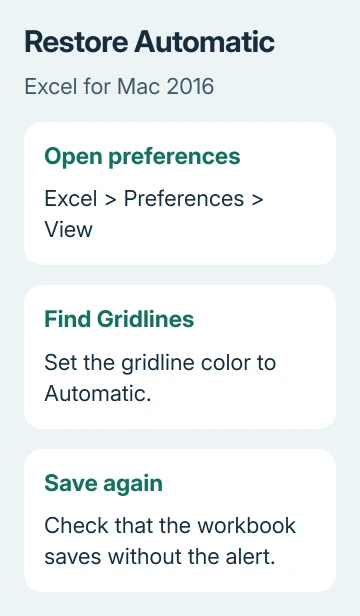
Keep the workbook open if it contains changes that haven't saved. From the Mac's menu bar, choose Excel > Preferences > View. Find Gridlines and change its color to Automatic, then retry saving the workbook.
This is the historical Excel 2016 menu path. Newer editions may label the Excel menu's preferences entry Settings. Look for the worksheet display controls, rather than the ribbon's cell fill or font color buttons.
Gridlines are the faint guides between worksheet cells. Changing their color doesn't remove the borders or background colors you've added to a table. Leave those formatting choices alone for this check.
One owner on Microsoft's forum reproduced the save failure by changing the gridline color and cleared it by restoring Automatic. Their report names Excel 15.20, OS X 10.11.4, and a MacBook Pro with 8GB RAM.
The important part is that changing the setting brought the error back and restoring Automatic cleared it. That explains how even a small workbook could produce a memory warning on that Mac.
A current Excel memory alert can still have a different cause.
After the change, save to the intended location and check that the file's modified time updates. If saving works, keep Automatic selected and continue working.
If the same alert remains, protect the unsaved work before changing anything more.
2. Save a separate copy before closing Excel
Use File > Save As if your edition offers it, give the workbook a different name, and choose a recognizable folder on the Mac. Keep both files until you've checked the newly saved workbook's contents.
If you normally save the workbook to shared or cloud storage, try saving the copy on your Mac too.
If the copy saves on your Mac but won't save to the original location, check that location and your access to it. Excel can save the workbook, but something is stopping it there.
If both saves fail with the same memory alert, don't repeatedly overwrite the only existing copy. Leave the workbook open while checking the next section.
Unsaved changes aren't protected just because the workbook has a name in its title bar.
Once a separate copy exists, open it and inspect a recent edit, a formula, and any important charts or extra sheets.
Seeing a file in Finder tells you it exists; opening that copy confirms which edits it contains.
I'd make that copy before experimenting with workbook contents. Removing a complex sheet might make a file smaller, but it can also break formulas elsewhere. The gridline check doesn't require taking that risk.
3. See whether a simple workbook saves
Create a blank workbook, enter a small value, and save it to the same local folder used for the copy. This checks whether Excel can complete an ordinary save without involving the original spreadsheet's contents.
If the simple workbook saves, you can focus on what's different about the original. Note whether the original was created in another Excel release, and whether the alert starts with one particular file or with every file you open.
In the original discussion, the asker had already tried safe mode, repairing disk permissions, and conversion to .xlsx without success. Another participant said a workbook worked in Excel 2011 but failed in the newer Mac release.
Changing the file format and repairing disk permissions hadn't helped in those reports. I'd try the gridline setting before repeating either of those older suggestions for this alert.
If the problem follows one workbook, ask your organization whether you can share a sanitized copy with support. Describe what you clicked or changed immediately before the warning appeared.
A save failure is a more useful description than simply saying Excel uses too much memory.
If even a blank workbook fails, continue with the installed Excel version. For the longer Windows resource warning, use the separate Excel memory troubleshooting guide, which covers Windows add-ins and printer checks.
One owner stopped the alert by removing a percent sign from sheet names, while another said removing special characters didn't help. In a duplicate workbook, rename an affected sheet with a simple name and retry the same save.
If that works, reopen the saved copy and check formulas or links that depend on sheet names before replacing your working file. If it doesn't, keep the original names and continue to the app update.
4. Update through the route used by your Mac installation
Check the version under Excel > About Microsoft Excel. Record its complete version number rather than only the Office edition. Support needs that number to tell whether you're using the old 15.20 release or a current supported edition.
For an installation maintained through Microsoft AutoUpdate, open Help > Check for Updates. Install any offered Excel update, save other Office work when asked, and reopen the affected workbook after the update completes.
A Mac App Store installation gets its updates through that store. Open the App Store and check its Updates section. An employer-managed Mac may need its software service or IT team to provide the update.
A later report still saw the gridline bug in a 15.28 Insider build. That isn't a fixed build to seek out; use the supported update route for your installation.
The Office for Mac update instructions explain these installation differences. Keep a current edition updated, but an old Excel 2016 installation can't be assumed to have a new repair waiting for it.
Don't install the old 15.20 build to reproduce someone else's report. Keep the version your Mac and Office license support.
The original workaround is useful because it changes one display setting, not because that old release is a recommended destination.
For a Windows computer failing only during printing, the Excel printing crash guide separates printer-driver faults from PDF export. That is a different trigger from this Mac save alert.
When Automatic doesn't clear the alert
Use Help > Contact Support where available in a supported Excel installation. Send the exact alert, Excel and macOS versions, the Automatic-setting result and the outcome of saving a blank workbook locally.
Before replacing Office on a work Mac, send IT the affected workbook and details of where it fails to save. Keep the working copy and the original separate.
If the Mac must stay on unsupported Office, ask about moving the workbook to a supported computer for recovery.
The Short Version
Set Excel for Mac's gridline color to Automatic first. Protect unsaved work with a separate local copy, compare a blank workbook, and check the installed version's update route if saving still fails.
Checked November 17, 2026.






