
Excel can print with lines around cells even when its first preview shows none. In desktop Excel, enable Print under Page Layout > Gridlines. The grid visible while editing has a separate print setting, so seeing it on screen is not enough.
Use cell borders when the sheet has colored cells or needs stronger lines. Excel for the web also uses borders for this job because it does not support printing ordinary gridlines.
Turn on printed gridlines for the worksheet
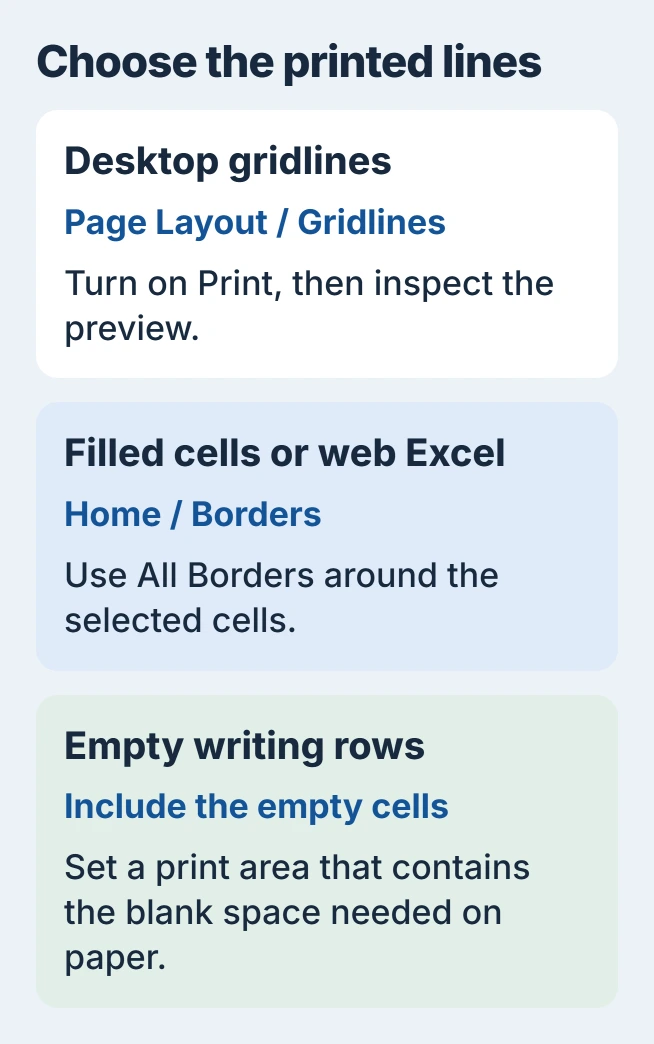
Select the worksheet tab. In Excel for Windows, open Page Layout and find Sheet Options. Under Gridlines, select Print, then open File > Print to inspect the result.
Microsoft documents this in its gridline printing instructions. The view checkbox serves the editing screen instead. If the controls are dimmed, click a cell to leave a selected chart or picture, then try again.
Status: Excel gridline printing checked against Microsoft's Windows, Mac and web instructions on November 1, 2026. No worksheet or printer was tested.
On Mac, Microsoft's cell gridline guide gives Page Layout > Gridlines > Print, followed by File > Print. Check the preview before committing paper.
If several sheets were selected together, finish by right-clicking a selected sheet tab and choosing Ungroup Sheets. That avoids leaving multiple worksheets selected for later editing.
Use borders for filled cells or darker lines
A fill color hides ordinary gridlines, including a white fill. Microsoft says in its gridline visibility guidance to choose Home > Fill Color > No Fill when the fill is unnecessary.
To keep colored cells and separate them visibly, select the desired range and choose Home > Borders > All Borders. This adds cell formatting instead of relying on the worksheet's faint grid.
For a different thickness or color, use the choices in the Borders menu. Microsoft's cell border instructions explain those controls.
Review the result at the final print scale. Heavy borders around every cell can overwhelm a dense table; choose a style that keeps the values easy to read. This is a layout recommendation, not a printer requirement.
Include empty cells that need writing space
Ordinary printed gridlines normally surround cells containing data. For a blank form or extra rows for handwriting, select the complete intended range, including the empty cells, and set it as the print area.
The Excel print-area procedure explains how to save that range. Borders are another option for marking the empty cells, but those cells still need to be included in the printout.
Print a bordered range from Excel for the web
Select the cells, then use Home > Borders > All Borders. Open File > Print inside Excel and inspect the print preview. Microsoft's web instructions use these borders as the substitute for printed gridlines.
Use Excel's command rather than the browser's page-printing menu. Microsoft states that requirement in its worksheet printing guide.
When the lines still disappear
In Windows Excel, open File > Print > Page Setup > Sheet and clear Draft quality if enabled. Then inspect the preview again. Microsoft lists that option as a cause of missing printed gridlines.
When lines appear in preview and disappear on paper, look for a newer printer driver from its manufacturer. Send printer support the model and a sample when the problem persists.
Dashed guides that remain on screen after printing are different. The Excel page-break display setting controls those guides; they do not mark individual printed cells.
The Short Version
Enable Gridlines Print in desktop Excel, or apply All Borders for filled cells and browser Excel. Include any empty writing cells in the printed range. If the preview has lines but the paper doesn't, check the printer driver.

Isaac Smith is the founder and editor of PC Glance, a website that covers computers, laptops, and technology. He is a tech enthusiast and a computer geek who loves to share his insights and help his readers make smart choices when buying tech gadgets or laptops. He is always curious and updated about the latest tech trends.