

Excel 2011 for Mac can leave a landscape printout off-center even with equal margins and Center on page enabled. One owner fixed this by creating landscape-shaped custom paper while leaving Excel's orientation set to Portrait.
Use that workaround when Portrait centers but Landscape doesn't. Check Print preview first: an offset there points to page layout, while a correct preview followed by shifted paper output needs a printer check.
In this guide
1. Confirm that Landscape causes the offset
In Excel 2011, open File > Page Setup. On Margins, check that Left and Right match and Horizontally is selected under Center on page. This centers the printed data horizontally within the margins.
Open the Page tab and compare Portrait with Landscape, checking File > Print after each change. Use the same worksheet range. Compare the blank space on each side of your data, rather than how one cell lines up within its column.
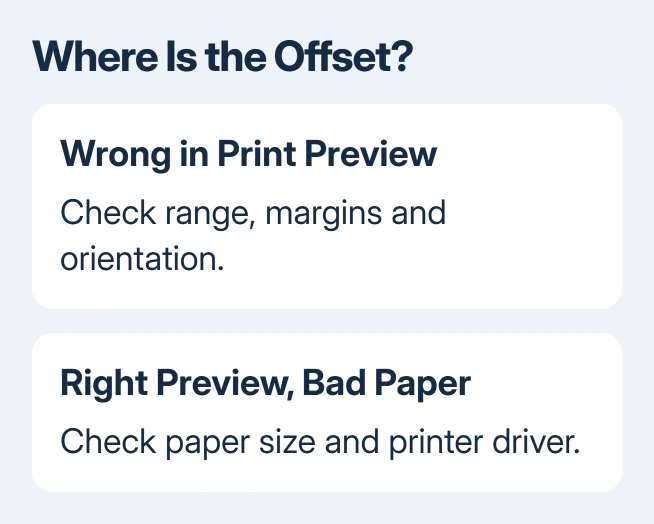
If Portrait centers and Landscape shifts the report, your result matches the original Excel 2011 discussion. The owner who shared the workaround saw the shift return after switching back to the ordinary Letter landscape setting.
If both orientations are wrong, check the selected print area and margins before using the custom size. Empty columns included in the printed range can leave the visible data looking uneven even when Excel centers that whole range.
The print-area controls explain how printed cells are selected in desktop Excel. Keep the range to the actual report while comparing layouts; don't delete worksheet data to remove it from a print job.
2. Make landscape paper without the Landscape toggle
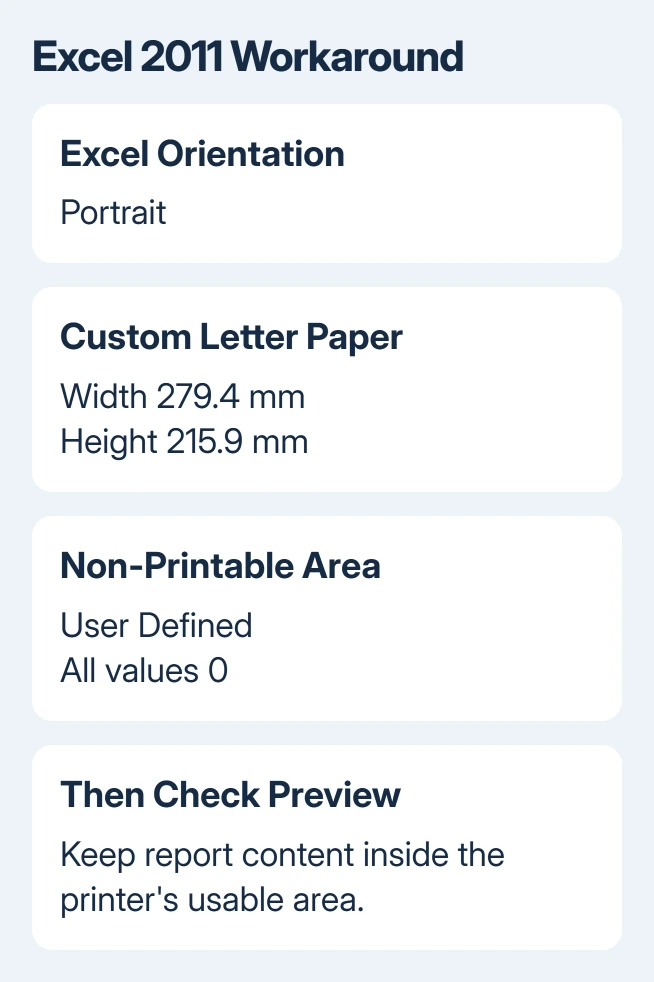
Save another copy of the workbook to preserve the earlier print setup. The confirmed example uses US Letter paper. Its custom dimensions are 279.4 mm wide by 215.9 mm high, the landscape arrangement of an 11-by-8.5-inch sheet.
Follow the old Mac controls in this order:
- Open File > Page Setup in Excel 2011.
- On Page, select Portrait.
- Click Options to open the system paper settings.
- Open Page Size, then choose Manage Custom Sizes.
- Add a custom size and name it Letter Landscape.
- Set Width to 279.4 mm and Height to 215.9 mm.
- Set Non-Printable Area to User Defined, with each value at 0.
- Confirm the custom size and return to Excel's page settings.
Those zero values match the owner's setup. They don't make your printer borderless, so keep the report inside the area it can print.
Excel should still indicate Portrait, despite the landscape-shaped custom dimensions. Leave it that way for this comparison.
Choosing the normal Letter size and switching Excel back to Landscape restores the combination that caused the reported offset.
Recheck Horizontally on Margins, then open Print preview. If the workaround helps with your file, the report should now have matching blank space on its left and right.
If it doesn't, restore the earlier paper setting and continue with the preview check.
3. Check the preview before blaming the printer
Look at the page shape, the report's first and last columns, and the space on each side. Also inspect the page count. A custom paper size that centers one page but splits the last column onto another still needs its scaling reviewed.
I'd print a single test page once the preview looks right. That catches a driver rejecting the custom size without wasting the whole report. Use the same printer and paper source you intend to use for the finished job.
If the preview itself is off-center, replacing ink or adjusting the paper tray won't change that preview. Keep working on the worksheet's print range, paper dimensions and scaling instead.
The affected owner also saw the offset in a saved PDF, with Any Printer already selected. With the shift already visible in preview and PDF, switching printer brands wasn't the answer in that case.
If only the physical copy shifts, turn to the printer settings. Check that the printer's selected paper matches the custom size, then ask its maker about custom-size and orientation support for that Mac driver.
4. Keep centering separate from fitting the report
Horizontal centering places the print range between the margins. It doesn't fit a wide worksheet onto one sheet, and centering cell text doesn't center the worksheet on paper. Change the print layout, not cell alignment, for this symptom.
Microsoft's page-margin instructions distinguish margins from the Horizontally and Vertically checkboxes. Equal margins matter because the printed data is centered within the available area.
If a wide report needs scaling, choose the width that keeps its columns together and inspect the text size. Don't force a long report onto one tiny page just to make its outer edges look balanced.
To choose where a printed page ends, use the page-break explanation. That covers a different problem from the landscape centering shift. Adding manual breaks doesn't correct an orientation-related offset.
In newer desktop Excel for Windows, centering is reached through Page Layout > Margins > Custom Margins > Center on page. These are the normal controls, not evidence that the Excel 2011 workaround is needed on current Windows Excel.
5. Avoid repeating resets that only helped briefly
The original report says deleting Excel preferences corrected the issue temporarily, and a full Office reinstall didn't settle it. A new Mac account also appeared to work before the same offset returned.
Don't reinstall again just because Center on page seems ineffective. Check whether the Portrait-plus-custom-paper combination changes your preview first. That comparison targets the problem where only Landscape shifts the report.
Excel 2011 is unsupported and belongs to an old Mac environment. For reports that still depend on it, ask IT to open a duplicate report in a supported version of Excel before moving the working file or replacing the old computer's software.
Send the layout details with a support request
For an incorrect preview, give the workbook author or IT the Excel and macOS versions, printed range, paper dimensions, margins and screenshots of Portrait versus Landscape preview. Say whether custom landscape paper changes the result.
For a correct preview but shifted paper output, send the printer maker its model, driver version, paper source and the same custom-size settings.
Ask whether that driver uses your custom paper dimensions without rotating them again.
The Short Version
Compare Portrait and Landscape first. For the old Excel 2011 landscape offset, try Portrait with custom landscape-shaped Letter paper.
Verify preview and one printed page; a correct preview with bad paper output needs a printer-driver check.
Checked November 16, 2026.
 If you have any business, I can build it online






