
A PC save editor is available for Tiny Tina's Wonderlands. For the version often called Chaos Edition, use a Wonderlands editor and back up the save folder first; the store's actual bundle name is Chaotic Great Edition.
The desktop editor opens numbered character saves and profile.sav separately. Choose the file for the progress you want to change: character saves and the shared profile hold different parts of it.
Close the game and keep an untouched copy
Exit Wonderlands before opening a save in an editor. Wait for Steam or the Epic Games Launcher to finish syncing your saves, so you start with the progress the launcher has saved.
Open File Explorer > Documents > My Games > Tiny Tina's Wonderlands > Saved > SaveGames. Inside, open the folder named with your account's long ID. This is the PC save location listed for the command-line editor too.
If OneDrive manages your Documents folder, open Documents through File Explorer. It may not be directly under your Windows user folder, but you can still look for My Games and follow the rest of the path there.
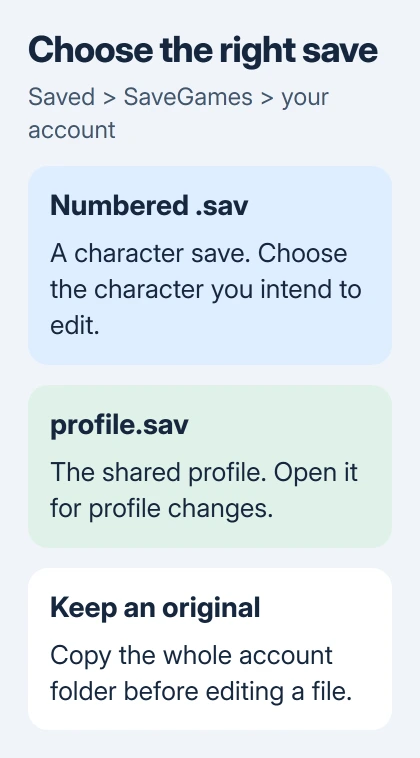
Copy the whole account folder somewhere separate, such as a dated folder on another drive. Keep that copy untouched while you work. The editor makes backups too, but this gives you the full folder to restore if needed.
Microsoft's File Explorer guide explains how to show file name extensions. That helps distinguish a .sav file from a backup or an archive.
If you see several account folders, compare their modification times with when you last played that character. Use that to find the active account before editing, rather than changing every folder to see which one works.
Download the desktop editor from its project
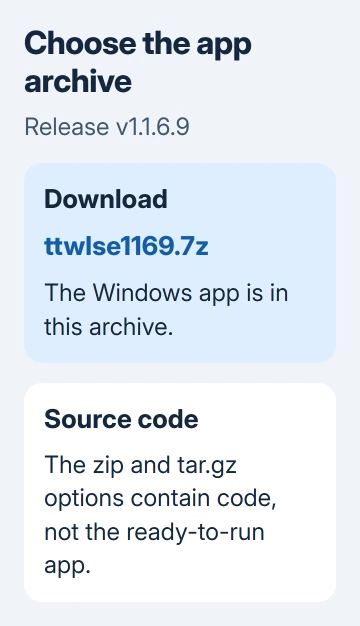
Open the TTWLSaveEditor project releases. The release available when checked was v1.1.6.9, with the application archive ttwlse1169.7z under Assets.
Download the application archive, rather than Source code (zip) or Source code (tar.gz). Those source archives contain the app's code, not the Windows app that's ready to run.
The release notes mention a REDUX mode for a separate game mod. Owning Chaotic Great Edition doesn't mean you have REDUX installed. Choose that mode only for the mod, not because your edition includes extra content.
The editor is a community tool. If Windows or your security app blocks it, check the project's instructions or tell its developer what your security app detected. Keep protection enabled.
Extract the archive before launching the app
Extract the downloaded .7z into its own folder and keep its files together. If you run the app from inside an archive preview, it may not have the other files it needs beside it.
Windows 11 version 24H2 can extract more archive formats, including 7z. If your Windows version doesn't offer a command to extract this file, use a tool that supports .7z, such as 7-Zip.
The archive extraction guide explains opening an archive versus unpacking its contents. Choose a regular folder where the editor can keep all the files it needs.
For 7-Zip on Windows 11, its commands may appear under Show more options. The 7-Zip context-menu guide covers that menu location if the app is installed but its commands seem missing.
Open the extracted folder and run TTWSaveEditor.exe. That's the filename in the project's installation instructions. It differs from the repository name, so look for that exact spelling.
If the extracted folder has no executable, check whether you downloaded source code instead of the application archive. If extraction showed an error, fix that before opening a save. Missing editor files aren't a problem with your save.
Open the right save and make one change
In the editor, select Open and browse to the .sav file you want to edit. A numbered file holds a character. profile.sav holds the shared profile, so choose it only for a change to shared profile data.
Check the character or profile details before editing so you know you've opened the right file. If you want one character's progress but the editor shows the profile, close it and choose the numbered save instead.
I'd change one value first, then check that character in the game. Changing lots of values at once makes a bad result harder to undo, and you won't know which edit caused it.
Use the controls this editor offers for the file you've opened. An option from the separate command-line project may have a different name here or may not be available in the desktop app.
Choose Save to overwrite the file you opened, or Save As to write it somewhere else. Use Save As to make a working copy you can review before putting the edited file in the active folder.
For your first edit, keep the character's existing filename when putting the edited copy back in its original account folder. Renaming a copied save isn't enough to create a second character.
Check the character, then restore if the edit failed
Close the editor and start Wonderlands through your usual launcher. Load the character you edited and check the value you changed. Reaching the title screen won't tell you whether that edit worked.
If the launcher shows a cloud conflict, compare the times and work out which copy has the progress you want. Stop if you can't tell. Choosing the cloud copy by habit can replace the local file you just prepared.
If the character disappears, progress looks wrong or the game rejects the save, exit again. Restore that file from your untouched folder copy, then check that the original character loads normally.
If the original works but the edited copy doesn't, send the editor's developer your editor version, game version, chosen mode and changed value. Keep the original available instead of repeatedly overwriting it.
If the untouched save fails too, contact 2K Support about the game or save problem. Include your launcher, character and exact error. An editor can't repair every damaged or missing save.
The Short Version
Copy the SaveGames account folder. Download and extract the application archive, then run TTWSaveEditor.exe. Open a character save or profile, make one edit, and check that value in Wonderlands.
Checked November 6, 2026.

Isaac Smith is the founder and editor of PC Glance, a website that covers computers, laptops, and technology. He is a tech enthusiast and a computer geek who loves to share his insights and help his readers make smart choices when buying tech gadgets or laptops. He is always curious and updated about the latest tech trends.