

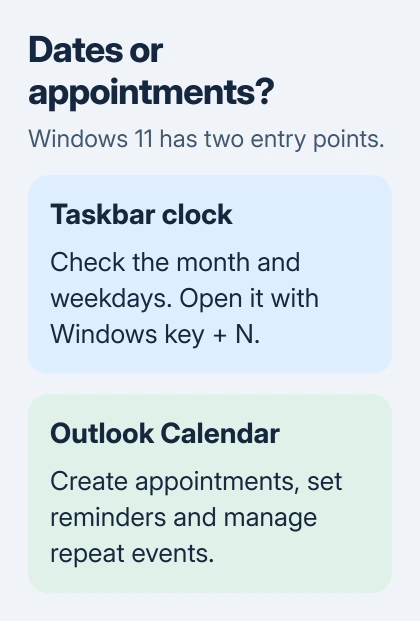
Click the Windows 11 taskbar clock to check dates. To create appointments and reminders, open Calendar in the new Outlook app. The taskbar shows the month, while Outlook handles your schedule.
The old standalone Windows Calendar app is retired, which is why its shortcut may now open Outlook. Reinstalling the old app won't get your schedule working again.
Open the month calendar from the taskbar
Select the clock beside the taskbar notification icons, or press Windows key + N to open the same calendar and notification area. Use the month grid to check which weekday a date falls on.
If the month is collapsed, expand the date heading in that panel. Move between months with the month-navigation controls. Selecting a date there doesn't create an appointment or send an invitation.
Microsoft's taskbar instructions describe this calendar and notification area. Use it to check a date, then open Outlook to work with your events.
This can catch you out after moving from Windows 10: clicking the clock doesn't open a full calendar app. An empty month grid doesn't mean your saved appointments have been deleted.
If the panel won't open at all, restart Windows before changing calendar accounts. If the clock works but events are missing in Outlook, check which account and calendar you've selected there.
Move from the retired app to Outlook Calendar
Support for Windows Mail, Calendar and People ended on December 31, 2024. Those apps no longer send or receive events. The retirement notice directs you to new Outlook or Outlook.com.
Open Start, type Outlook, and open the new Outlook app. If it isn't installed, use Microsoft Store to find Outlook for Windows. An old Calendar shortcut may already offer Open Outlook.
Follow the account setup prompts using the account that holds your calendar. It may differ from the Microsoft account you use to sign in to Windows. A new empty account won't bring over another account's appointments.
In Outlook, select Calendar in the navigation bar. Check the account and calendar names on the left. If the calendar you want isn't showing, select its checkbox.
Before adding anything, find an appointment you already know about. Check its date, start time and account so you know you're using the right schedule, rather than adding entries to an empty one.
Keep events stored only in the retired app until you've followed the notice's export instructions. Adding the account again won't replace that export when the events exist only on your computer.
Create the first appointment in the right calendar
Select New event in Outlook Calendar. Add a clear title, then set the start and end dates and times. For a birthday or another event that lasts all day, use All day rather than an appointment from midnight to midnight.
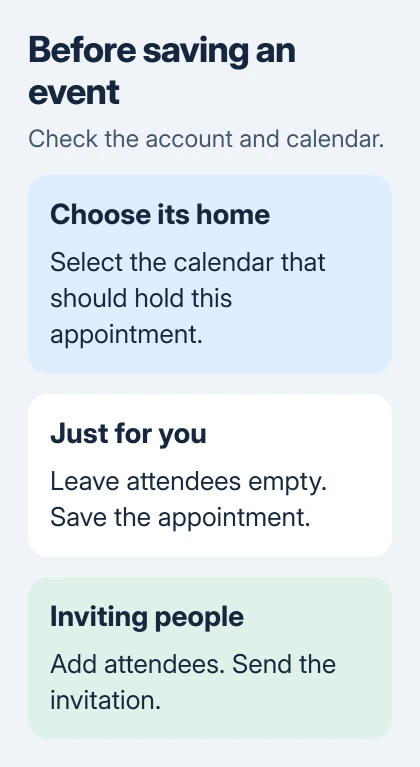
Check which calendar the event form will save to, especially if you have personal and work accounts in Outlook. Choose the calendar you want before saving. Color alone can be misleading when several calendars are visible.
Add a location if it helps, and choose when you want a reminder. The reminder alerts you before the appointment; changing it doesn't change the appointment's start time.
For an appointment that's just for you, leave attendees empty and select Save. To invite someone, add them as an attendee and use Send. Typing their name in the title doesn't send an invitation.
The Outlook invitation guide covers attendees and meeting responses. Use that when other people need the event on their calendars too.
After saving, go to the event's date and open it again. Check the time and which calendar holds it. I'd do this with the first event after moving apps, before adding a whole week of appointments.
Repeat an event without adding it every week
Open the event form and find the repeat control. In new Outlook's full form, Recurring opens a Repeat window. Choose how often the event should repeat, then save that choice.
For a weekly appointment, choose the right weekday and time. For a course or temporary work schedule, set when the series ends too. Without an end date, Outlook keeps adding entries after the real schedule has finished.
Save the event, then check a later date in the series in Calendar. Checking only the first date won't tell you whether it repeats the way you intended.
When editing a repeating event, check whether Outlook will change just that event or the whole series. Canceling one session needs a different choice from changing the meeting time permanently.
If you've invited attendees, send the update when prompted. Changing your own copy without sending the update can leave the other attendees expecting the original time.
Add another schedule without mixing its events into yours
Use Add calendar for a separate calendar, a shared schedule or a calendar feed. Choose the option that fits: creating your own schedule or following one that someone else maintains.
An imported .ics file gives you a saved copy of events. A subscription follows an online calendar feed and can receive later changes. Choose a subscription if the provider will keep updating the schedule.
The calendar-adding instructions explain blank calendars, subscriptions and imports. Keeping the second schedule separate makes it easier to show or hide it without deleting its events.
If an appointment seems missing from your main account, check that its calendar is selected on the left. Outlook can show several calendars together. Clearing a checkbox hides that calendar without deleting it.
When the calendar still doesn't show the right events
Check the same account's calendar on another device where it already works. If the appointment is there, compare the account and calendar names with Outlook on your PC. Don't import it again while the original schedule is still present.
If an event shows the wrong time, check Settings > Time & language > Date & time in Windows. Note the event's time-zone setting too, especially if you created it while traveling.
For a work calendar that won't connect, contact its administrator. For a personal account, give Outlook Support your account type, app version, event date and error. If the taskbar panel won't open, contact Windows Support instead.
The Short Version
Use the taskbar clock or Windows key + N for a month view. Use new Outlook Calendar to create, repeat and manage appointments. Check the account and destination calendar before saving, especially after moving from the retired Calendar app.
Checked November 6, 2026.

Isaac Smith is the founder and editor of PC Glance, a website that covers computers, laptops, and technology. He is a tech enthusiast and a computer geek who loves to share his insights and help his readers make smart choices when buying tech gadgets or laptops. He is always curious and updated about the latest tech trends.