
PowerPoint's cannot-play-media error can mean an unsupported format or a missing linked file. Check whether the original clip plays outside PowerPoint, then repair the media in a copy of your presentation.
For a video moving between Windows and Mac, an MP4 with H.264 video and AAC audio is the recommended combination. The .mp4 ending alone doesn't tell you which video and audio formats are inside the file.
1. Check whether the original clip still plays
Open the slide's original video or audio file in your media player. Check its picture, sound and the part where playback fails. Replace a damaged or incomplete original before changing the slide.
If the original plays, return to PowerPoint and select the media on its slide. Use its Play control to preview it, then run the slide show from that slide. Check whether playback fails in both places or just one.
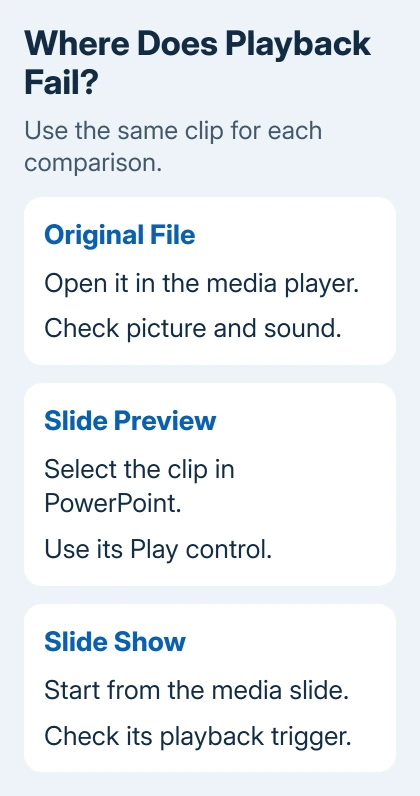
This helps you tell a file problem from a presentation problem. It also shows whether the video is waiting for a click or another start action when you expected it to play automatically.
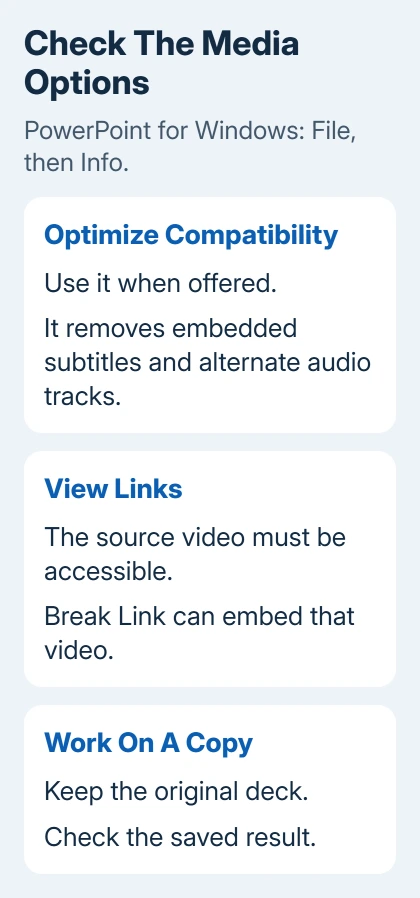
Make a copy of the presentation for repairs. Some compatibility changes alter the media stored inside it, so keep the untouched original and source clip.
If you received the presentation without its source files, ask whether its author embedded the media inside it or linked to a separate file. That link may point to a file on their computer that isn't on yours.
2. Check the encoding, rather than just the file ending
Microsoft recommends using H.264 video with AAC audio in an MP4, or AAC audio in an M4A for sound-only files, in its PowerPoint format guidance.
Ask the video's author to export that combination from their editor. If you're making the export, select MP4, H.264 and AAC in the editor's export settings, then play the finished file before inserting it.
Renaming a file from .mov or .avi to .mp4 doesn't convert it. An export or conversion changes the encoding: the video and audio formats inside the file that PowerPoint needs to read.
Windows PowerPoint version 2505 and later limits older formats such as AVI, WMV and MPEG-2. PowerPoint can still convert some files as you insert them, depending on their encoding. A clip that played before may no longer be compatible.
For a compatible replacement, use the local-video insertion procedure and test it in the presentation copy. If the new clip plays, check the original media or its old link.
I'd ask for a fresh export before installing extra software to read media formats. That gives you a file to send with the presentation, without making playback depend on software installed on just one computer.
3. Run media compatibility optimization when offered
In desktop PowerPoint for Windows, open File > Info. Look for Optimize Compatibility or the media compatibility option. The button appears when PowerPoint finds media it can optimize, so you won't see it in every presentation.
Select the option when it's offered and read the results. Follow the media playback procedure to let PowerPoint optimize the media and report any problems it can't fix.
Optimization removes embedded subtitles and alternate audio tracks. Use the presentation copy if those matter, and check its video and sound before replacing the original.
If the button isn't shown, continue with the file-link and playback checks. A missing button won't tell you whether the source file is missing, the computer is muted or the slide is waiting for a click.
For a presentation made with much older PowerPoint, the same procedure may offer File > Info > Convert. Use that only when available for the older presentation, then check media compatibility again in the converted copy.
4. Restore a missing linked file or embed it
A linked clip stays outside the presentation. Moving only the PowerPoint file to another computer can leave the slide pointing at a source that isn't there. Keep the source file available while you repair its link.
Choose View Links in the media compatibility results to inspect linked videos. If PowerPoint can access the original clip, Break Link can embed it. Use that media dialog rather than removing unrelated document links.
Save the copied presentation after embedding and reopen it to check playback. The presentation should now contain the clip, so it won't need the file at its original location on the other computer.
This doesn't download an Online Video into the presentation. A clip inserted from a hosting service still needs internet access and permission to play through that service. For an offline event, use a local file you have permission to use.
If the author no longer has the linked file, ask them to replace the clip. Changing when playback starts can't recover media that was never stored in the presentation.
5. Match playback controls to the failure you see
If the preview plays but nothing happens in the slide show, select the video, open Playback and check Start. A clip set to start on a click won't behave like one set to Automatically.
Try the appropriate click during the slide show before reinserting the video. PowerPoint's click sequence and a direct click on the video are different start choices, so check which one the presentation uses.
For sound that stops when the next slide appears, check the music-across-slides controls. That setting controls how long music plays; it isn't a problem reading the media file.
If the picture plays but all sound is missing, check PowerPoint's media volume and the computer's selected speaker or display output. Try sound in another app to check whether the computer has lost all audio.
6. Rehearse using the destination computer
Save, reopen and run the repaired slide on the destination computer. Check the whole clip, including sound and captions. For a presentation that must work offline, rehearse that way after embedding the local media.
If a compatible embedded file still fails, ask IT or Microsoft Support for help. Include the PowerPoint version, system, file format, exact message, whether the original plays, and how preview compares with Slide Show.
Those results are more useful than another round of reinserting the same clip. Keep the working source file and original presentation until you've checked playback on the destination computer.
The Short Version
Check the original and use a compatible export. Optimize media in a presentation copy when offered. Repair links to files you can still access, check what starts playback, then rehearse on the presentation computer before relying on it.
Checked November 6, 2026.

Isaac Smith is the founder and editor of PC Glance, a website that covers computers, laptops, and technology. He is a tech enthusiast and a computer geek who loves to share his insights and help his readers make smart choices when buying tech gadgets or laptops. He is always curious and updated about the latest tech trends.