
USB tethering needs a working USB data connection and mobile internet on your Android phone. Connect the phone directly to Windows, unlock it, and enable USB tethering. A charging symbol doesn't confirm that its cable carries data.
If the switch stays unavailable, check the cable and USB connection first. If it turns on but the PC has no internet, compare the phone's own connection before changing Windows network settings.
1. Check that the phone can get online without Wi-Fi
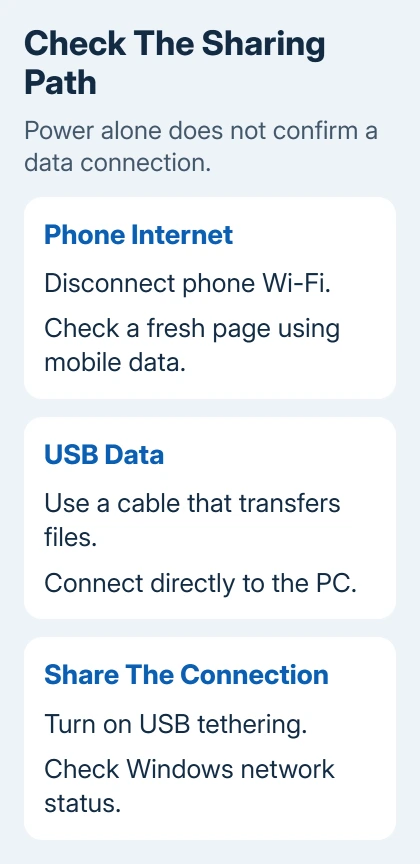
Disconnect the phone from Wi-Fi and leave cellular data enabled. Open a fresh webpage on the phone. Choose a page you haven't already loaded; a stored page can still appear without an internet connection.
If that fails, the phone has no working mobile connection to share. Check reception and which SIM is set for cellular data. If the phone still can't get online, ask your carrier about an account or service problem.
Check whether your plan includes tethering too. Google's Android connection-sharing guidance notes that carriers can limit sharing or charge extra. Your plan may restrict laptop use even if phone data works.
For a connection that works but crawls, use the phone-versus-hotspot speed comparison. A missing USB connection, or one with no internet at all, needs a different first check.
2. Replace a charging-only connection with a data connection
Unlock the phone and reconnect its cable directly to the computer. Leave out a dock, monitor USB socket or hub during this check. Watch the phone for a USB connection notification and the PC for a newly attached device.
Try another cable known to transfer files. Some cables supply power without carrying data, so the charging symbol can't tell you whether the cable works for tethering. Try a second USB port on that computer too.
I'd try the cable before downloading a driver. It's a quick comparison, and no Windows driver can add data wires to a cable that only charges.
For a separate data check, open the phone's USB notification. Under Use USB for, choose File transfer. See whether Windows can open the phone's files. After this check, return to the tethering switch for internet sharing.
The Android USB transfer checks recommend comparing the cable, another computer and another device. File transfer and tethering do different jobs, but this checks whether the USB data connection works.
If the phone transfers files through one cable but not another, keep the working cable. If none of the cables work on one port but they work elsewhere, use the working port while you get the first checked.
3. Enable USB tethering in the phone's own settings
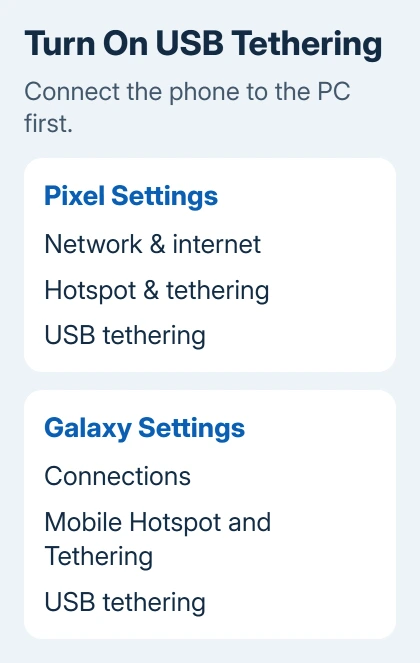
On a Pixel, open Settings > Network & internet > Hotspot & tethering, then switch on USB tethering with the cable attached. Follow the Pixel tethering procedure for that model.
On a Samsung Galaxy, use Settings > Connections > Mobile Hotspot and Tethering > USB tethering. Other Android makers may use different wording; searching Settings for tethering is quicker than searching every connection submenu.
Turn on the USB option, rather than only Wi-Fi hotspot or Bluetooth tethering. Those share over Wi-Fi or Bluetooth instead of USB. A laptop without a working Wi-Fi adapter can still use a supported USB connection.
When the switch turns on, Windows should detect a network connection. Let it finish connecting, then open a new page on the PC. If the page won't load, leave the phone connected and check Windows next.
Android's USB tethering method doesn't support Macs. For that combination, use a Wi-Fi hotspot through the laptop hotspot setup. Installing random Windows USB drivers on a Mac won't change the supported route.
4. Check the connection Windows actually sees
In Windows 11, open Settings > Network & internet and read the connection status. Windows may show the USB connection as Ethernet. It doesn't have to use your phone's Wi-Fi hotspot name.
For a clear comparison, temporarily disconnect the PC from its usual Wi-Fi and unplug any ordinary Ethernet cable. This lets you check whether USB has internet without your home connection hiding the problem.
If Windows shows the USB network but reports no internet access, check that the phone's mobile-data test still works. Seeing the network means Windows detects the phone's connection. The phone and plan still have to provide internet access.
On Windows 11, open Get Help, search for connect to network and internet, and select Run network diagnostics. Follow the results for the failing connection instead of guessing which adapter setting to change.
If the diagnostic names a driver or adapter, save that message. Ask the computer or phone maker for the driver that matches your hardware and Windows version. Don't pick an unrelated USB network driver from a list.
5. Compare another computer before resetting anything
Restart the phone and PC, reconnect the working data cable, and enable tethering again. If it still doesn't work, try the same phone and cable with another supported Windows computer when you can.
If it works there, focus on the first PC. If both fail but the phone browses normally, ask the carrier or phone maker to check whether tethering is allowed and whether the phone's software has a problem.
Give support the phone model, Android version, carrier and Windows version. Say whether you can turn tethering on, transfer files and see a network in Windows. Those results help support tell apart problems that all look like no internet.
On a managed work PC, let IT handle blocked devices or networking policies. I wouldn't start with a full network reset while the cable, plan or computer's support for this connection is still in question.
The Short Version
Check mobile internet on the phone, check the USB data cable, then turn tethering on. Use Windows' network status and a second PC to choose the next repair. Give support those results if sharing still fails.
Checked November 6, 2026.

Isaac Smith is the founder and editor of PC Glance, a website that covers computers, laptops, and technology. He is a tech enthusiast and a computer geek who loves to share his insights and help his readers make smart choices when buying tech gadgets or laptops. He is always curious and updated about the latest tech trends.