
A non-Bluetooth mouse needs a working USB connection to your MacBook. Reconnect it directly and unlock the Mac to approve the accessory if asked. Its light can come on even while macOS blocks the data connection.
Use the built-in trackpad while checking the mouse. If the trackpad still moves the pointer, the Mac is responding, so focus on the external mouse's connection.
1. Check whether the mouse uses a cord or a USB receiver
Check how the mouse connects. A cord running from the mouse to the Mac or an adapter is a wired connection. A small receiver plugged into USB means the mouse still connects wirelessly, even though it doesn't use Bluetooth.
For a mouse with a receiver, turn it on and check its battery. Check that the receiver belongs to that mouse or a receiver system it supports. A spare receiver with the same shape isn't automatically compatible.
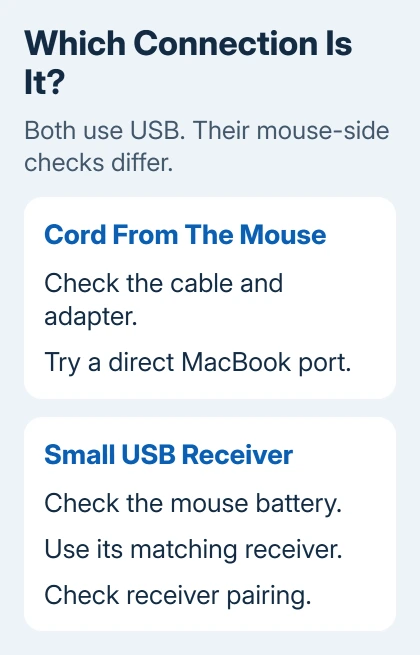
A rechargeable mouse's cable may only charge it. Check your model's manual before treating its charging cable as a wired connection. Magic Mouse, for example, operates wirelessly through Bluetooth after pairing.
Once you know how the mouse connects, use the checks that fit it. A wired mouse doesn't need Bluetooth pairing or a battery replacement. A receiver mouse still needs a working USB connection and power for the mouse itself.
2. Remove the dock and compare a different USB port
Unplug the mouse or receiver, then reconnect it firmly to the Mac. Leave out a dock or hub for the first check. For a USB-A mouse on a USB-C MacBook, use one compatible data adapter rather than a chain of adapters.
Try a second port. If the same mouse works there, keep using that port while checking the first connection. Try another compatible adapter if you have one, since the adapter also carries data between the mouse and Mac.
Apple's USB device checks recommend a direct connection, another port and checking a powered hub's supply when the Mac reports USB Devices Disabled or a power problem.
If the mouse works directly but fails through the dock, reconnect the dock's power supply if it has one. Then test the dock with only the mouse attached before adding its other devices.
I'd try plugging it in directly before replacing the mouse. It lets you check the mouse without the other parts that can fail between it and the MacBook.
When several devices stopped working after a system update, the Mac USB-port checks cover the wider connection problem. A single failing mouse still needs its own comparison.
3. Approve the accessory on an Apple silicon MacBook
Open the laptop's lid, unlock it using the built-in keyboard and trackpad, then reconnect the mouse or receiver. If an accessory alert appears, select Allow. A locked Mac must be unlocked before you can approve it.
This approval setting applies to Mac laptops with Apple silicon. An Intel MacBook doesn't have the same setting, so skip to checking whether the Mac detects the device if you don't see it.
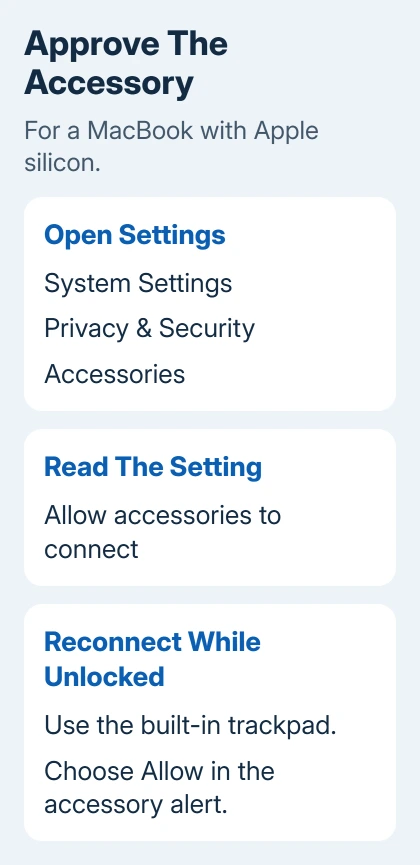
In current macOS, open System Settings > Privacy & Security > Accessories and check Allow accessories to connect. Older releases may show this directly in Privacy & Security, without a separate Accessories page.
The accessory approval instructions explain why power can still work after Don't Allow. Reconnect it to get the approval request again, rather than allowing every accessory to connect without asking.
If your organization manages this setting, ask IT about a blocked accessory. An administrator can control it on a supervised MacBook, and changing the mouse won't remove that rule.
4. Check whether the Mac detects the USB device
Hold Option while opening the Apple menu, then choose System Information. In the hardware list, select USB and look for the mouse or receiver. It may appear under the maker's name or a general USB input-device name.
If it appears, macOS can see that USB device. For a receiver mouse, this means the Mac detects the receiver; the mouse itself may still be disconnected.
If it doesn't appear, check what happened with the other port, adapter or cable before changing pointer settings. Tracking speed can't fix a USB device the Mac hasn't detected.
The Mac port troubleshooting procedure includes this System Information check. If the device is listed but won't work, check the maker's instructions and software next.
Save your open work, restart the Mac normally, then check the mouse again. If the Mac detects the receiver but the pointer won't move, follow the mouse maker's steps to pair it with that receiver system.
5. Separate tracking trouble from click or software trouble
Test tracking on a plain mouse pad. Check for dust covering the sensor opening. Use a soft, lint-free cloth for the sensor area. A reflective or unsuitable surface can affect tracking even while clicks work.
If the pointer moves and clicks are simply reversed, use the Mac mouse button settings. Swapping buttons changes which click does what; it won't get an unresponsive mouse working.
If your mouse needs its maker's app for special features, check that the app supports your macOS version. Open it and read any permission or device message before installing a different utility.
Check pointer movement separately from programmable side buttons. If the pointer and ordinary clicks work but custom buttons don't, tell the mouse maker exactly that, along with your app and macOS versions.
6. Compare another computer before arranging service
Try the mouse on another compatible computer. If possible, try a USB mouse you know works on the MacBook too. Remember to compare adapters when the computers have different ports.
If one mouse fails on both computers, check its cable, receiver or hardware. If several working mice fail only on this MacBook, focus on the Mac's adapter, ports or software.
Contact the mouse maker if only that mouse fails, or Apple Support if the Mac still can't detect USB devices that work elsewhere. Include your model, macOS version and results with the mouse connected directly.
The Short Version
Check the cord or receiver, a direct USB connection and Apple silicon accessory approval. Check whether the Mac detects the USB device before moving on to tracking problems. Try another device before arranging repair.
Checked November 6, 2026.

Isaac Smith is the founder and editor of PC Glance, a website that covers computers, laptops, and technology. He is a tech enthusiast and a computer geek who loves to share his insights and help his readers make smart choices when buying tech gadgets or laptops. He is always curious and updated about the latest tech trends.