
Zoom can't send your voice until you've joined meeting audio, unmuted and selected a working microphone. Start with Join audio if it appears, then choose the mic you use.
If Zoom records your voice in its test but one meeting can't hear it, check the meeting's mute controls before changing drivers.
1. Join audio and check the mute control
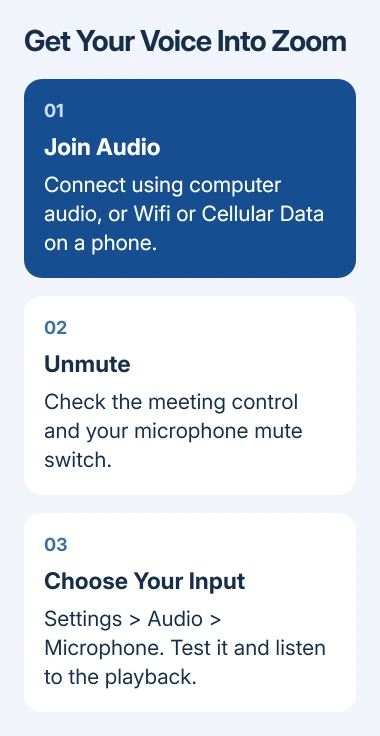
Look at the meeting toolbar. Join audio means you haven't connected the meeting's audio yet. Select it and join using computer audio. On a phone, choose Wifi or Cellular Data, or Call Over Internet in versions using that label.
If the toolbar shows Unmute, select it to turn your microphone on. Check any physical mute switch on a headset, USB microphone or laptop too. A microphone can be unmuted in Zoom while its own hardware switch still blocks your voice.
If Zoom says the host has prevented participants from unmuting, ask the host to allow it. Wait for the host's invitation or permission to speak; changing audio drivers won't lift that restriction.
If your microphone starts muted in every meeting, check your joining preference. In the desktop app, open profile picture > Settings > Meetings & webinars and check Keep my microphone muted under the joining options.
Turn that preference off only if you want to join future meetings unmuted. This controls how meetings start. If your mic still fails after selecting Unmute, try the microphone test.
2. Choose the microphone and listen to its test
In the Zoom desktop app for Windows or Mac, open profile picture > Settings > Audio. Under Microphone, select the built-in mic, headset or USB device you're using.
Select Test microphone, speak, then listen to the playback. The Input volume bar should move as Zoom receives your voice. Test the speaker too if the input bar moves but you hear no replay.
Zoom's audio test instructions also let you change microphones during the joining test with No, Try Another Microphone. Keep choosing until the test plays back your voice.
If the recording is very quiet, enable Automatically adjust microphone volume, or turn it off and adjust Input volume yourself. Repeat a short test after each change to hear the difference.
I'd try the laptop's built-in microphone before changing drivers for a headset. If that test works, you can keep the meeting going while checking the external microphone's connection.
3. Allow microphone access in Windows or macOS
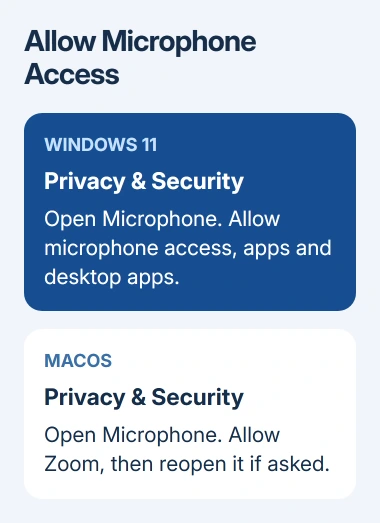
On Windows 11, open Settings > Privacy & security > Microphone. Enable Microphone access, then Let apps access your microphone. Microsoft says desktop apps also need Let desktop apps access your microphone enabled.
On Windows 10, open Settings > Privacy > Microphone. Enable device access through Change if needed, then allow apps and desktop apps to access the microphone. A work policy may lock these switches; ask IT if they're unavailable.
On a current Mac, open System Settings > Privacy & Security > Microphone and allow Zoom. On older macOS with System Preferences, use Security & Privacy > Privacy > Microphone. Quit and reopen Zoom if macOS asks you to do so.
Run the Zoom microphone test again after granting access. If Windows itself can't receive audio, use the Windows microphone checks to check input selection, levels and detection outside the meeting app.
4. Check phone or browser permission separately
For an iPhone or iPad, allow Zoom under Settings > Privacy & Security > Microphone. Return to the meeting, connect its audio if asked, then tap Unmute.
On Android, open Settings > Apps > Zoom > Permissions > Microphone and select the permission for access during app use. Menu wording varies by phone. Also check the phone's microphone-access control if your Android version provides one.
For Zoom in a browser, allow microphone use from the controls beside the meeting address. Check the meeting's selected microphone too. A browser needs operating-system permission as well as permission for the meeting site.
If another browser or the desktop app works, tell Zoom support which browser fails and whether microphone permission is allowed.
5. Reconnect an external mic and update the app
Unplug and reconnect a USB microphone or headset, then select it again in Zoom's Audio settings. If your headset has a mute indicator, check its instructions to see what it means. Use the built-in mic result from step 2 as a comparison.
Close another calling or recording app that is using the same microphone, then restart Zoom. If the device remains missing, check whether it appears in Windows or macOS input settings.
Install the current supported Zoom app from its official source. The Zoom PC download procedure explains the Windows installer choice. For a managed device, ask IT to update the installed package.
If Zoom's test works but only one meeting fails, tell the host and ask them to check participant audio controls. If the test still fails, send Zoom support the app version, system version, selected device and permission results.
When the same microphone fails in other apps too, ask its maker or the computer manufacturer to assess the device. Include whether the built-in microphone worked and whether the external one appeared in system input settings.
The Short Version
Join meeting audio, unmute and select the right microphone. Use Zoom's recording test, then check system and browser permissions. Compare the built-in mic with an external one before deciding whether Zoom or the device needs support.
Checked November 7, 2026.

Isaac Smith is the founder and editor of PC Glance, a website that covers computers, laptops, and technology. He is a tech enthusiast and a computer geek who loves to share his insights and help his readers make smart choices when buying tech gadgets or laptops. He is always curious and updated about the latest tech trends.