
A phone's stuck pixel stays bright or colored at one fixed screen position; a dead pixel stays dark. A temporary green or orange dot near the top can be a privacy indicator.
Clean the glass and compare the mark across apps before paying for repair. A persistent panel defect needs the phone maker's assessment.
1. Check whether it's a privacy dot or dirt
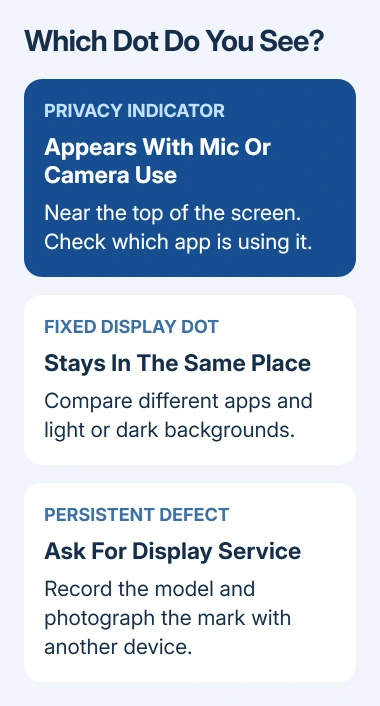
Close the camera, recorder and calling apps, then look at the mark again. A dot near the status bar that appears during camera or microphone use may be a privacy indicator rather than a damaged pixel.
On Android 12 or later, camera or microphone use may display a green indicator in the upper-right corner. Swipe down and tap it to check which app or service is using them. Stop that activity and check whether the indicator disappears.
On an iPhone, orange means microphone use. Green means camera use, with or without the microphone. Control Center shows recent access, so check it before treating a temporary indicator as damage.
Turn off the phone and gently wipe the glass with a soft, slightly damp, lint-free cloth. Check for a speck or mark on the surface. Follow the phone's cleaning instructions and avoid getting its openings wet.
A visible mark on unlit glass may be dirt, a scratch or damage to a screen protector. If it remains after gentle cleaning, don't press harder. Next, check whether the mark is part of the picture on screen.
2. Check the same position on different screens
Open a few familiar screens with different backgrounds, such as Settings, a photo and the Home Screen. Notice whether the mark stays at the same physical point or moves with the content when you scroll.
A bright dot is easier to notice against dark content; a dark dot is easier against a light background. Use ordinary brightness. Skip maximum-brightness flashing videos; ordinary backgrounds can show whether the position changes.
Capture a screenshot and open it on another working display. A mark visible in that file comes from the app or content. Your phone's physical panel defect won't appear in a screenshot.
If the mark isn't in the screenshot but stays in place across apps, the screen or something on its surface needs attention. Describe that comparison when you arrange a screen check with the maker.
I'd make this comparison before installing a pixel-fixer app; it helps tell a screen problem from a mark in the content.
If the mark runs across the display, use the iPhone screen-line checks for that symptom. A whole line needs a different assessment from one fixed dot.
3. Restart once, then check for panel damage
Save your open work, then restart normally. For a Face ID iPhone, hold a volume key and the side button together to bring up the power-off slider.
An iPhone 6, 7, 8 or SE 2nd/3rd generation needs only its side button held. The first-generation SE and iPhone 5 or older use the top power button instead.
Move the slider and wait 30 seconds for shutdown. Keep the model's power button pressed to switch it on again.
On Android, use the phone's power menu and select Restart. The keys used to open that menu vary. Newer Pixel phones use Power + Volume Up; Galaxy phones can use Side + Volume Down briefly to show the menu.
If the dot disappears after restart, check whether it returns in one particular app. Update that app and report the screen that triggers it. If it stays in place across different screens, note that when arranging service.
Look for a larger black patch, cracks or damage near the mark. Samsung's hardware checks explain that pressure may cause a round area of dead pixels even when the front glass is intact.
Don't massage, tap or heat the affected spot. Pressure can damage more of the screen. A spreading patch or a line across the display belongs with repair support rather than repeated pixel tests.
4. Ask the maker to assess a persistent dot
Google says a Pixel with dead pixels can get screen repair. It doesn't offer a setting that restores a dead pixel. A colored dot also needs assessment when it persists after the basic checks.
For a Pixel, contact Pixel support with the model and describe the fixed mark. For a Galaxy, ask Samsung or its authorized repair provider to assess the display. For an iPhone, request display service through Apple Support.
Use another device to photograph the screen with a background that makes the dot visible. Bring the purchase date, coverage details and any drop or pressure history. Ask whether the defect qualifies for warranty service.
Make a backup before the service handover, since repair or replacement can erase the phone's data. Ask for the total estimate and whether the proposed work replaces the display or the device before approving paid service.
Tablet owners should use the iPad pixel-check procedure instead, since its supported diagnostics differ. For phone repairs, use your phone's model and coverage terms.
The Short Version
Rule out a privacy indicator and surface dirt, then compare different screens and a screenshot viewed elsewhere. Restart once. A fixed bright dot, dead pixel or damaged patch that remains needs the phone maker's display assessment.
Checked November 7, 2026.

Isaac Smith is the founder and editor of PC Glance, a website that covers computers, laptops, and technology. He is a tech enthusiast and a computer geek who loves to share his insights and help his readers make smart choices when buying tech gadgets or laptops. He is always curious and updated about the latest tech trends.