

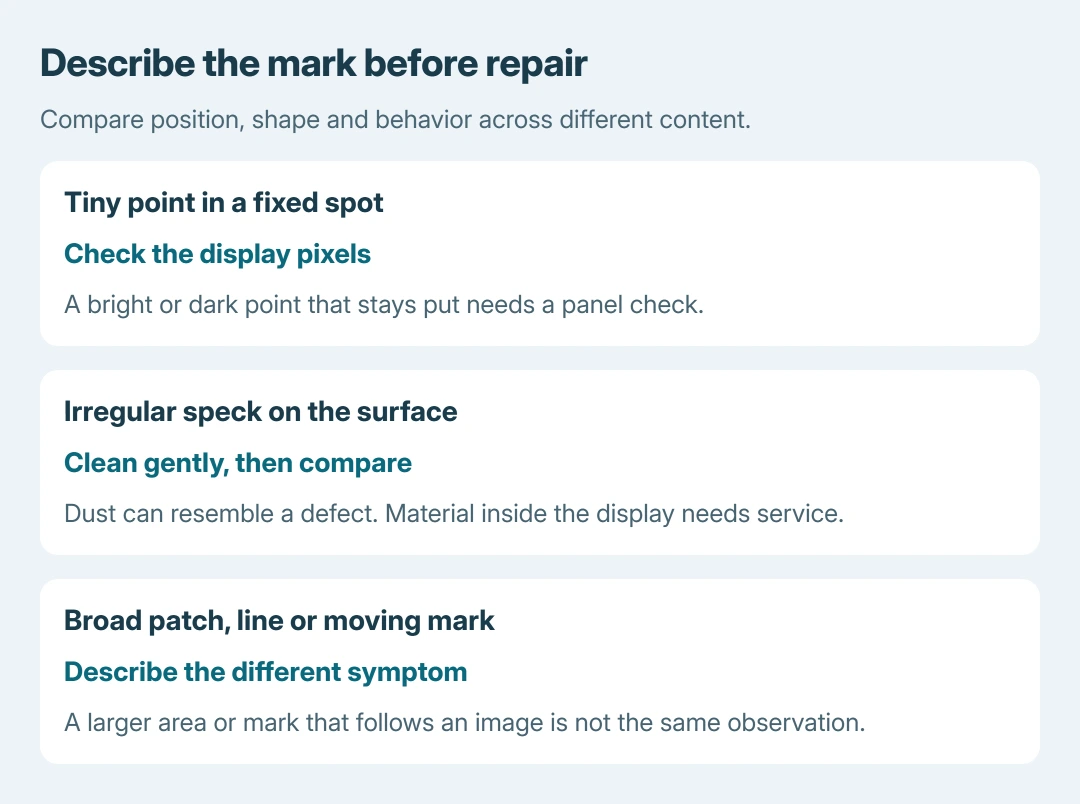
A stuck pixel on an iPad can look like a tiny bright or colored dot that stays in one place. Start by cleaning the glass and checking whether the mark stays fixed across different content. Dust can look surprisingly similar.
Apple provides a display-pixel test on supported newer iPads. A persistent panel defect needs assessment; its documentation does not promise that a flashing video or a settings reset will repair it.
Clean the glass and locate the mark
Disconnect cables and turn the iPad off before cleaning. Apple's cleaning instructions call for a soft, slightly damp, lint-free cloth. Keep moisture out of openings and avoid abrasive cleaners.
Afterward, turn the iPad on and open different content. Record whether the dot stays at the same physical spot on the glass or moves with an image. That comparison is ours, to describe the symptom accurately for support.
Status: Apple's pixel-anomaly, diagnostics and iPad service pages reviewed October 26, 2026. Diagnostics has a model limit; no panel repair was tested.
Apple says its LCD pixel-anomaly guidance covers bright and dark subpixels as well as foreign material. Material trapped inside the display requires a service provider rather than more surface cleaning.
That document concerns LCDs. Do not apply its LCD construction explanation to an OLED iPad Pro. Apple lists supported iPads for its separate diagnostics tool, which is the more useful next check when available.
Run Apple's pixel test on a supported iPad
Apple's diagnostics instructions list iPad Pro M4 and later, iPad Air M2 and later, iPad mini (A17 Pro) and iPad (A16). The device also needs Wi-Fi access.
Follow the linked model instructions to enter Recovery Assistant, then choose Diagnostics Mode. This mode offers tests; it is not a request to erase or restore the iPad.
Choose the Display pixel anomalies test. For each displayed color or pattern, tap or draw over the area where the defect is visible. Tap an accidentally marked rectangle to remove it.
Swipe left with two fingers to advance through the patterns, then select Done when finished. Apple documents pressing the side or a volume button to leave the test.
The test helps identify display problems. It does not turn a defective pixel back on. Apple states that a detected issue may require service and that the provider may run more tests.
An older iPad or an uncertain result
If the iPad is outside Apple's supported list, contact Apple Support for its assessment route. Do not assume that the newer diagnostics procedure is available simply because the tablet has USB-C.
A browser-based monitor pattern test illustrates how different backgrounds expose a fixed dot. Its results are observations, not an Apple warranty decision or a pixel-repair tool.
If the whole interface stops responding rather than showing one persistent mark, use the frozen-iPad procedure. A fixed dot on an otherwise working display is a different symptom.
Arrange an assessment instead of pressing the screen
Do not rub hard, press on the mark or heat the display. No pressure-based pixel repair is recommended here. Likewise, the saved Apple sources provide no confirmed repair from flashing-color videos.
Photograph the visible mark with another device and note the model and backgrounds that expose it. Our recommendation is to keep this evidence because a screenshot can omit a physical panel defect.
Use Apple's iPad service page to arrange inspection and ask about coverage or an estimate. For a recent purchase, check the seller's return terms promptly.
There is no universal pixel-count replacement promise in the sources checked. Apple determines the service option and fee after assessing the device; its service page separates manufacturing coverage from accidental damage.
The Short Version
Clean the glass, document a fixed mark and use Apple's pixel test if the model supports it. Persistent pixel defects or material inside the display need assessment. Neither a test pattern nor an erasing reset is a documented panel repair.

Isaac Smith is the founder and editor of PC Glance, a website that covers computers, laptops, and technology. He is a tech enthusiast and a computer geek who loves to share his insights and help his readers make smart choices when buying tech gadgets or laptops. He is always curious and updated about the latest tech trends.