
Turning off Show My Caller ID hides your phone number on supported outgoing calls. Open Settings > Apps > Phone > Show My Caller ID and turn the switch off. A missing or dimmed switch means your carrier needs to help with the setting.
Turn off Show My Caller ID in Phone settings
Open Settings, tap Apps, then choose Phone. Scroll to Show My Caller ID and open it. Turn the switch off before making the call you want to place without showing your number.
Apple says to turn this switch off in its caller-ID instructions. For iOS 17 and earlier, Phone settings are directly under Settings > Phone, without the Apps menu in between.
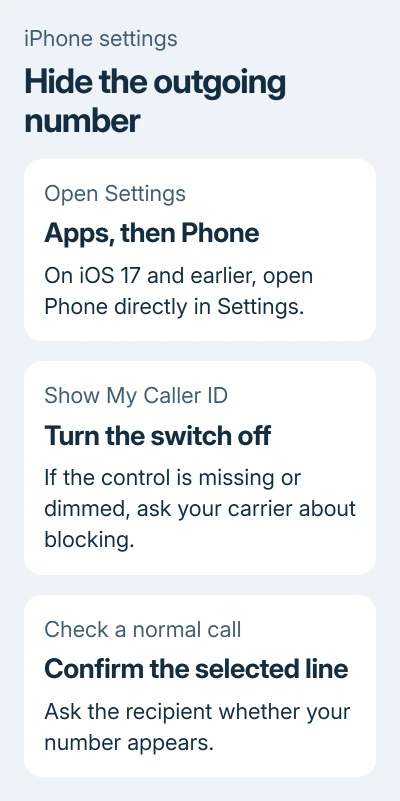
Make a normal phone call to someone who can confirm what appears on their screen. Ask whether they see your number or a label such as Private or No Caller ID. The recipient's phone and service determine the wording.
Use an ordinary personal number for this check. Some numbers don't accept blocked calls, so a rejected call by itself doesn't tell you whether you changed the switch correctly.
This setting is for the number sent with outgoing phone calls. Changing incoming Call Blocking & Identification options won't perform the same job. They identify or block incoming calls.
Have the carrier check a missing or dimmed control
If Show My Caller ID doesn't appear, or its switch can't be changed, contact the carrier for the line making the call. Ask whether outgoing caller-ID blocking is supported and enabled for that account.
Tell them whether you want to hide the number on all supported calls or just one call. Those requests can use different carrier features, and the option available in iPhone settings depends on the service.
I'd ask the carrier before resetting any iPhone settings. They can check whether your account allows caller-ID blocking.
If calls fail even when your number is visible, use the Call Failed checks for the line. Failed calls need different checks from an unavailable caller-ID switch.
Hide one call using a code your carrier supports
Some carriers offer a prefix for a single call. Verizon in the US supports entering \*67, followed by the full number including its area code, then tapping Call.
For that call, the recipient sees a private or anonymous indicator instead of your mobile number. Repeat the prefix for another call you want to block; the prefix only applies to that call.
Check the carrier's blocking procedure before using a code. Don't assume the same code works on another network or in another country.
Verizon excludes calls to 800 numbers and 911 from caller-ID blocking. Your number won't be hidden on those calls.
If a recipient rejects blocked calls, decide whether to place that call with your number visible. When account-level blocking is enabled, ask your carrier which per-call unblocking code applies to the line.
Check which line a dual-SIM iPhone will use
An iPhone with two active lines can place calls from either number. Before testing caller ID, confirm the line selected for that call rather than assuming every call uses your default number.
In the Phone keypad, tap the current line near the top and select the other number when needed. For a contact, open their information and check the preferred line. The phone can remember the number previously used for that person.
The dual-SIM calling controls explain those choices. When asking a carrier about blocking, give them the number actually placing the call, particularly if the two lines use different networks.
Your personal and work lines can have different caller-ID settings. Repeat the check from that line if you'll use it for calls where the number should be hidden.
Show the number again and check the result
Return to Settings > Apps > Phone > Show My Caller ID and turn it on when you want to send your number again. On older iOS versions, use the direct Phone settings route from the first section.
Place another call to the same person and have them check the displayed number. If your number stays hidden, ask the carrier whether account-level blocking is overriding the phone's choice.
For the opposite problem, where people can't reach you, check incoming-call delivery. Incoming calls have their own settings.
The Short Version
Turn off Show My Caller ID and test a normal call. For an absent control or a one-call code, ask your carrier. Confirm the calling line on dual SIM, and turn the switch on again when you want your number displayed.
Checked November 7, 2026.

Isaac Smith is the founder and editor of PC Glance, a website that covers computers, laptops, and technology. He is a tech enthusiast and a computer geek who loves to share his insights and help his readers make smart choices when buying tech gadgets or laptops. He is always curious and updated about the latest tech trends.