
DraStic's default folder can stay hidden in Android while your saves still work. Choose Change Options > General > System Directory > Scoped Storage Folder and select a folder you can browse. Restart, then accept the file-copy prompt.
An old DraStic folder can still be on your phone even though the app no longer uses it. Check System Directory before copying saves into a folder found by search.
1. Check the folder selected inside DraStic
Open DraStic's main menu, select Change Options, then General. Scroll to System Directory. Check whether it uses Default Internal Folder or a Scoped Storage Folder you've already selected.
Android protects app-private files, so an ordinary file manager can't necessarily browse DraStic's default internal directory. Turning on hidden files changes what the file manager shows; it doesn't give it access to private app storage.
If a scoped folder is already selected, look for that location first. It might be on the phone or a removable card. Another folder named DraStic might be an unused copy from an earlier setup.
Before changing the location, check whether your game can still load its existing progress. If the game loads your progress, the save still works. The problem is reaching its files from outside the app.
Don't uninstall DraStic or clear its app storage while those saves are your only copy. The goal is to make the existing files accessible, not start the emulator with empty data.
2. Choose an accessible scoped-storage folder
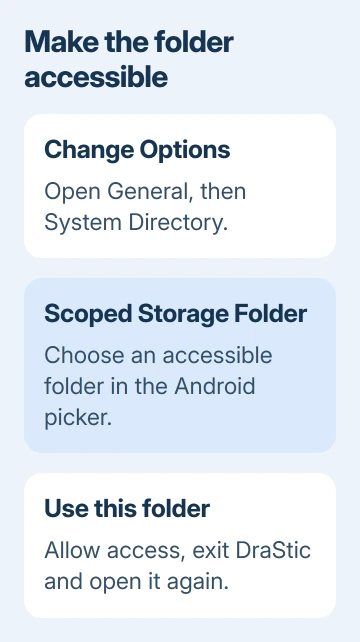
Select Scoped Storage Folder in System Directory. Android opens its folder picker, where you give the app permission to use a specific location. Scoped storage means the app gets access to the folder you choose, rather than all your files.
Create a clearly named folder, such as DraStic, in a location you can browse. A Documents subfolder keeps it separate from unrelated files. Select Use this folder and allow access when asked.
Android 11 and later restrict folder selection. If Use this folder is unavailable at the storage root or another protected location, choose a permitted subfolder. Don't try to force access to Android/data.
Return to DraStic and exit through its own menu. Open it again so it can apply the new directory. Choosing the folder isn't enough; DraStic needs to close and reopen to finish the change.
In a forum thread about the missing folder, one owner shared this fix: pick a scoped-storage folder, then exit and reopen the app. Another owner replied later that it worked for them too.
3. Copy the existing files when prompted
When DraStic restarts, read its prompts about transferring files into the selected directory. Accept the copy so DraStic transfers the data from its previous internal folder to the new location.
If a later prompt offers to delete the source files, keep them until you've checked the copy and made a backup. Getting rid of the old copy isn't necessary to confirm that the new folder works.
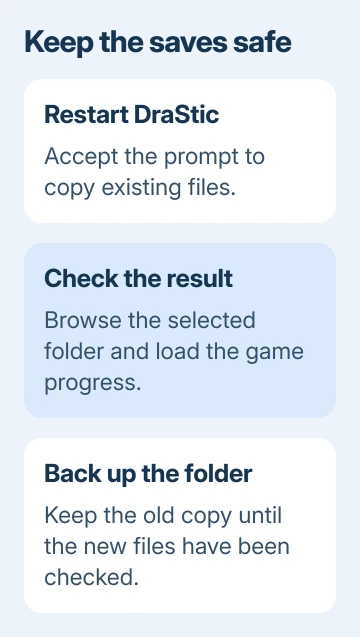
Open your file manager and browse to the exact location selected in the previous step. In Files by Google, its storage-browsing controls let you open Internal storage or an available storage device.
Look for the files and subfolders copied by DraStic. An empty folder isn't enough. Check that it contains the data you wanted to reach, then copy the whole directory to another safe location.
I'd keep that complete copy before moving individual saves between emulators. That keeps the other files safe while you work out which kind of save the other emulator accepts.
4. Tell an in-game save from a save state
DraStic keeps more than one kind of progress. An in-game save is made through the game's own save command. A save state is made through the emulator and records the running session.
Keep the complete copied directory together rather than extracting one file and deleting the rest. The game's own save and the emulator's state can hold progress from different moments. Keep both while checking which progress you need.
Open the same game in DraStic and check its normal continue or load option. If your progress returns there, the game can read its in-game save. Check an emulator state separately through the app's state-loading control.
An old state can also return a game to an older moment than its latest in-game save. Make the first check through the game's ordinary loading screen so you know which file you're checking.
A PC emulator can require a different save format. Check its own import instructions before transferring progress. Renaming an extension doesn't convert a save into another format.
5. Check permissions and location when the copy is missing
Return to System Directory and check that the app still uses the folder you chose. A folder with the right name on an SD card is different from the same name in internal storage. Check both the storage device and the folder path.
If Android asks for permission again, use its folder picker to select the existing folder and allow access. Creating another empty DraStic folder elsewhere can make the file search more confusing without recovering any progress.
For an SD-card location, confirm the card is present and readable in the file manager. If the card can't be browsed at all, deal with that problem before changing the emulator's files.
If System Directory isn't present, note your DraStic version and device model. The procedure applies to versions with that control. A different emulator or a device maker's separate DS app can have different menus and storage behavior.
Check the emulator's exported files separately from the Android phone backup. For transfer to a computer, the Bluetooth file-transfer steps offer another way to send an accessible file to a Windows PC.
If both the progress and copied files are missing, ask DraStic's support community for help. Give your app version, System Directory choice, storage device and exact copy prompt. Keep your existing app data while asking.
The Short Version
Select an accessible Scoped Storage Folder, restart DraStic and accept the file-copy prompt. Check the copied files and load the game before deleting anything. Keep in-game saves separate from emulator save states.
Checked November 8, 2026.

Isaac Smith is the founder and editor of PC Glance, a website that covers computers, laptops, and technology. He is a tech enthusiast and a computer geek who loves to share his insights and help his readers make smart choices when buying tech gadgets or laptops. He is always curious and updated about the latest tech trends.