
Bad Wi-Fi usually comes from weak coverage, interference or too many devices sharing the connection. Moving closer to the router is the quickest fix for a weak signal.
If every device stays slow beside it, check busy downloads and the internet service; if only one laptop struggles, start with that device.
1. Improve the signal where you use the device
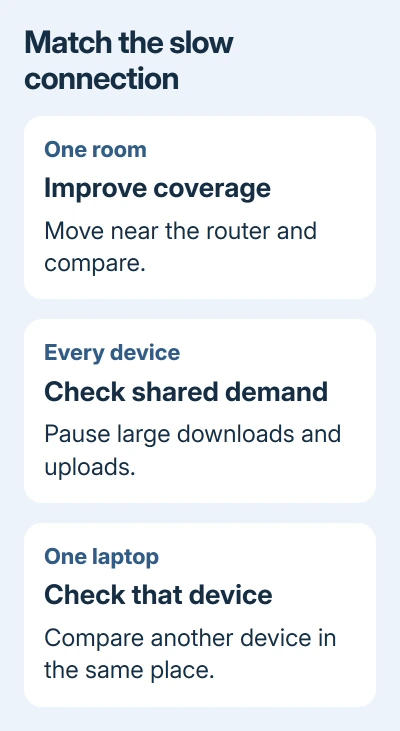
Move the phone or laptop into the router's room and retry the same activity. A video call that becomes clear nearby but breaks up at your desk suggests the signal is weak or being disrupted before it reaches your desk.
Move the router into an open, central position rather than leaving it behind a TV, inside a cabinet or in a distant corner. Keep it clear of large obstructions and equipment that can interfere with wireless signals.
These changes give the signal a clearer path from the router to your device. A faster internet plan doesn't remove walls or improve a radio signal that barely reaches the room where you work.
For a mesh system, check the placement of the point serving that room as well. The point needs a good connection back toward the router. Put it in a dead spot and it may struggle to pass the connection on to your device.
If an extender is already involved, use the extender placement checks before buying another one. An extender needs a strong enough signal to pass on; it can't fix a poor connection simply by repeating it.
2. Try the other Wi-Fi band when available
A router may offer separate networks on 2.4 GHz and 5 GHz. The 2.4 GHz band generally reaches farther through obstacles. The 5 GHz band can generally move data faster, but range and walls can change the result.
If the router broadcasts separate names, choose the other band from your device's Wi-Fi list and retry the task. Don't assume that the network with 5G in its name is cellular service; some owners use that label for 5 GHz Wi-Fi.
On Windows 11, open Settings > Network & internet > Wi-Fi > Show available networks. On Windows 10, use Settings > Network & Internet > Wi-Fi > Show available networks, or select the taskbar network icon.
On a Mac, open Control Center > Wi-Fi. On iPhone, use Settings > Wi-Fi. On Samsung Galaxy, use Settings > Connections > Wi-Fi; other Android phones often use Settings > Network & internet > Internet.
Some routers use one network name for multiple bands and choose the connection automatically. In that case, it's normal to see just one name. Don't split the network just because a guide assumes separate names.
Microsoft's home Wi-Fi layout guidance explains the band tradeoffs. Nearby equipment and neighboring networks can crowd the same radio space, especially on 2.4 GHz.
Channel changes are a later option when interference remains a problem. Use the router's own instructions and compare performance afterward. Make a single change, then check whether it helped before trying another.
3. Stop the traffic competing with your call or video
Pause large downloads, game updates and cloud uploads you control, then retry the activity that was struggling. Check other devices as well as the one you're holding; all those devices share the household's internet connection.
On Windows, press Ctrl-Shift-Esc to open Task Manager and check Network activity under Processes. Pause the download inside the responsible app instead of closing an unfamiliar system process.
If calls improve when a large upload stops, the upload was competing with your call for the available connection. Better router placement won't create extra internet upload capacity, even when it improves wireless reception.
If your router lets you give one device priority, follow its app instructions to favor the device handling your call or video. Google Nest and Google Wifi offer this type of control; other routers have their own options.
If your connection regularly can't keep up with household use, ask the provider about both download and upload speeds. A plan advertised mainly by download speed can still leave little room for simultaneous calls and backups.
4. Compare another device and a wired connection
Use another connected device beside yours and compare performance. If that device works well while yours stays slow, you can focus the next checks on your device.
Restart the affected device, install its available system updates, and try the activity again. If only one browser is slow while other apps work, check that browser next rather than resetting the whole household network.
For a laptop, connect an Ethernet cable to the router's LAN port if the laptop or a suitable adapter supports it. Turn off Wi-Fi during the comparison so the computer actually uses the cable.
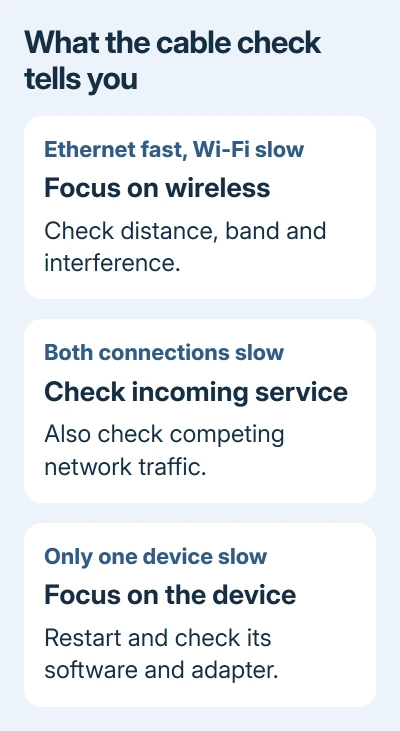
If wired access works well but Wi-Fi doesn't, focus on the wireless path, band and router placement. If wired access is also poor, check the service, modem and competing traffic before assuming you need stronger Wi-Fi.
The Ethernet and Wi-Fi comparison explains why the cable doesn't automatically make an internet plan faster. The useful part of this check is taking Wi-Fi out of the connection to see whether the problem remains.
5. Power-cycle the modem, then the router
If several devices remain slow, restart the network equipment. Finish any calls first, since the household will lose its connection briefly. Restart using the power cable; the recessed Reset button can erase your router settings.
For separate devices, disconnect the router and modem from power. Follow the equipment maker's waiting period; the general Windows connection procedure uses at least 30 seconds.
Reconnect the modem first and wait for its connection lights to settle. Then reconnect the router and wait for its network to return. A combined modem/router needs only that one device restarted.
Google's Nest slow-connection instructions use a two-minute wait for the modem. Follow those instructions if that's your equipment rather than mixing timing from different procedures.
Reconnect the laptop or phone and repeat the activity that failed. If the improvement disappears every day, record the timing and equipment lights. Those details help support check a problem that clears after each restart.
6. Give the provider or device maker a useful report
I'd contact the internet provider when several devices remain slow near the router and the wired comparison is poor too. Ask them to check the incoming connection, local service problems and the supplied modem or gateway.
Give the provider the time of day, whether the problem affects wired access, and what happens when downloads stop. A problem limited to evening hours is useful information even when the connection works during the support call.
When the same computer struggles across several networks, ask its manufacturer to check the wireless adapter and driver. Include the model, operating system and whether another device works in the same place.
The Short Version
Improve placement for weak coverage and pause downloads for a busy connection. Compare devices, then use a wired check to separate Wi-Fi problems from incoming service. Tell the provider if several devices stay slow.
Checked November 8, 2026.

Isaac Smith is the founder and editor of PC Glance, a website that covers computers, laptops, and technology. He is a tech enthusiast and a computer geek who loves to share his insights and help his readers make smart choices when buying tech gadgets or laptops. He is always curious and updated about the latest tech trends.