
Chromebook speakers can sit underneath the base, beside the keyboard, or along an edge. Check the hardware diagram for your exact model, since not every grille is a speaker. The Acer Spin 713 CP713-2W has underside stereo speakers.
If you're looking for them because the Chromebook is silent, first check which output ChromeOS is using. Audio sent to headphones or a monitor won't come from the Chromebook's built-in speakers, wherever they're fitted.
Start with the complete model code
Read the model code on the Chromebook's underside label. Use that full code when checking the manufacturer's user manual. A family name such as Chromebook 14 or Spin isn't precise enough to identify the layout.
Similar versions can put components in different places. Check the full letter-and-number model code, then find Your Chromebook tour, Product overview, or the equivalent hardware introduction in its manual.
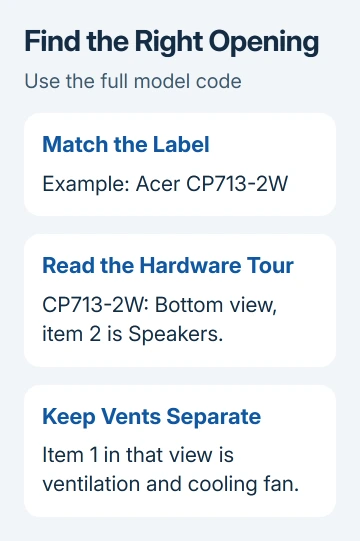
Find the Speakers or Audio speakers label in that diagram. Check whether the drawing shows the keyboard side, underside, or an edge. A bottom-view diagram can be easy to misread if you're holding the laptop right side up.
You only need to identify the outside openings. A service manual may show the actual speaker modules inside the case, but locating the outside sound openings doesn't require removing its base cover.
On a school-owned Chromebook, give the model code to the school's support team if the label or manual is unclear. They can tell you where that model's speakers are without asking you to open the case.
Look underneath on the Acer Spin 713 CP713-2W
The CP713-2W user manual labels Speakers in the Bottom view on printed page 11. Item 2 identifies the stereo speaker openings.
That same view labels Ventilation and cooling fan as item 1. Those labels help you tell the speaker openings from the cooling vents. The rear-view opening on that page is also identified as ventilation.
Turn off playback before lifting the laptop to inspect the base. Compare the outside openings with the bottom-view drawing, then put the Chromebook back on a firm surface for listening.
For this model, sound comes from the underside rather than from the camera area. Keep fabric and your hands away from the identified openings when comparing how it sounds in different positions.
A blanket or lap can sit directly against an underside opening. I'd move the Chromebook onto a desk before deciding that its speakers are too quiet. That also keeps the cooling openings clear.
Check edges and the keyboard area on other models
Other Chromebook designs route sound through an edge or through openings near the keyboard. A detachable Chromebook can place speakers in the tablet itself rather than the keyboard attachment. Use the labeled drawing for that exact model.
The ASUS Chromebook Tablet CT100PA, for example, identifies Audio speakers in its Top View hardware diagram. A tablet's top-edge drawing describes a different orientation from the top-down keyboard view of a laptop.
Look at the drawing's title as well as its labels. Top View, Bottom View, Left View, and Right View refer to the manufacturer's view of the device, so check which side you're looking at before matching the speaker label to an opening.
Don't push a pin or tool into an opening to see what it is. Speaker openings, microphones, ventilation, and reset openings have different purposes. A label or hardware drawing is the safer way to distinguish them.
The speaker plays sound out; the microphone records your voice. If the actual problem is that other people can't hear you, the Acer Chromebook microphone locations explain that separate component.
Select the built-in speakers in ChromeOS
Click the clock. This opens Quick Settings from the screen's lower-right corner. Raise the volume slider and check that sound isn't muted. Select Audio settings beside the slider to see the available sound devices.
Under Output, choose the built-in speaker option rather than headphones, a Bluetooth speaker, or an attached display. The active output has a green check. Its name can differ between Chromebook models.
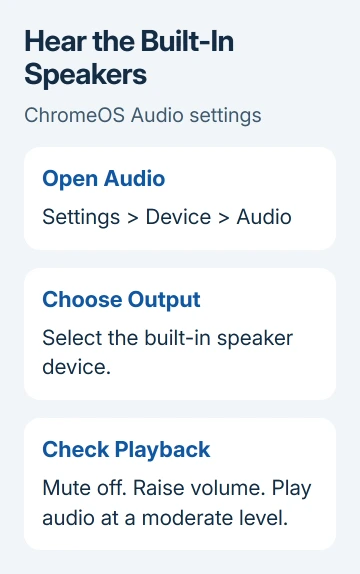
Google says the ChromeOS Audio page provides another route: Settings > Device > Audio. Under Output, check Mute, Volume, and the selected Device.
Play audio you recognize at a moderate volume and listen near the identified speaker openings. Hearing sound from them confirms that you're checking the built-in output rather than an accessory on the desk.
Headphones, USB audio devices, Bluetooth connections, and displays can change the available outputs. If you can't tell which output is playing, disconnect accessories you aren't using and check the list again.
Separate speaker location from a sound fault
If the speakers remain silent with the correct output selected, try a second audio source. A muted video player can stay silent even while the Chromebook's system volume is turned up.
Compare built-in playback with working headphones. Tell support if headphones work but the selected internal speakers stay silent. If neither works, tell them that instead; the speakers aren't the only possible cause.
Restart the Chromebook if the output controls appear stuck. Closing and reopening the lid only sleeps and wakes it; use the power menu to shut down, then start it again before repeating playback.
For a broader sound problem, Chromebook audio troubleshooting covers the software checks. Locating the grilles handles only the hardware part of that job.
On a managed school machine, ask the administrator to check whether audio output is restricted. For a personal Chromebook, have the manufacturer inspect a silent or rattling speaker and its internal connection.
Provide the full model code, selected output, whether headphones work, and which side is affected. A clear report such as left internal speaker silent is more useful than assuming a particular grille is broken.
The Short Version
Locate the speaker callout in the hardware diagram for your exact model. The CP713-2W places its speakers underneath; other models use different surfaces. Select the internal output in ChromeOS before checking playback.
Checked November 8, 2026.

Isaac Smith is the founder and editor of PC Glance, a website that covers computers, laptops, and technology. He is a tech enthusiast and a computer geek who loves to share his insights and help his readers make smart choices when buying tech gadgets or laptops. He is always curious and updated about the latest tech trends.