
Windows 11 can look more like Windows 10 by moving its taskbar icons left, showing window labels, and simplifying Start. Those built-in settings change the parts you use constantly, without replacing Windows.
Getting the old tiled Start menu back takes a different approach. Built-in settings don't recreate it; a Start-menu replacement can offer that style. Try the free appearance changes, then decide whether the menu still needs replacing.
Move Start and your pinned apps to the left
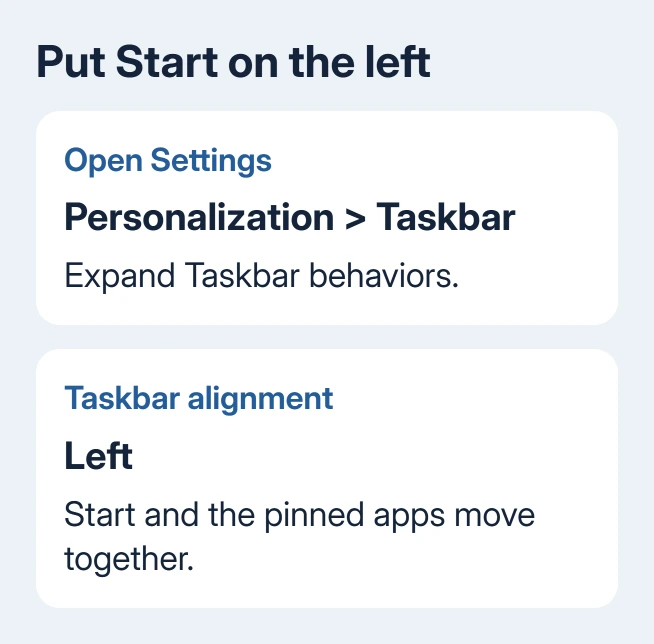
Right-click the taskbar away from its app buttons and select Taskbar settings. Expand Taskbar behaviors, find Taskbar alignment, and choose Left. Start and the app icons move together.
The setting changes alignment, so it doesn't uninstall anything or change your files. Open Start once after changing it: the familiar lower-left starting point is often the biggest improvement for someone coming from Windows 10.
I'd make this change before installing a customization app. It takes seconds, and you'll know whether position was what bothered you. Change the same menu back to Center if the left-hand arrangement feels worse on your display.
Microsoft's taskbar customization page lists the supported controls. The available options can change with Windows updates, so use the labels in your installed Settings app.
Put names back on open taskbar windows
In Taskbar settings > Taskbar behaviors, find Combine taskbar buttons and hide labels and select Never. Open two windows of an app to see whether they now have separate labeled buttons.
If you use several displays, check the separate combining option for other taskbars too. A change on the main display doesn't necessarily give the second display the same button layout.
Choose When taskbar is full instead if labels take too much room. That keeps names while space allows and combines the buttons when the taskbar fills. You can compare both settings without restarting the PC.
The taskbar settings guide explains the other controls if you're also changing its position or tray area. Keep those decisions separate from the app-label setting so each change is easy to judge.
Reduce the extra buttons around your apps
Return to the main Taskbar settings page and look under Taskbar items. Turn Widgets off if you don't use its feed. Turn Task view off if you don't need its button beside your pinned apps.
For Search, choose Search box, Search icon only, or Hide, depending on how closely you want to match your previous layout. A box resembles one common Windows 10 arrangement; hiding it leaves more space for app buttons.
Hiding the search button doesn't remove search. Press Windows + S whenever you need it. Similarly, Windows + Tab still opens Task View after you remove its taskbar button.
Right-click an unwanted pinned app and choose Unpin from taskbar. For an app you use daily, search for it in Start, right-click its result, and choose Pin to taskbar. Arrange those pins in your usual working order.
Make Start show the apps you actually use
Open Settings > Personalization > Start. Review the switches for recently added apps, frequently used apps, opened items, and recommendations. Turn off the types of suggestions you don't want in the menu.
On the newer Start layout, open its All section and choose List for an alphabetical app list. Windows remembers the chosen view. That is closer to the familiar Windows 10 app list than grouping everything by category.
Unpin unwanted items from the pinned area. On the current layout, recommendation sections can collapse when all their suggestion switches are off. Leaving one enabled can keep the section visible.
Older Windows 11 layouts instead have choices such as More pins. Use that option if it appears in your version, then arrange the pins you want. It changes the balance of the existing menu; it doesn't add Windows 10 tiles.
The Start menu controls cover the different layouts in more detail. If your work PC grays out a switch, ask its administrator whether a Start policy controls it before trying another customization tool.
Match the desktop picture and darker taskbar
Open Settings > Personalization > Background. Choose Picture, then browse to a wallpaper you already have. Choose how the picture fits your display so it doesn't look stretched.
Use Fill to cover the desktop, accepting that some edges can be cropped. Use Fit when keeping the complete image matters more than filling every edge. Compare the preview before choosing a replacement picture.
Next, open Personalization > Colors. Choose Dark for a dark interface, or Custom if you want a dark Windows shell with light app windows. Set the Windows mode to Dark in that custom combination.
Choose a blue accent if that matches your old setup. Enable Show accent color on Start and taskbar when you want it applied there. That control needs Dark or Custom mode; Light mode doesn't offer the same taskbar coloring.
Turn Transparency effects off if you prefer solid surfaces. This is a visual preference, so judge it with Start and an ordinary app open. There isn't a single Windows 10 theme that every previous installation used.
Decide whether the old Start-menu style matters
For a closer menu replacement, Start11 offers Windows 10-style menus on Windows 11. It's third-party software with a trial and paid options, rather than a hidden Windows setting.
Check the official page's system requirements and trial terms before downloading. It currently promotes a v3 beta, so check which release you're choosing and whether you want a beta on your main PC.
After installing a compatible release, select its Windows 10 menu style. Try the menu before changing its taskbar extras. Using several tools that replace the same Windows controls makes faults harder to track.
If Start or the taskbar fails afterward, uninstall the replacement through Settings > Apps > Installed apps and retest. Send the developer your Windows build and the customization that triggered the fault.
For a managed PC, request the layout changes through IT. They can apply supported settings or approve a replacement. Returning to an older Windows version changes far more than the appearance of Start.
The Short Version
Align the taskbar left, restore labels, remove unused buttons, and simplify Start. Match the wallpaper and color mode next. A Windows 10-style Start replacement is optional when the native layout still isn't close enough.
Checked November 8, 2026.

Isaac Smith is the founder and editor of PC Glance, a website that covers computers, laptops, and technology. He is a tech enthusiast and a computer geek who loves to share his insights and help his readers make smart choices when buying tech gadgets or laptops. He is always curious and updated about the latest tech trends.