
An Acer touchpad that suddenly stops working may have been switched off by its keyboard shortcut. Try the marked touchpad key first: current models often use F10. Older ones can use Fn + F7, Fn + F2, or another marked key.
If the pointer moves but tapping or scrolling doesn't work, skip the enable-key checks and look at the gesture settings. A completely missing pointer needs the connection, Windows setting, and driver checks in order.
1. Use the touchpad key for your Acer model
Look across the top row for the touchpad symbol. Press that key once, then try moving one finger across the pad. If it doesn't respond, try the same marked key while holding Fn.
Acer's touchpad troubleshooting page gives F10 for current notebooks and different combinations for older models. The symbol and model manual matter more than a shortcut copied from a different Acer laptop.
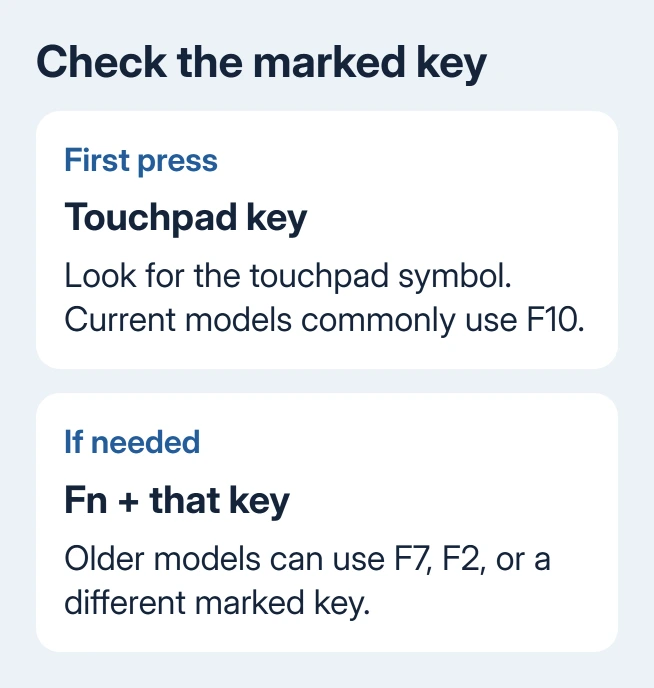
If movement returns, the touchpad was disabled. Test a click and a two-finger scroll separately. If a gesture doesn't work, check its setting instead of switching the whole pad off and on.
I'd try the marked key before downloading anything. It answers the simplest cause quickly, and it doesn't change drivers. If neither press restores movement, continue with the external-device check.
2. Disconnect accessories and restart once
Save your work, remove connected accessories except power, and choose Start > Power > Restart. Test the built-in touchpad after Windows returns, before connecting a dock, USB mouse, or other peripheral again.
If it works without accessories, reconnect them individually and test each time. That shows whether attaching a particular device changes the behavior. Keep that working arrangement while checking Windows settings.
If you need a pointer to continue, connect a wired USB mouse. Its working pointer lets you use Settings, but it doesn't mean the built-in touchpad is healthy. The two devices can fail for different reasons.
When both the keyboard and every pointer stop responding, this isn't just a touchpad setting. Use the broader input-failure checks to separate a frozen Windows session from one disabled pointing device.
3. Enable the Windows Touchpad switch
On Windows 11, open Settings > Bluetooth & devices > Touchpad and turn Touchpad on. On Windows 10, use Settings > Devices > Touchpad. Check whether the pointer responds immediately afterward.
If available, enable Leave touchpad on when a mouse is connected. This matters when the pad works until you attach a mouse or dock. Disconnecting the mouse and seeing movement return is a reason to check this option.
When Windows doesn't show a Touchpad page, check whether it detects the pad. Don't spend time looking for a gesture slider Windows isn't showing. Continue to the driver section to check for the device.
If movement works but taps don't, expand Taps and check the single-finger tapping option. For two-finger scrolling, check Scroll & zoom. These options depend on the touchpad and installed driver.
The touchpad gesture settings explain those controls. Change the specific gesture that fails, then test it in a scrollable window. A speed adjustment won't enable a disabled device.
4. Update the driver Windows uses for the pad
Microsoft recommends Windows Update or Device Manager for touchpad driver problems. Start with Settings > Windows Update > Check for updates on Windows 11.
On Windows 10, open Settings > Update & Security > Windows Update. Install any updates offered, then restart if prompted. If the pad returns after that restart, test movement, clicking, and scrolling before doing anything else.
Right-click Start and select Device Manager. Expand Human Interface Devices, the input hardware category. If the pad isn't listed, try Mice and other pointing devices. Open its properties and note any warning or device-status message.
Right-click the touchpad entry, choose Update driver, and follow the search prompts. If Windows finds nothing newer, that means its search didn't offer a driver; the laptop's own support listing is the next place to check.
Use an external mouse for these changes. Don't remove a device you haven't identified in Human Interface Devices: that list can also contain keyboard, touchscreen, and other input hardware.
5. Match Acer's download to the exact laptop
Open Acer Drivers and Manuals and identify the laptop by its serial number, SNID, or model. Select the installed operating system and inspect the driver entries for that machine.
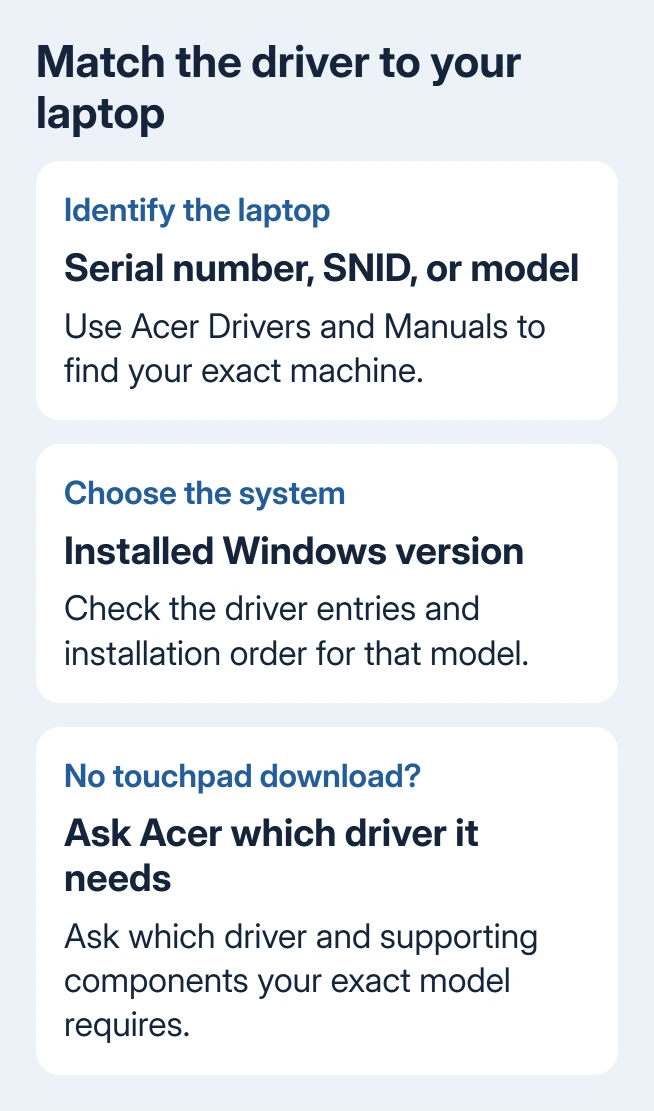
Use the driver and any installation order listed for that model. Similar Acer product names can contain different touchpad hardware, so a driver from another Aspire or Nitro isn't a substitute for the correct listing.
After installing the appropriate package, restart and test again. If the listing has no separate touchpad download, ask Acer which Windows-supplied driver and supporting components that exact model requires.
When updating doesn't help, Device Manager can reinstall the touchpad. Right-click its identified device, select Uninstall device, then restart so Windows can detect and reinstall it. Keep the external mouse connected.
If the touchpad remains absent from both device categories, give Acer that detail. Another driver installation won't tell you whether the pad has a firmware problem or a loose connection inside the laptop.
6. Check repeated accidental disabling and request service
If the shortcut restores the pad but accidental top-row presses keep disabling it, some Acer models let you change Function key behavior in BIOS. This changes which top-row action needs Fn; it isn't a replacement for the driver checks.
On models with that setting, restart and press F2 at the Acer logo to enter the BIOS firmware settings. Look under Main > Function key behavior, choose Function Key, and save with F10. Media actions then require Fn.
Keep other firmware settings unchanged. If that item isn't present, use the model's manual rather than changing an unrelated option. The BIOS layout isn't identical across Acer notebooks.
For a pad that still won't respond, request an Acer touchpad hardware and firmware assessment. Supply the full model, Windows version, shortcut result, external-mouse result, and any Device Manager error.
Ask whether the touchpad is detected and whether its cable or assembly needs repair. If there is physical damage, describe it when booking the assessment instead of removing the touchpad yourself.
The Short Version
Try the marked touchpad key, with Fn if your model needs it. Disconnect accessories, check Windows' Touchpad switch, then update or reinstall the correct driver. A pad that stays undetected needs Acer to assess the hardware and firmware.
Checked November 8, 2026.

Isaac Smith is the founder and editor of PC Glance, a website that covers computers, laptops, and technology. He is a tech enthusiast and a computer geek who loves to share his insights and help his readers make smart choices when buying tech gadgets or laptops. He is always curious and updated about the latest tech trends.