

The Acer Z3101 can lose touch input after a Windows upgrade because the new installation lacks a working touch driver. First, see whether Device Manager detects the touch controller.
For the original Windows 8 problem, one owner restored touch with an IdeaCom driver from another Acer model, but that old workaround isn't a universal driver for Windows 10 or 11.
In this guide
1. Match the problem to the upgrade that caused it
Connect a USB mouse and keyboard so you can work without the screen. Press Windows + R, enter winver and press Enter. Write down the Windows edition and version shown in the window.
Check the model label on the all-in-one as well. The original reports were about the Aspire Z3101, so this advice may not fit another Acer touchscreen PC. A driver for a different product with a similar name isn't automatically suitable.
The original workaround dates to Windows 8 in 2012 and was confirmed in 2013. Treat its driver names as historical references when your Z3101 now runs a different Windows release.
A clean installation removes the old drivers and programs. If touch stopped right after the reinstall, checking the driver makes sense. You'll still need to identify the touch controller before choosing a package.
2. Enable a touch device that Windows already detects
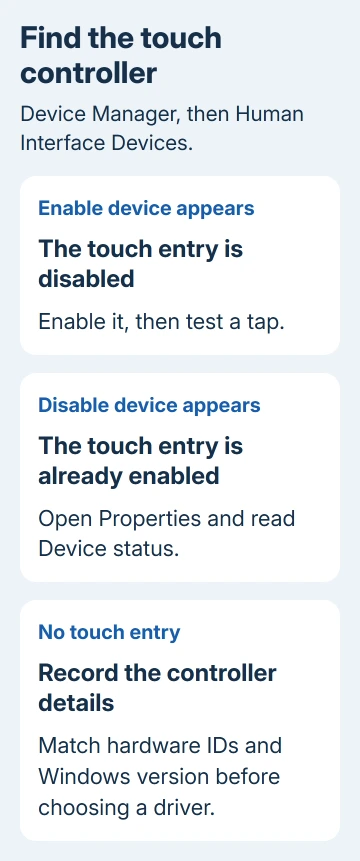
Press Windows + R, enter devmgmt.msc and press Enter. Expand Human Interface Devices and look for HID-compliant touch screen. Also note any clearly named touch controller and devices marked with yellow warnings.
On Windows 10 or 11, Microsoft's touchscreen controls use that HID entry. Choose Enable device from its right-click menu when available.
If the menu offers Disable device, the entry is already enabled. Leave it enabled and open Properties > General to read Device status. Record an error code if one appears instead of repeatedly toggling the device.
Test a tap on Start and another on a desktop icon. If touch now works, the disabled device was the immediate problem. If taps still do nothing, enabling the entry hasn't fixed it. Continue with the driver checks.
If no touch entry appears, don't select a mouse or keyboard device just because it is in the same list. The missing touchscreen guide explains absent entries and device status in more detail.
3. Try the driver routes for the installed Windows version
Restart the PC once after the installation has finished. On Windows 11, open Settings > Windows Update, then select Check for updates. Driver updates offered separately appear under Advanced options > Optional updates.
On Windows 10, use Settings > Update & Security > Windows Update. Open View optional updates if it appears, then inspect Driver updates. Select a relevant offered touch or controller driver rather than every unrelated package.
On the older Windows 8 installation discussed in the thread, use the Start screen to search for Windows Update and open the desktop update control. Follow the update path that matches your installed Windows release.
An old Windows installation shouldn't be brought back into everyday internet use just to regain touch. Without driver support for your intended Windows version, a mouse is the practical option while you decide how to use this PC.
After an offered driver installs, restart and repeat the tap test. If no relevant update appears or touch still fails, identify the controller so you can ask for a matching Acer package.
4. Identify the controller before using an old package
In Device Manager, right-click the suspected touch device or unknown device and open Properties > Details. Choose Hardware Ids for its identifying codes. Copy the entries instead of trusting the friendly device name alone.
Keep the Windows system type, 32-bit or 64-bit, with those details. Press Windows + R, enter msinfo32 and read System Type.
A package intended for another system type or controller can't be made suitable by changing the setup program's compatibility setting.
Ask Acer support for the Z3101 touch-controller package matching those IDs and your Windows version. The owner in the thread reported success on Windows 8 x64 using the IdeaCom touch driver for the Z3280.
That worked for one owner, but isn't a list of Windows versions supported today. I'd check the hardware IDs with Acer before borrowing that package. Don't use a driver mirror just because its filename contains IdeaCom or Z3101.
If Acer can't supply or confirm a suitable package, skip installation experiments. Take the device details to a repair shop familiar with older all-in-one PCs.
5. Use compatibility mode only for a matching installer
For the original Windows 8 upgrade, the accepted reply suggested running an older Acer setup program in Windows 7 compatibility mode. No owner in that reply confirmed that compatibility mode brought touch back.
If Acer has confirmed the package is appropriate, right-click its setup.exe, choose Properties > Compatibility, enable Run this program in compatibility mode for, and select Windows 7. Apply the setting, then run the installer.
Compatibility mode changes how the installer runs. It doesn't add Windows 8 support to an incompatible hardware driver or bypass a driver-signing problem.
If setup reports unsupported hardware, stop rather than forcing another model's driver into the device.
Restart after a successful installation and check Device Manager and touch input again. Finishing setup isn't enough: taps need to work, and the controller should no longer show the same driver error.
6. Undo a driver change that made touch stop
If touch disappeared after a driver update rather than a clean Windows installation, open the touch controller's Properties > Driver tab. Use Roll Back Driver when the button is active, complete its prompt and restart.
A grayed-out button means Windows doesn't offer a previous driver through that control. Don't uninstall the only available package unless you already have a confirmed replacement.
For other Acer input problems, remember that a touchpad fault concerns different hardware.
If the controller remains missing or a confirmed driver won't start, give Acer or the repair shop the hardware IDs, Windows version and device status code.
Ask them to check the controller connection and available driver support before replacing the display.
The Short Version
Enable a disabled touch controller, or identify it before choosing a suitable driver. The Z3280 IdeaCom success report applies to one Windows 8 x64 owner.
Get compatibility confirmed before using it on a Z3101, especially with a newer Windows version.
Checked November 16, 2026.
 If you have any business, I can build it online






